
Tip & Trick
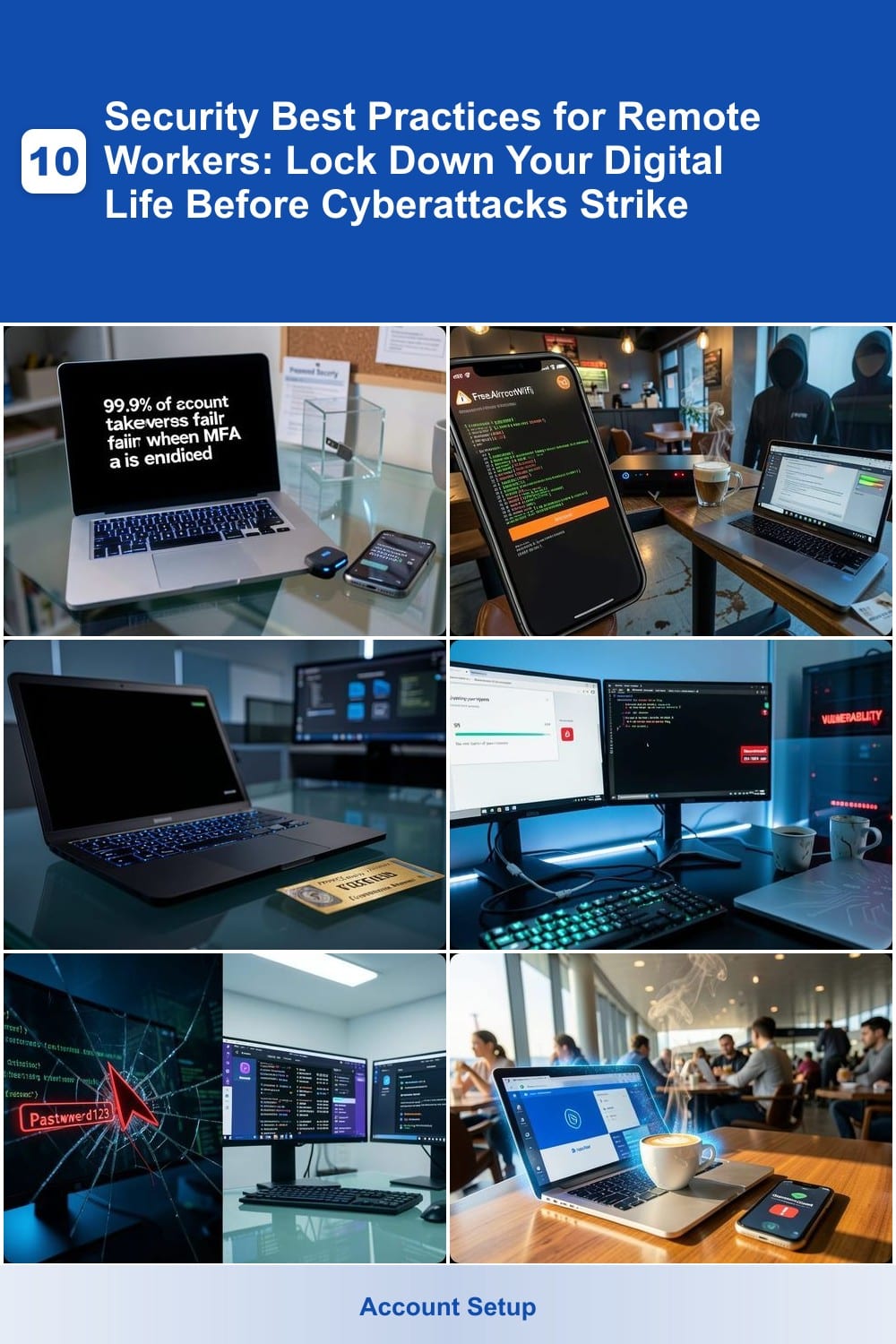
Remote work offers flexibility but exposes you to cyber threats like phishing, data breaches, and malware. These 10 security best practices will help you create an impenetrable digital fortress for your work-from-home setup, protecting both your personal data and sensitive company information.
Use Multi-Factor Authentication Everywhere
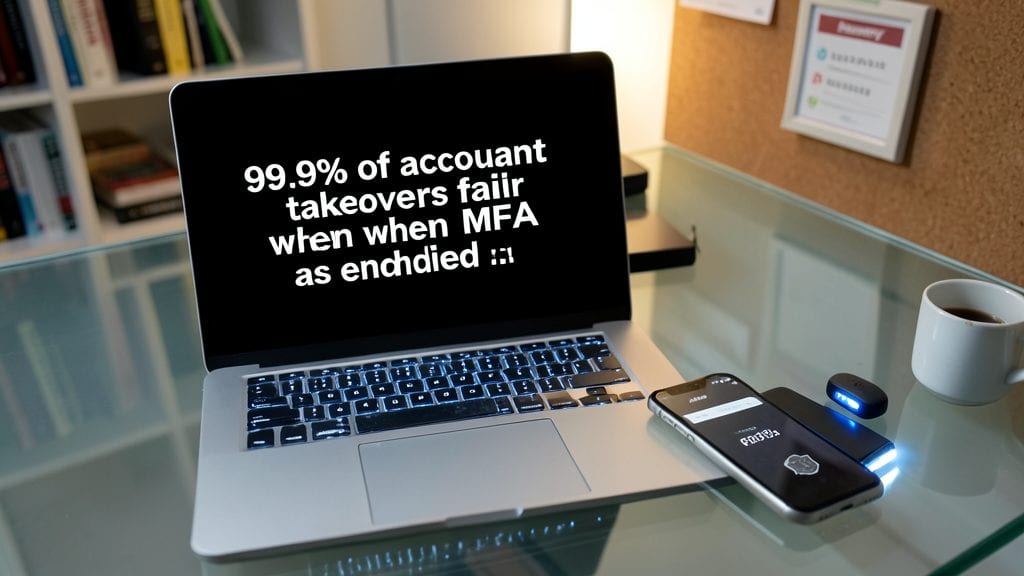
Most data breaches start with stolen passwords—99.9% of account takeovers fail when multi-factor authentication (MFA) is enabled. This simple step adds a second verification layer (like a fingerprint, code, or hardware token) that thwarts even the most determined hackers.
Enabling MFA takes minutes across platforms like Microsoft Authenticator, Google Authenticator, or Duo Security. Most services (email, banking, cloud storage) support it—even social media accounts. The best part? Hardware keys (like YubiKey) offer the strongest protection against phishing attacks.
Remote workers handling sensitive company data should prioritize MFA for VPN access, email, and project management tools. It’s the easiest way to lock down your digital identity without sacrificing convenience. ✨
Secure Your Wi-Fi with Strong Encryption
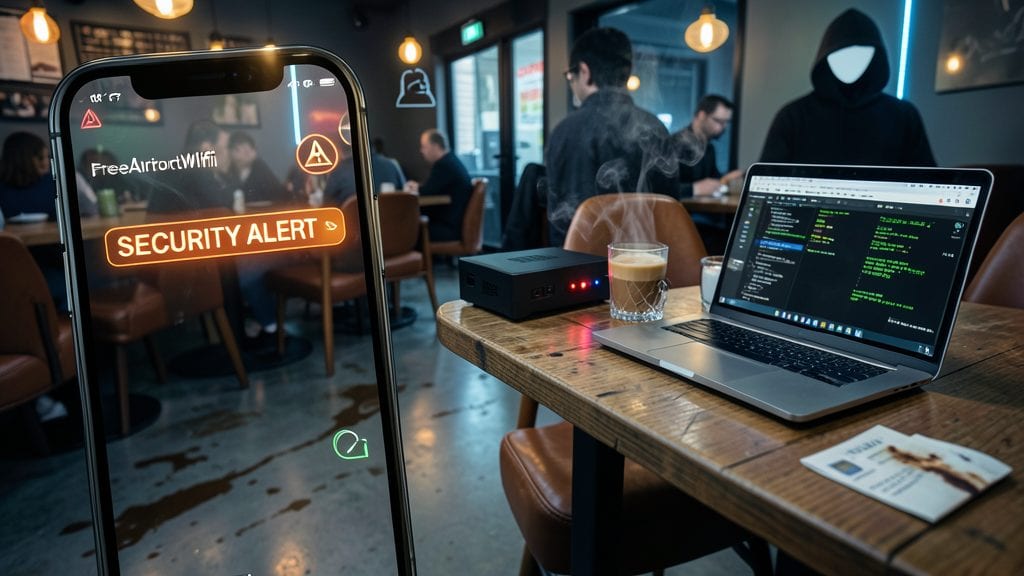
Public Wi-Fi networks—like those in coffee shops or airports—are prime targets for hackers lurking to intercept your data. Even at home, weak encryption leaves your network vulnerable to man-in-the-middle attacks and unauthorized device connections, putting sensitive work files at risk.
Start by enabling WPA3 encryption (the latest standard) on your router—most modern devices support it. Then, create a strong, unique password (20+ characters with symbols) and disable WPS (an outdated, easily hackable feature). Use your router’s MAC address filtering to whitelist only trusted devices, ensuring no strangers piggyback on your bandwidth.
This setup is ideal for remote workers handling confidential data, freelancers in shared spaces, or anyone tired of random neighbors leeching off their Wi-Fi. 💻
Enable Full-Disk Encryption on All Devices
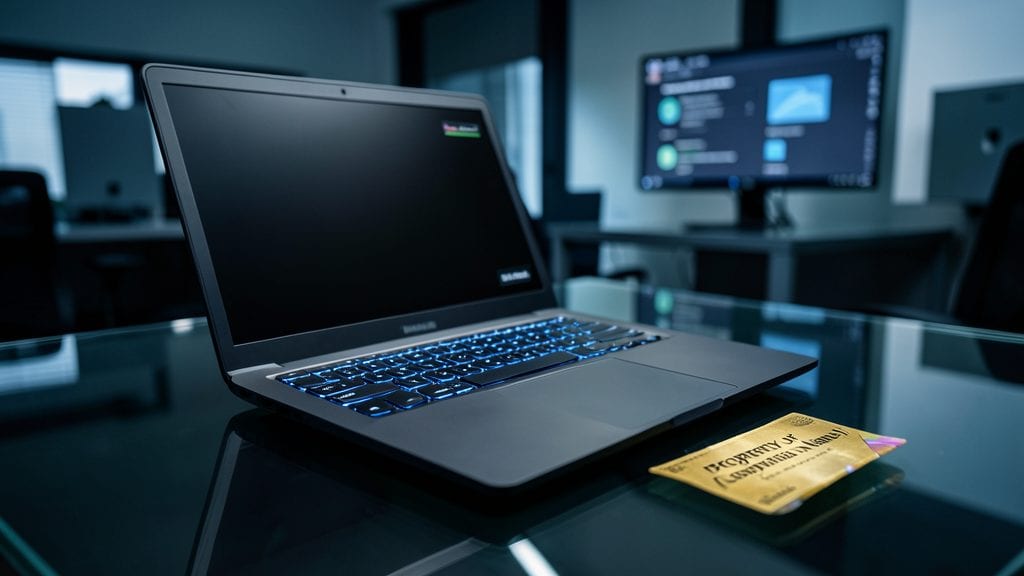
Losing a device with unencrypted data is like handing hackers a golden ticket to your company’s secrets. Full-disk encryption ensures that even if your laptop or phone falls into the wrong hands, your files remain locked behind military-grade security.
On Windows, BitLocker (built into Pro/Enterprise editions) encrypts entire drives with AES-256-bit encryption, while macOS users can enable FileVault with a simple toggle in System Preferences. Mobile devices get Android Encryption (enabled by default on newer models) or iOS Data Protection, both requiring passcodes to access data. The best part? Most modern devices activate this feature with zero config—just turn it on and forget it.
This is non-negotiable for anyone handling client contracts, financial records, or trade secrets. Even if your device is stolen, thieves won’t get past the locked screen. 🔧
Regularly Update All Software and Firmware
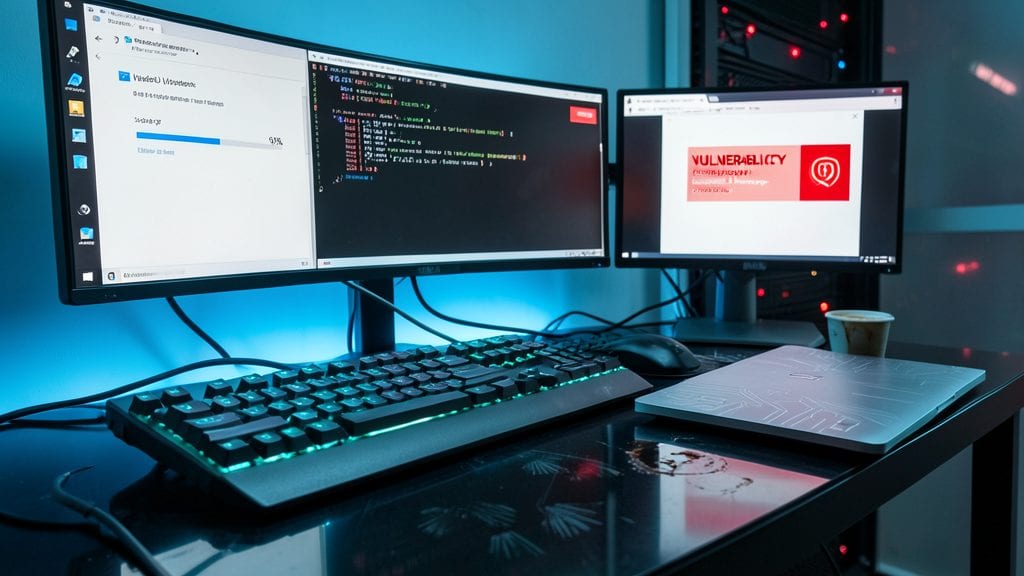
Hackers don’t wait for you to update—zero-day exploits are weaponized within hours of discovery. Automating software and firmware updates ensures your systems stay one step ahead of threats, closing vulnerabilities before they’re weaponized.
Most operating systems (Windows, macOS, Linux) and major apps (browsers, office suites) now offer automatic update modes—enable them for critical patches. Don’t overlook firmware updates for routers, printers, or even your smart TV (yes, they’re often targeted too). Tools like Windows Update, Apple Software Update, or Linux package managers (APT, DNF) handle the heavy lifting with minimal effort.
This is non-negotiable for remote workers handling sensitive data—80% of cyberattacks exploit unpatched software. Set a reminder monthly to verify updates on devices you might’ve overlooked. ⚡
Create Strong, Unique Passwords for Every Account
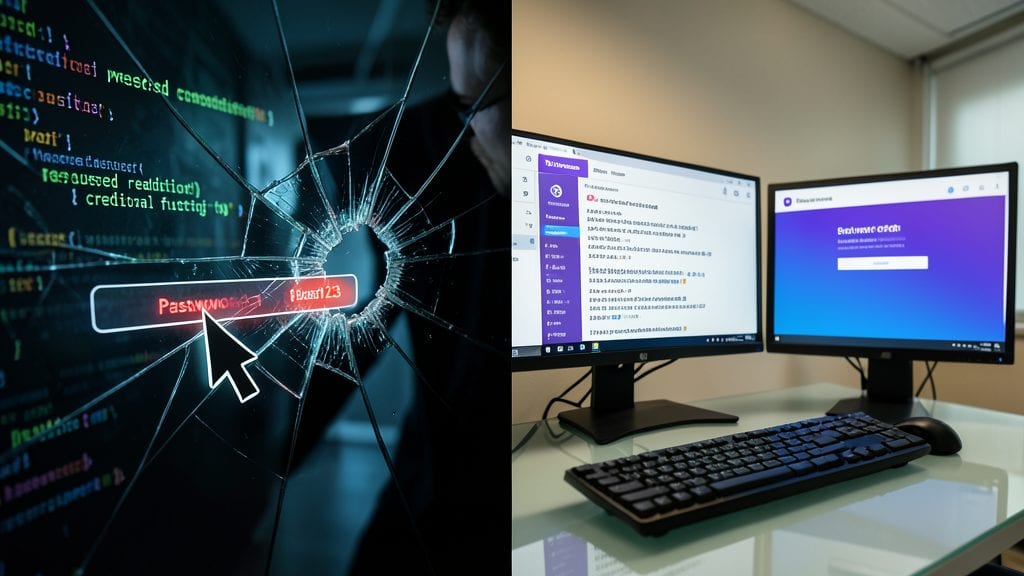
Credential stuffing attacks exploit weak or reused passwords—making them the #1 entry point for hackers targeting remote workers. A password manager like Bitwarden or 1Password solves this by generating and storing unique, 20-character passwords for every account, so you never reuse credentials again.
These tools also sync across devices with AES-256 encryption, ensuring even your master password stays secure. Features like biometric login and emergency access add extra layers, while built-in breach monitoring alerts you if any of your accounts appear in data leaks. Most offer free plans with unlimited password storage.
This is non-negotiable for anyone handling corporate accounts—especially if you juggle personal and work logins. 💻
Implement a Virtual Private Network for Remote Access
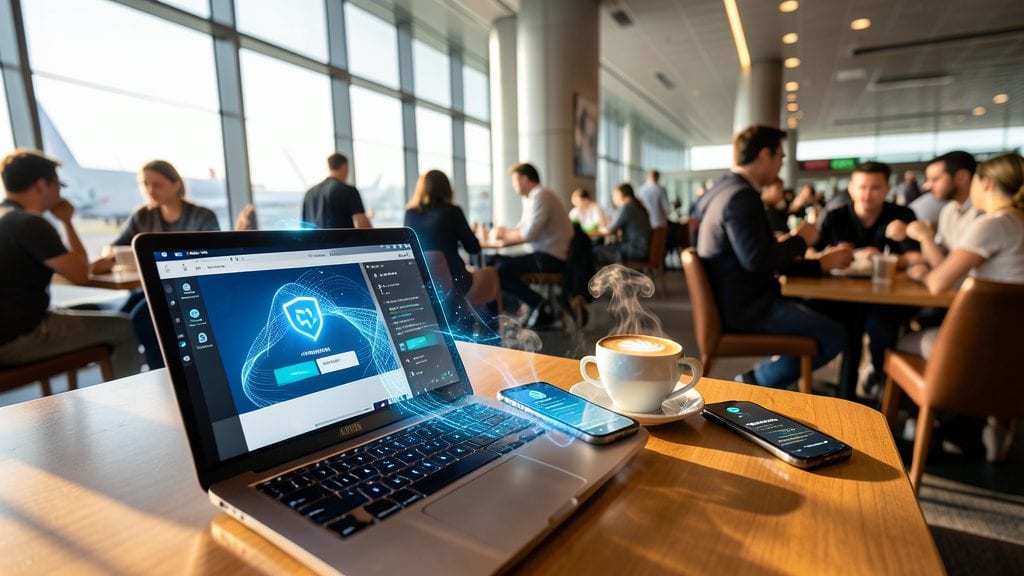
Public Wi-Fi at coffee shops or airports is convenient—but it’s also a cybercriminal’s playground. A VPN (Virtual Private Network) creates an encrypted tunnel for all your internet traffic, ensuring that even if hackers intercept data, they’ll only see scrambled nonsense.
Modern VPNs like NordVPN or ExpressVPN offer military-grade AES-256 encryption, split tunneling (to route only work traffic securely), and kill switches that cut your connection if the VPN drops. For remote workers, the OpenVPN or WireGuard protocols provide the best balance of speed and security, while built-in DNS leak protection stops snoops from tracking your online activity.
This is non-negotiable for anyone accessing company resources over shared networks. Whether you’re traveling or working from a hotel lobby, a VPN ensures your data stays private—no tech expertise required. ⚡
Enable Remote Wipe Capabilities on Mobile Devices
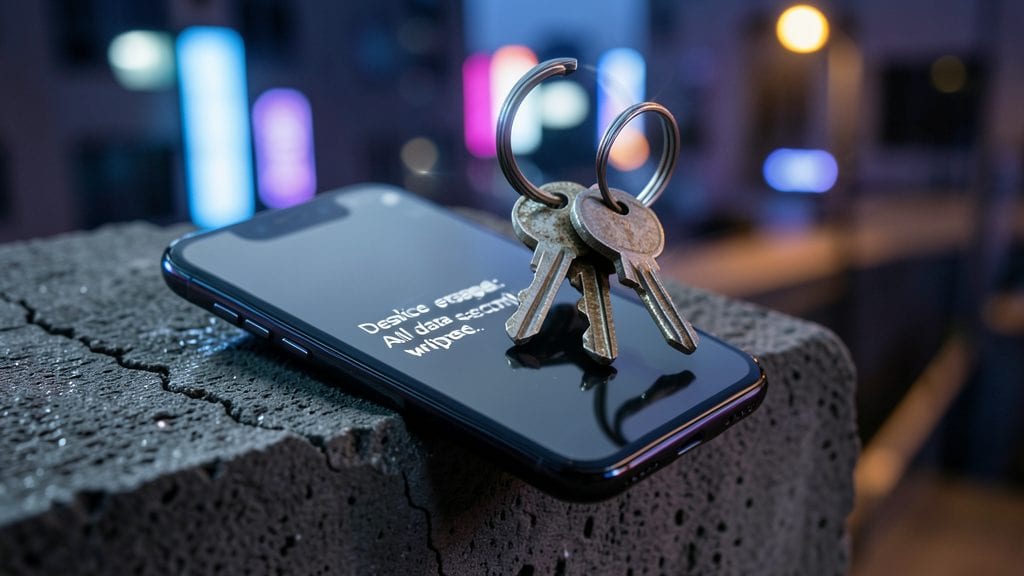
Losing a mobile device can feel like dropping your keys into a bottomless pit—but remote wipe turns that panic into a one-tap solution. Most modern phones (iOS/Android) come with built-in tools to instantly erase all data if stolen or lost, saving you from potential data breaches or corporate liability.
Apple’s Find My and Android’s Find My Device let you trigger a full factory reset remotely, even locking the device with a custom message. For extra security, IT admins can enforce MDM (Mobile Device Management) policies that auto-wipe after failed login attempts or location-based triggers. This isn’t just backup—it’s your last line of defense when physical security fails.
This feature is non-negotiable for anyone handling client contracts, payroll data, or proprietary info. A quick setup today could prevent a nightmare tomorrow. ✨
Use Secure File Sharing for Sensitive Documents
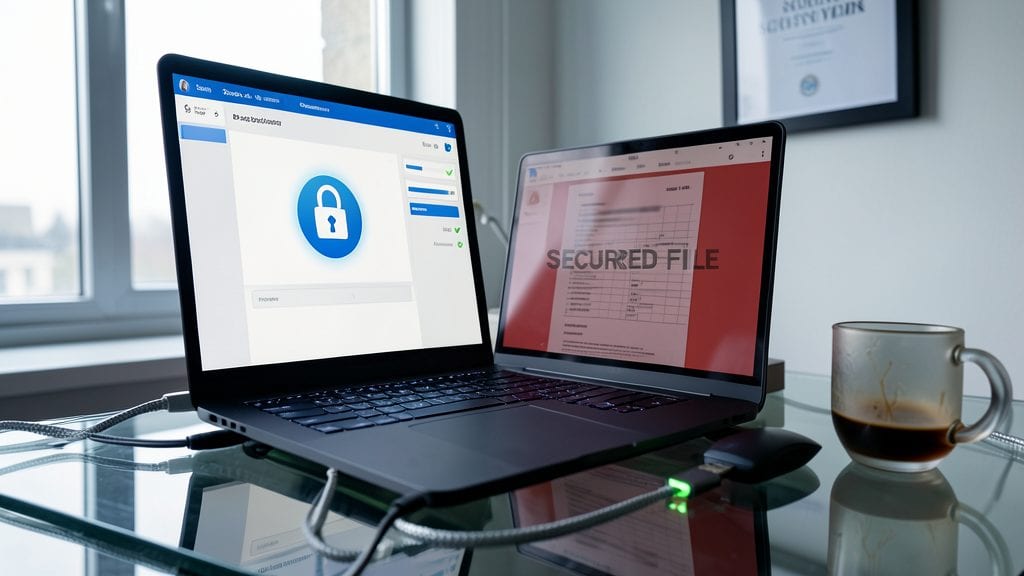
Ever sent a confidential client proposal or HR document via email—only to wonder if it was intercepted? Secure file-sharing tools like Box, Dropbox Business, or Microsoft SharePoint encrypt files in transit, ensuring only authorized recipients can access them—no hacker in between can read your data.
Look for end-to-end encryption (like 256-bit AES) and password-protected links that expire after one use. Tools like SecureDrop or Proton Drive add an extra layer by requiring recipient verification before sharing. Even better, these platforms track access attempts, alerting you to suspicious activity.
This is a must for legal teams, HR professionals, or freelancers handling sensitive client data. No more risky email attachments or unsecured cloud folders—just peace of mind. ✨
Train Employees to Recognize Phishing Attempts
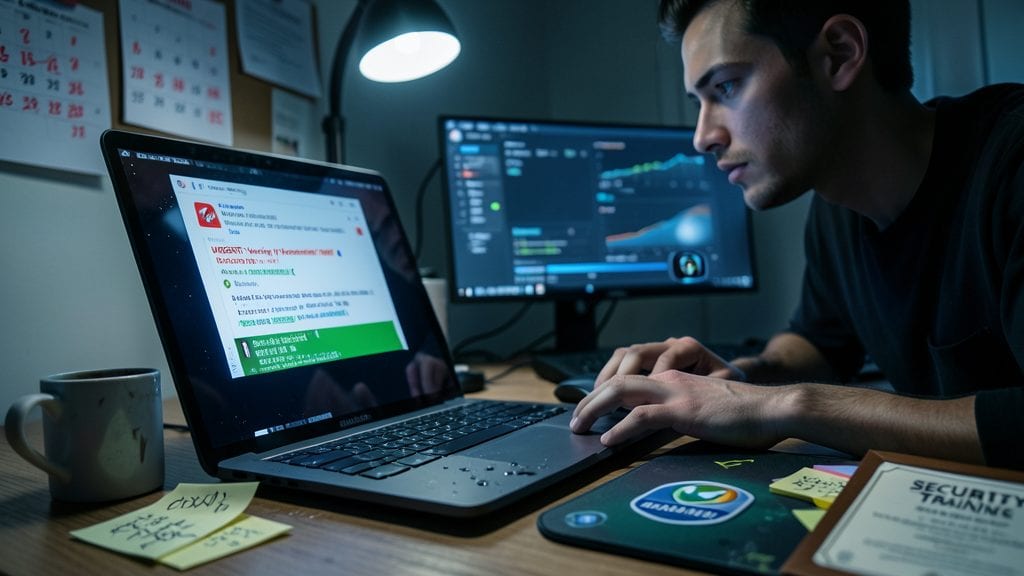
Did you know 90% of cybersecurity breaches start with a human mistake? Phishing attacks—where attackers trick employees into clicking malicious links—are the #1 entry point for hackers targeting remote teams. The solution? Simulated phishing tests combined with ongoing training to spot red flags before they become disasters.
Platforms like KnowBe4 or PhishMe send realistic fake phishing emails to your team, tracking who clicks. Over time, click-through rates drop by 70% or more as employees learn to recognize suspicious links, urgent language ("Your account is locked!"), and spoofed sender addresses. The best programs even provide customized reports showing which employees need extra training—and which departments are most vulnerable.
This isn’t just for IT teams—every remote worker should participate. Whether you’re handling client data or just checking work emails, a single click could expose your entire company. Start with a quarterly phishing simulation and watch your security posture improve instantly. ✨
Monitor and Log All Remote Access Activity
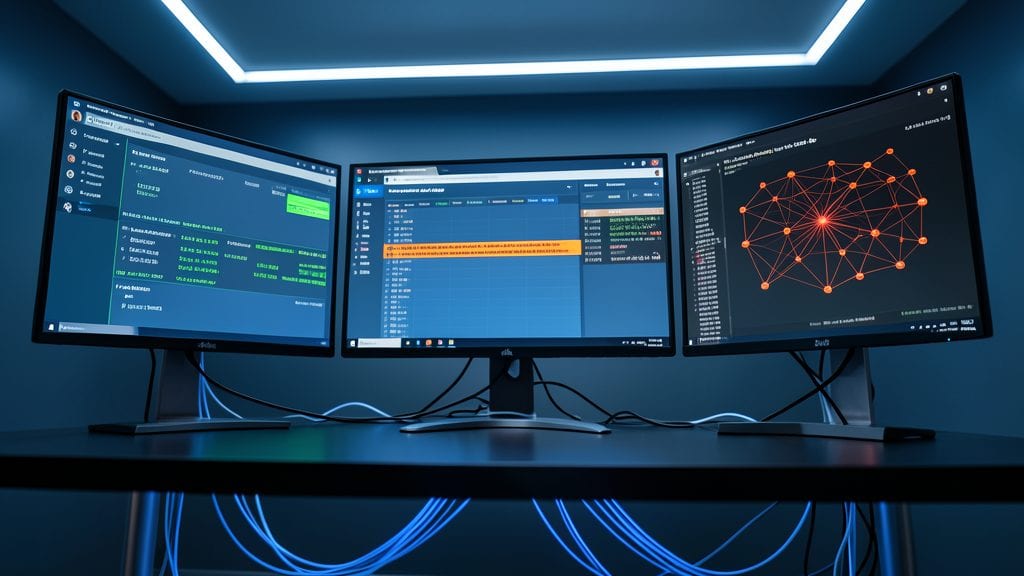
Ever wondered how companies catch hackers in real-time? Real-time remote access monitoring with tools like Splunk or Microsoft Defender for Cloud Apps tracks every login, file access, and command executed—flagging anomalies instantly.
These solutions log IP addresses, timestamps, and user actions, creating an audit trail for compliance (like GDPR or HIPAA). AI-powered alerts spot unusual behavior, such as late-night logins from new locations, before damage occurs. For IT teams, this means zero-trust compliance**—verifying every access request, not just trusting devices.
Ideal for businesses handling sensitive data, this layer adds proactive defense beyond passwords and VPNs. 💻