Tip & Trick
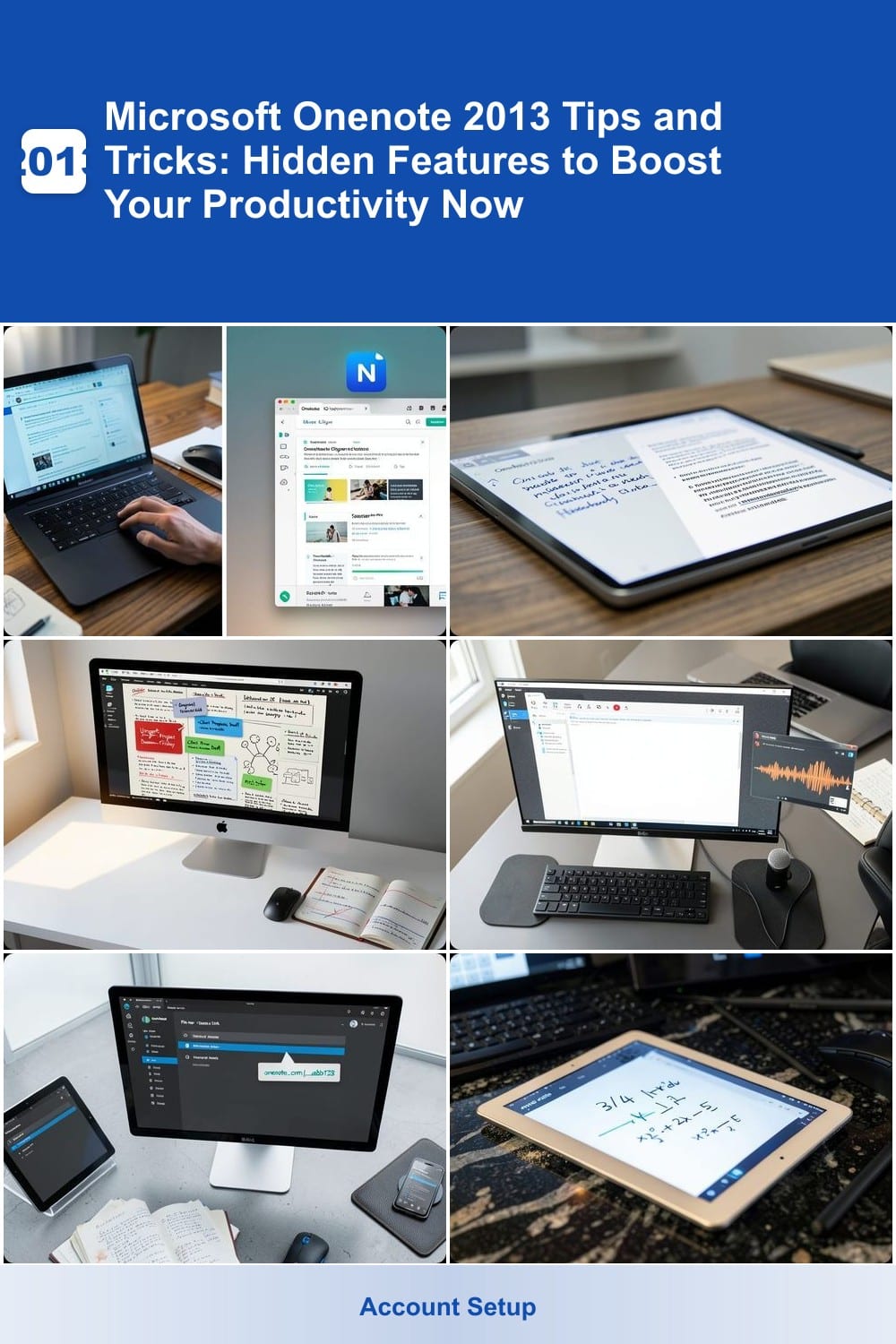
Microsoft OneNote 2013 remains a powerhouse for note-taking and organization, but many users miss its hidden productivity features. These seven underrated tips will transform how you capture, organize, and retrieve information—saving you hours of manual work.
Quick Capture with OneNote Clipper Browser Extension
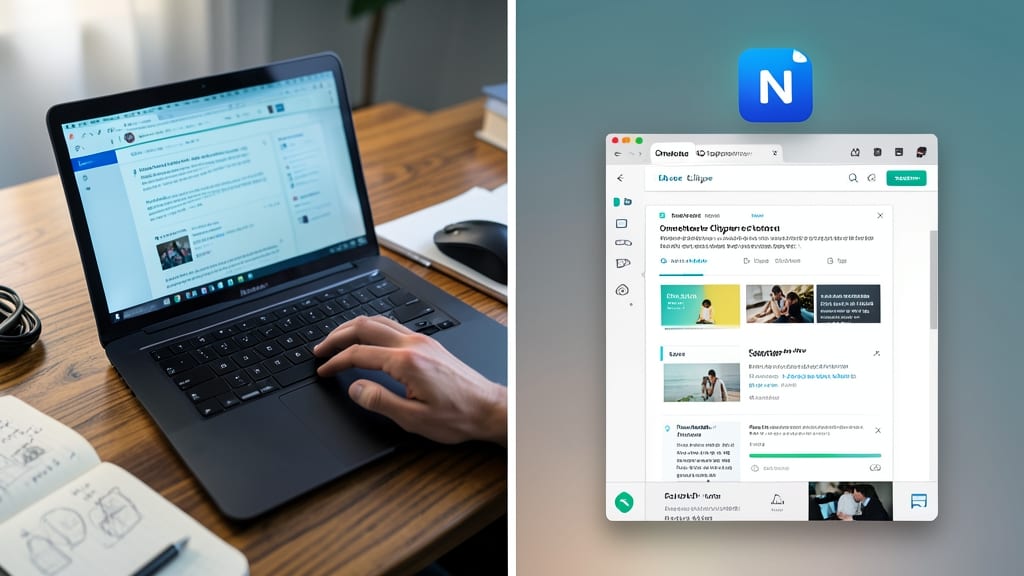
Frustrated with losing valuable web content because you couldn’t save it fast enough? The OneNote Clipper browser extension solves this by letting you capture entire web pages, screenshots, or specific sections in seconds—directly into your notebooks without ever opening OneNote.
Install the extension in Chrome, Edge, or Firefox, then use the toolbar icon to save the current page, a screenshot, or even a highlighted section. It automatically formats images, tables, and text for readability, while preserving hyperlinks. The zero-config setup means you’re capturing in minutes, not hours—ideal for researchers, journalists, or anyone who needs to archive web content quickly.
Perfect for busy professionals or students who want to preserve articles, tutorials, or reference materials without manual copying. Your digital library just got a turbo boost. ⚡
Handwriting to Text Conversion for Notes
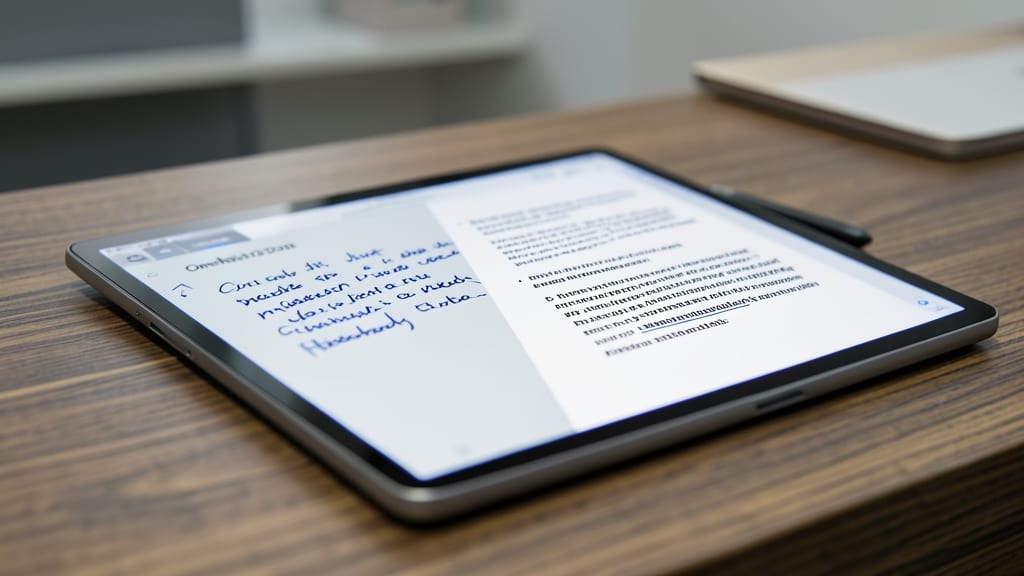
Struggling to digitize those scribbled lecture notes or meeting jottings? OneNote 2013’s built-in handwriting recognition converts messy handwritten text into editable digital format with stunning accuracy—no third-party apps required. Simply draw or write your notes using a stylus, mouse, or even your finger, then right-click the ink and select "Convert to text" to instantly transform your handwriting into clean, searchable text.
The OCR (Optical Character Recognition) engine handles everything from bullet points to full paragraphs, preserving formatting while eliminating smudges or illegible scribbles. It even recognizes mathematical symbols and basic equations, making it ideal for students or engineers. The best part? You can edit the converted text directly, copy it into documents, or even translate it using OneNote’s built-in language tools.
This trick is a lifesaver for students transcribing lecture notes, professionals reviewing meeting minutes, or anyone who prefers pen over typing. Your handwritten ideas now have digital superpowers. ✨
Tagging System for Instant Note Retrieval
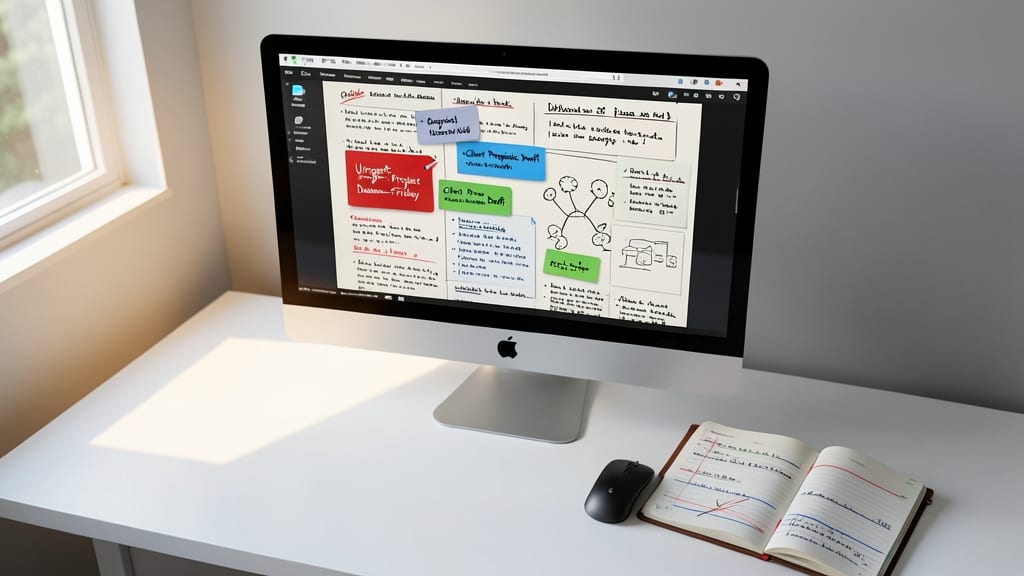
Tired of digging through pages of notes to find that one important detail? OneNote 2013’s color-coded tagging system lets you categorize notes instantly—no folders or subpages needed.
Assign red tags for urgent deadlines, blue tags for work projects, or green tags for brainstorming ideas. With just a click, you can filter your entire notebook to see only the notes marked with a specific tag. This visual system works seamlessly across devices, ensuring your notes stay organized whether you’re on your PC, tablet, or phone. The best part? Tags sync automatically with your notebooks, so your organization stays intact.
Perfect for project managers, students, or anyone juggling multiple tasks, this feature turns your notes into a dynamic knowledge base. No more lost information—just effortless retrieval. ✨
Audio and Video Recording Directly in Notes
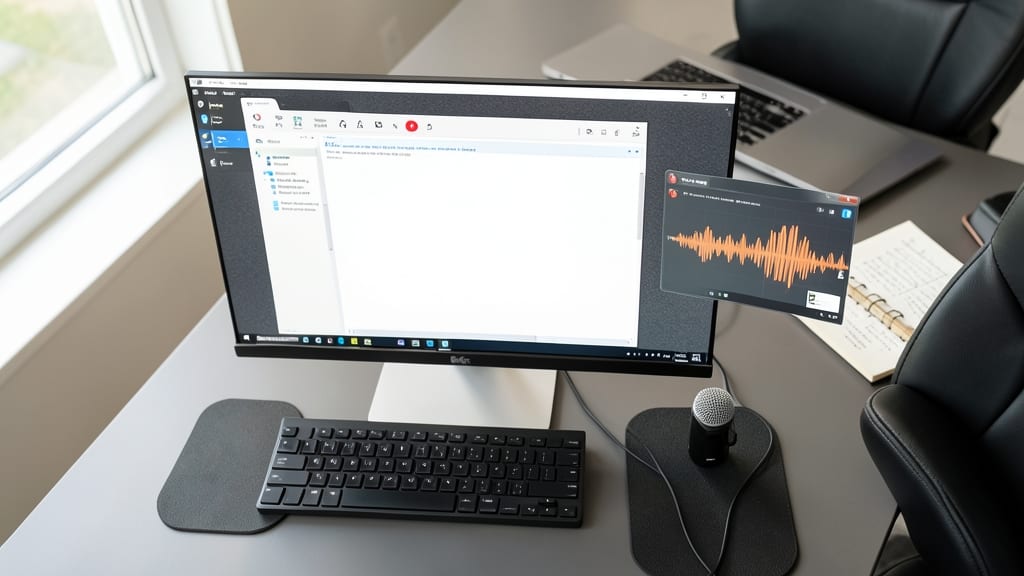
Tired of juggling separate apps for notes and audio? OneNote 2013’s built-in audio and video recording feature lets you embed voice memos or screen captures directly into your notebooks—no extra software needed. Perfect for capturing lectures, brainstorming sessions, or interview notes without losing context.
Simply click the microphone icon in the ribbon to start recording audio, or use the screen recording tool to capture on-screen activity. The recordings appear as playable media within your notes, syncing seamlessly across devices. You can even transcribe audio to text later using OneNote’s OCR tools.
This trick is a game-changer for students, interviewers, and remote workers who need to preserve both visuals and audio in one place. ⚡
Linked Notebooks for Cross-Device Sync
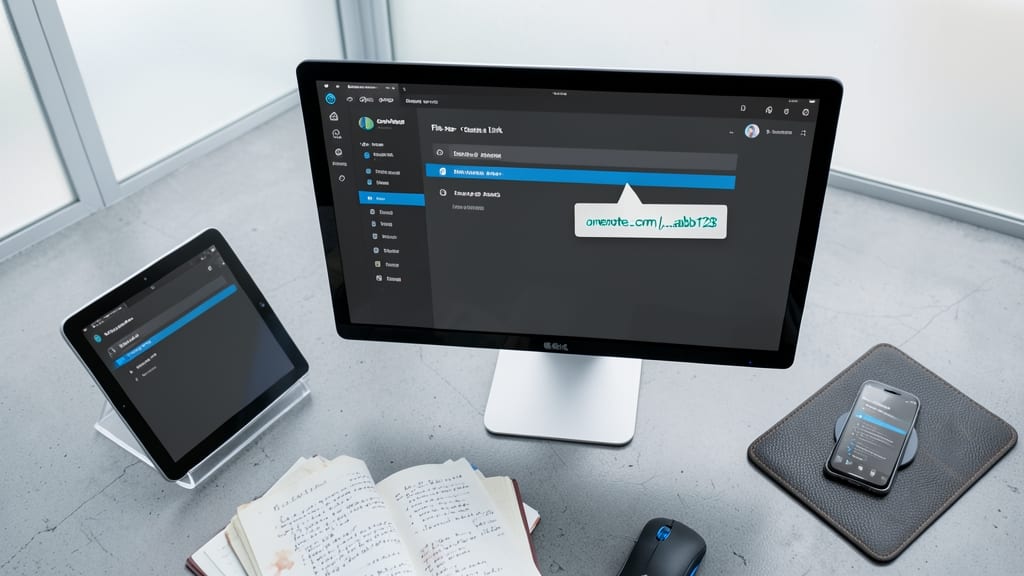
Ever lose track of your notes because they’re stuck on one device? OneNote 2013’s linked notebooks feature solves that by syncing your work across PC, tablet, and phone—no manual copying required.
To set it up, open your notebook, click File > Share > Create a Link, then copy the generated URL. Paste it into any device’s OneNote (via File > Open > Paste Link), and your notes appear instantly. This works even offline—changes sync automatically when you reconnect. Perfect for professionals juggling multiple devices or students switching between laptops and tablets.
Whether you’re drafting on your Surface Pro or reviewing on your phone, linked notebooks keep everything in sync. Your battle-tested setup, now seamless. ✨
Math Equation Solver with Ink
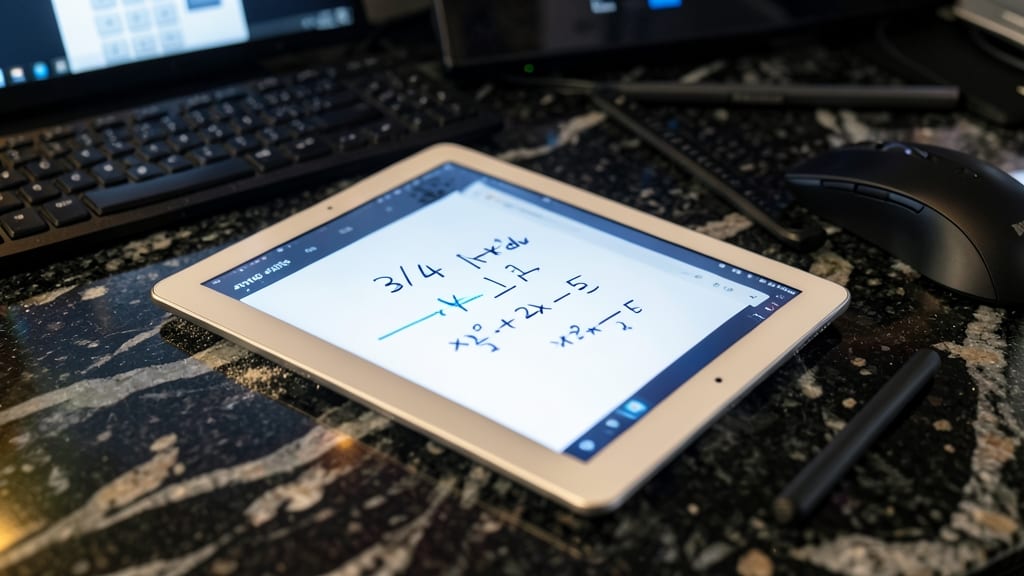
Tired of fumbling with calculators or typing out equations just to check your work? OneNote 2013’s Ink Math Assistant lets you write equations by hand—then solves them instantly. Simply sketch fractions, integrals, or even complex polynomials with your stylus or finger, and OneNote converts your handwriting into editable text while providing step-by-step solutions.
The feature supports basic algebra, calculus, and trigonometry, with recognition accuracy that rivals dedicated math apps. It even handles variables like x and y, so you can test hypotheses on the fly. For engineers, this means quick sanity checks for designs; for students, it’s a lifesaver during study sessions when typing equations feels tedious.
Perfect for anyone who prefers pen over keyboard—whether you’re grading homework, drafting research notes, or brainstorming formulas. No extra software needed; it’s built right into OneNote 2013. ✨
Custom Quick Notes with Keyboard Shortcuts
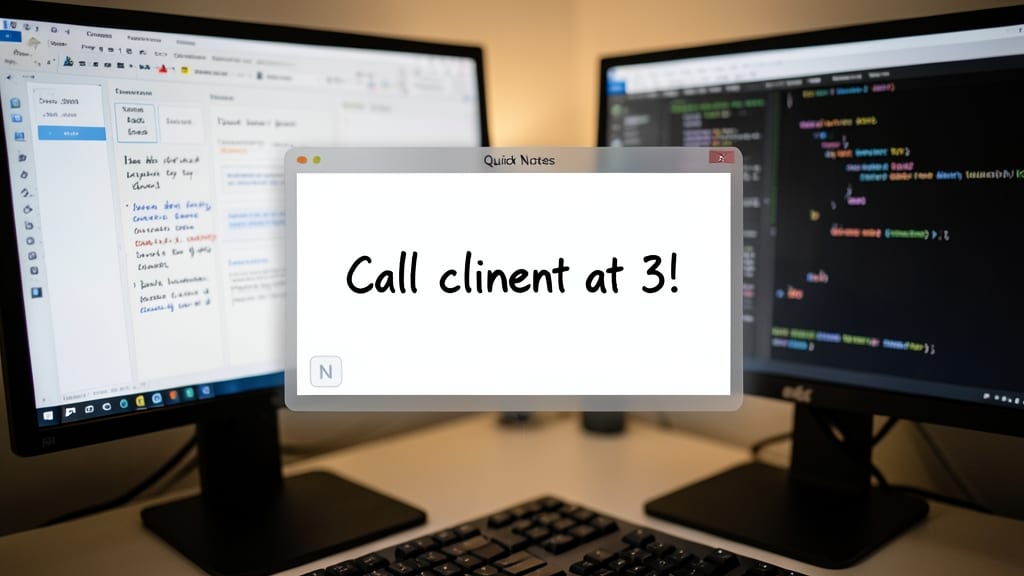
Tired of losing fleeting ideas because you couldn’t pause your workflow? OneNote 2013’s Quick Notes feature lets you summon a floating note window with a single keystroke—no app switching required. Just press Win+N (default shortcut), and a lightweight, distraction-free canvas appears over your current task, ready to capture thoughts instantly.
The notes sync automatically with your OneNote notebooks, so you never lose that brilliant insight mid-email or spreadsheet. You can even format text, draw shapes, or add tables directly in the quick note—no need to switch to full OneNote mode. The transparent overlay ensures minimal screen real estate disruption while keeping your focus intact.
This trick is a game-changer for developers debugging code, project managers tracking action items, or anyone who juggles multiple tasks. Try it during your next meeting or brainstorming session—your future self will thank you. ✨