
Operating System
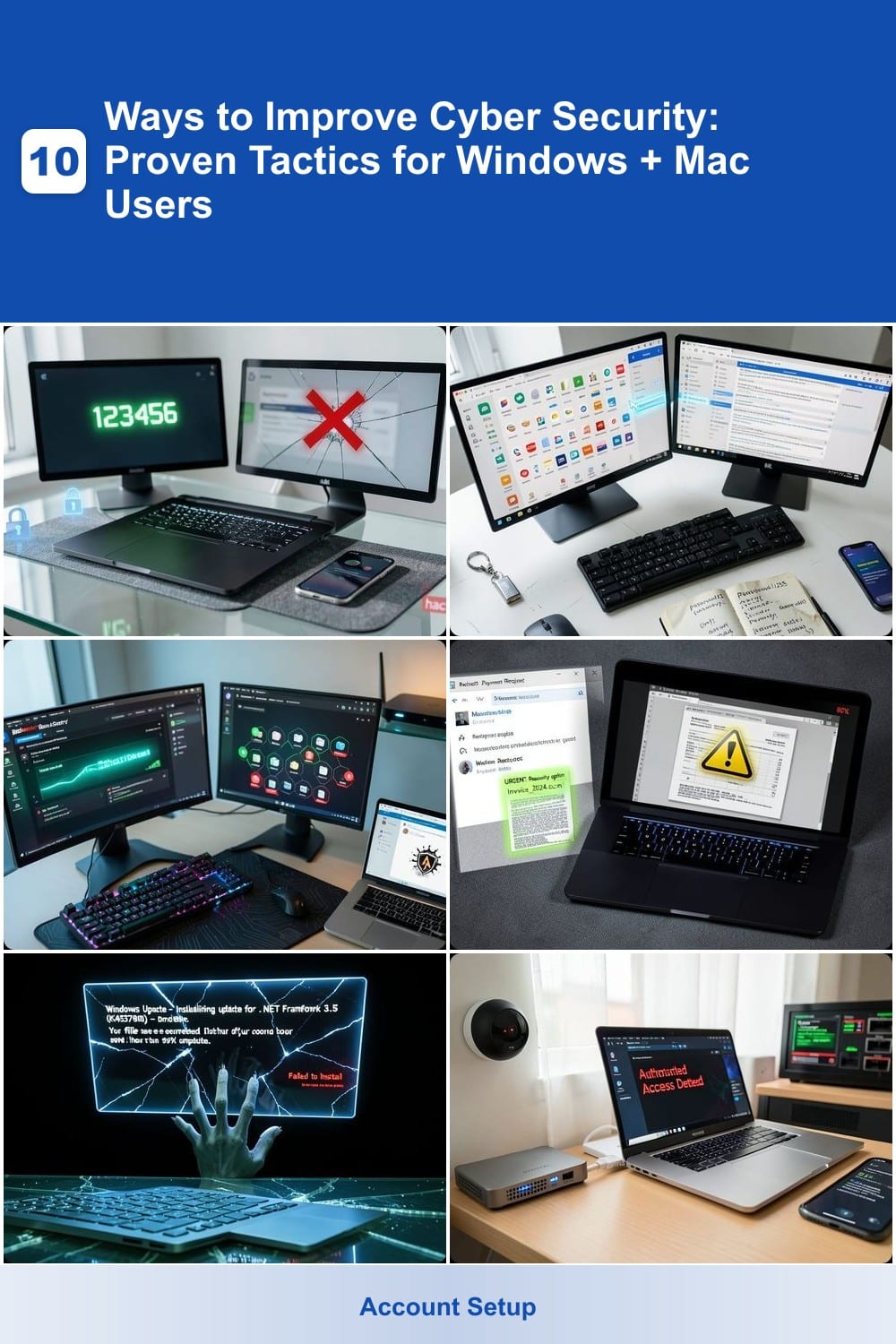
Cyber threats evolve daily, but these 10 actionable tactics will fortify your Windows or Mac against hackers, malware, and data breaches. Whether you're a casual user or tech-savvy professional, these proven strategies require minimal effort for maximum protection.
Enable Multi-Factor Authentication Everywhere
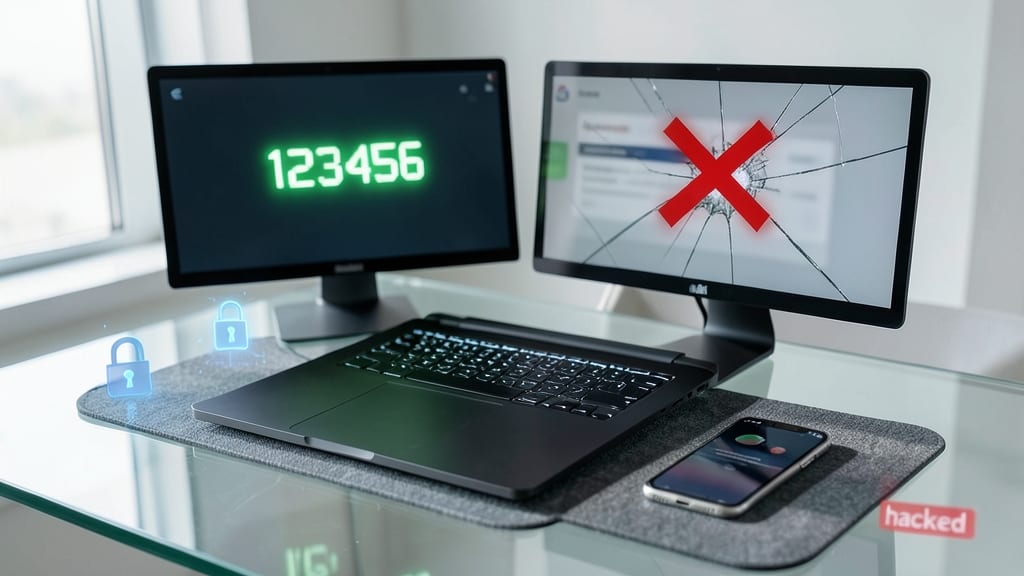
Your password might be strong, but 99.9% of account takeovers happen because hackers exploit weak second factors—or none at all. Multi-factor authentication (MFA) adds a second verification step (like a code or fingerprint) to block automated attacks, even if your password leaks.
Most platforms now support zero-config MFA—Google and Microsoft accounts use TOTP codes (apps like Authy) or biometrics (Face ID, fingerprint). For banking, enable hardware keys (YubiKey) for the strongest defense. Even free services like Microsoft Authenticator or Duo Mobile reduce risks without complexity.
This is a must for anyone with email, cloud storage, or financial accounts—because once hackers bypass your password, they’re in. ⚡
Use a Password Manager for All Logins
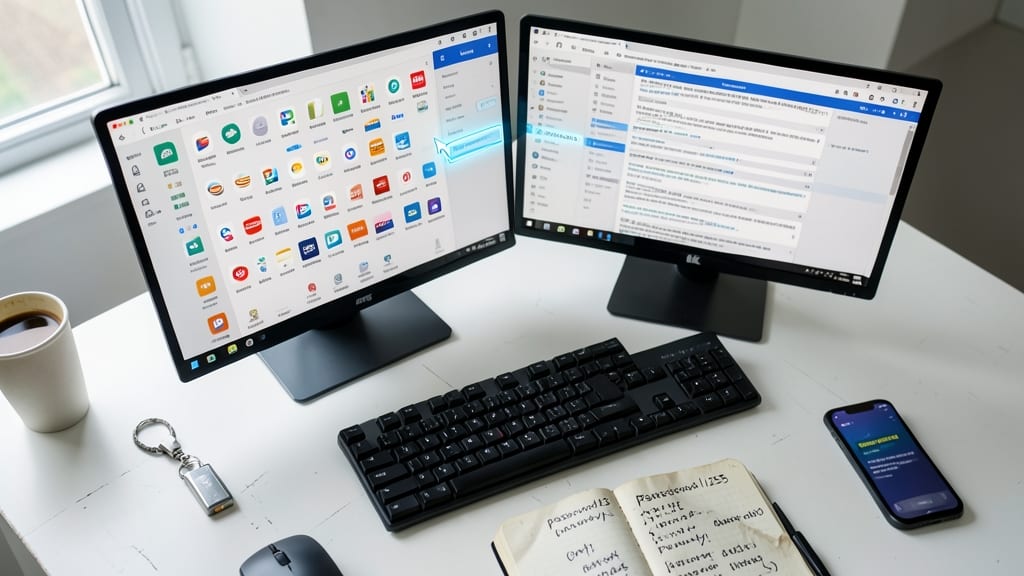
If you’re like most people, you’ve got 50+ online accounts—but remembering unique, complex passwords for each is impossible. That’s where a password manager steps in, automatically generating and storing 20+ character credentials with a single master password, eliminating weak or recycled passwords that fuel 80% of data breaches.
Top tools like Bitwarden (free and open-source) or 1Password (user-friendly) sync across devices, auto-fill logins, and even monitor the dark web for exposed credentials. Features like password strength audits and secure sharing for families or teams make them indispensable. The best part? You only need to remember one strong master password—the rest is handled securely in an encrypted vault.
This is a must for freelancers, small business owners, or anyone juggling personal and professional accounts—where a single reused password could unlock every account. 💻
Install Real-Time Antivirus with Ransomware Shield
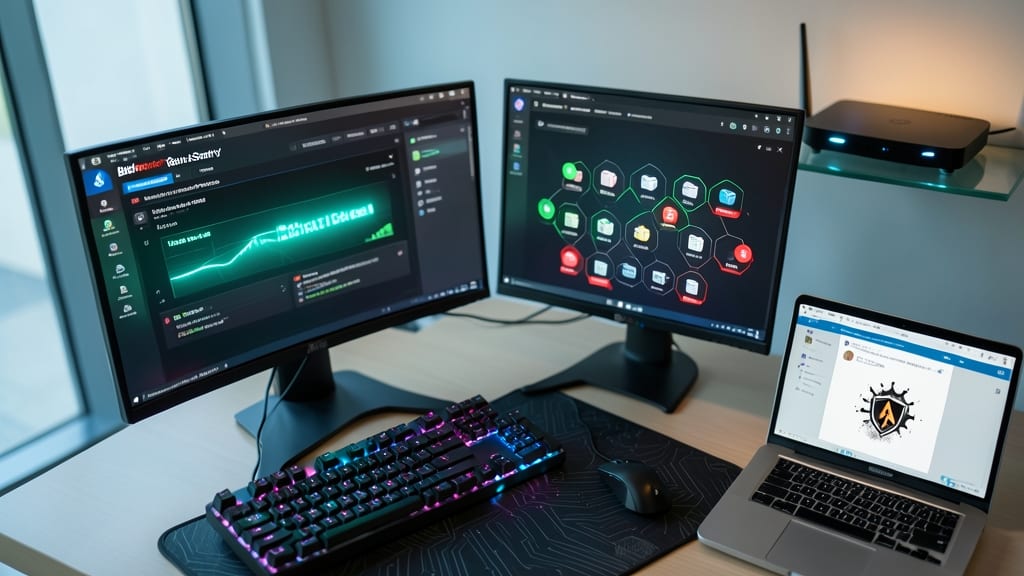
Most antivirus tools only scan files after they’re already infected—but real-time protection stops threats before they take hold. Solutions like Bitdefender Total Security or Malwarebytes Premium monitor every file download, email attachment, and web visit in real time, blocking zero-day exploits (unknown threats) and encrypting sensitive files automatically.
Bitdefender’s Ransomware Remediation tool can even reverse encryption if your files get locked, while Malwarebytes’ behavioral detection flags suspicious processes before they spread. Both offer lightweight performance and cross-platform support for Windows, Mac, and mobile devices.
This is a must for small business owners, freelancers handling client data, or anyone storing financial records—where a single breach could mean lost revenue or identity theft. ⚡
Disable Macros in Office Documents
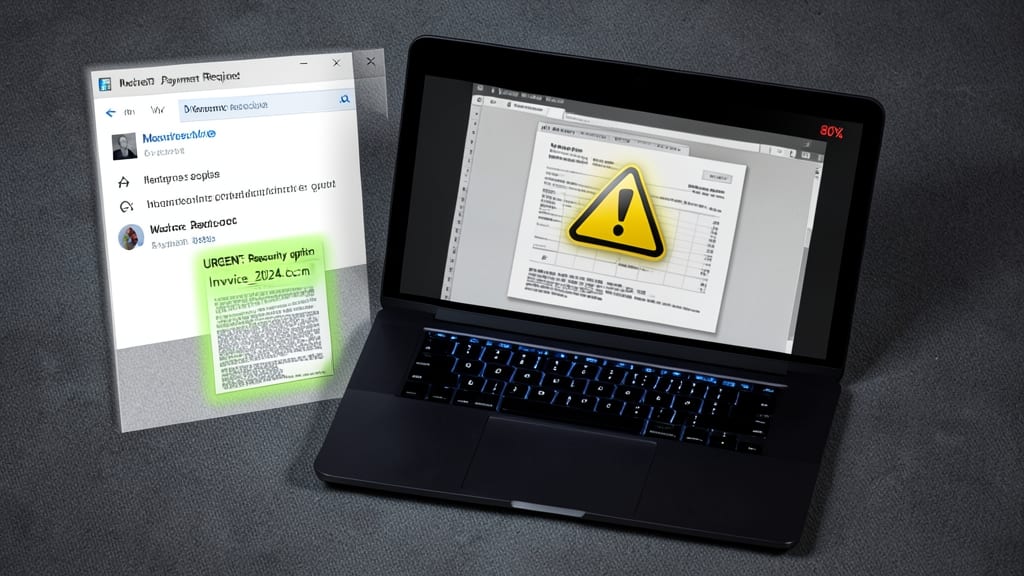
Most phishing attacks start with a malicious Office document—and disabling macros blocks 80% of them before they execute. Unlike antivirus software that reacts to known threats, this simple setting stops zero-day exploits hiding in Word or Excel files you download from emails or the web.
On Windows, open the document, click File > Options > Trust Center > Trust Center Settings, then select Macro Settings and choose Disable all macros. On Mac, go to Word > Preferences > Security & Privacy > Macros and set it to Disable all macros with notification. This works across Office 2010–2021 and Microsoft 365, requiring just a few clicks for enterprise-level protection.
This is a must-do for accountants, lawyers, or anyone receiving untrusted files—especially if your job involves opening attachments from clients or vendors. It’s the digital equivalent of not opening suspicious packages. ✨
Update Operating Systems Immediately
Hackers don’t wait for you to update—EternalBlue and Log4j exploits were weaponized within hours of discovery. Missing just one patch can leave your system exposed to ransomware or data theft, making this the simplest yet most critical security step.
Modern operating systems now offer automatic updates by default (Windows 10/11 and macOS Ventura+), but verify they’re enabled in Settings > Windows Update or System Preferences > Software Update. For older systems, schedule updates during off-hours to avoid disruptions—zero configuration required for basic protection.
This is non-negotiable for businesses handling sensitive data or home users with smart devices, where a single unpatched vulnerability can cascade into a full breach. Set it and forget it—your future self will thank you. ⚡
Segment Networks with a Firewall
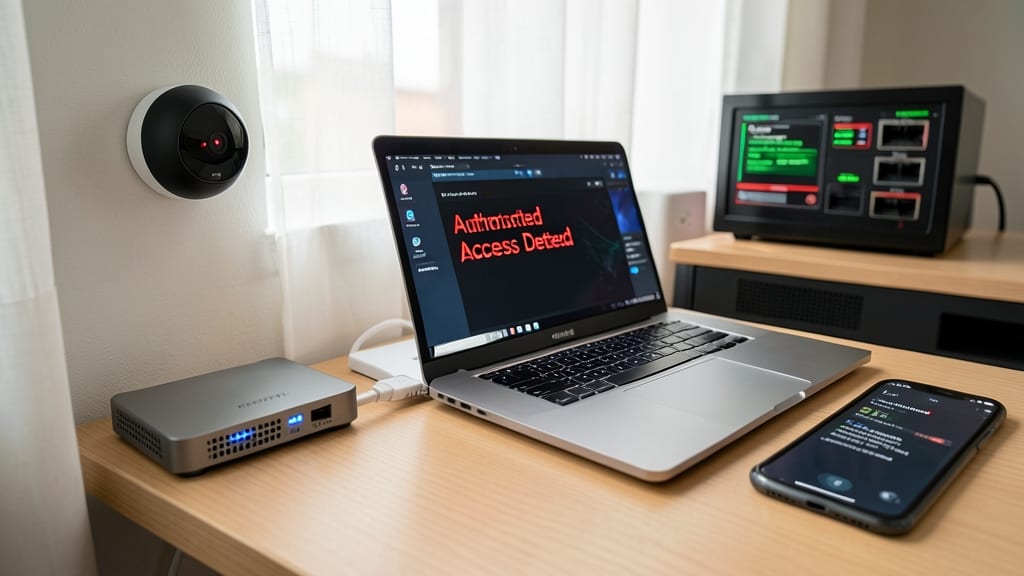
If your smart thermostat, security cameras, or guest Wi-Fi share the same network as your work laptop, you’re essentially handing attackers a backdoor. A segmented firewall creates isolated zones so compromised IoT devices can’t spread malware to your main PC—critical for home offices where personal and professional devices overlap.
Most modern routers (like ASUS RT-AX88U or Netgear Nighthawk) support VLAN segmentation or guest network isolation, while third-party tools like pfSense offer advanced rules. Even basic setups can block SMB traffic (a common attack vector) between segments. For zero-config options, Google Nest Wi-Fi auto-separates IoT devices by default—just enable the "Network Assist" feature.
This is non-negotiable for remote workers, freelancers, or anyone with smart home gadgets—because once hackers breach one device, they’ll target your main machine next. 🌟
Verify Website Security Before Entering Data
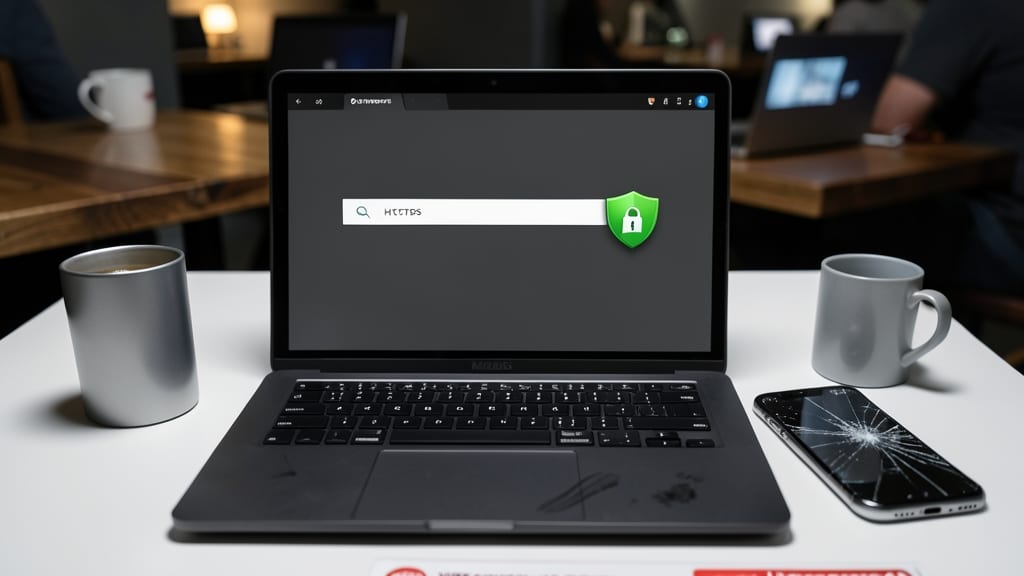
Before you enter credit card details or log into sensitive accounts, check for the HTTPS padlock icon in your browser’s address bar. This small but critical step prevents man-in-the-middle attacks, where hackers intercept your data during transmission—especially risky on public Wi-Fi or sketchy shopping sites.
A mixed content warning (often a shield icon with a warning) means the site loads some secure and some insecure content, creating vulnerabilities. Modern browsers like Chrome and Firefox highlight these issues, but always double-check before sharing personal information. Even trusted sites can have security lapses during updates.
This habit is non-negotiable for online shoppers, freelancers, and remote workers handling financial data. A 30-second check now could save you from identity theft or fraud later. 🔧
Backup Critical Files to Air-Gapped Storage
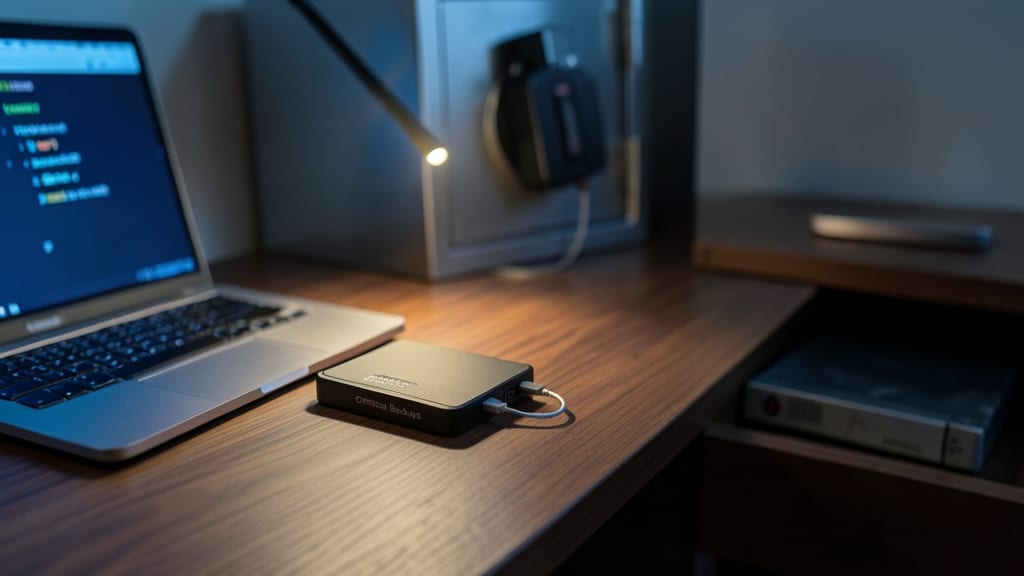
Ransomware can turn your files into hostages in minutes—but air-gapped backups act as your digital safe deposit box. By storing critical backups on a physically disconnected drive (like a USB or external HDD), you create an unbreakable barrier that even the most sophisticated cyberattacks can’t cross.
Use a dedicated backup drive (never the same one you use daily) and update it manually after major changes. For extra security, encrypt the drive with BitLocker (Windows) or FileVault (Mac), then stash it in a fireproof safe or offsite location. This method stops ransomware cold—since encrypted files are useless without the decryption key.
Perfect for families safeguarding photos, small businesses protecting client data, or anyone with irreplaceable files. A 30-minute monthly routine could save you from years of heartache. ✨
Monitor Dark Web for Compromised Data
If you’ve ever reused a password across multiple accounts, you’re not alone—and you’re at risk. Services like Have I Been Pwned (HIBP) scan the dark web for exposed credentials, giving you a heads-up if your email or passwords appear in breaches like LinkedIn (2016) or Adobe (2013).
The free version lets you check individual emails manually, while the paid API integrates with password managers like 1Password or Bitwarden for real-time alerts. You’ll also get breach timelines, affected data types (e.g., emails, passwords, credit cards), and steps to secure compromised accounts. It’s a zero-config way to stay ahead of identity theft.
Perfect for anyone who’s ever clicked “Use same password” or shared login details with family—especially if you’ve signed up for services that later get hacked. 💡
Train Employees/Family with Phishing Simulations
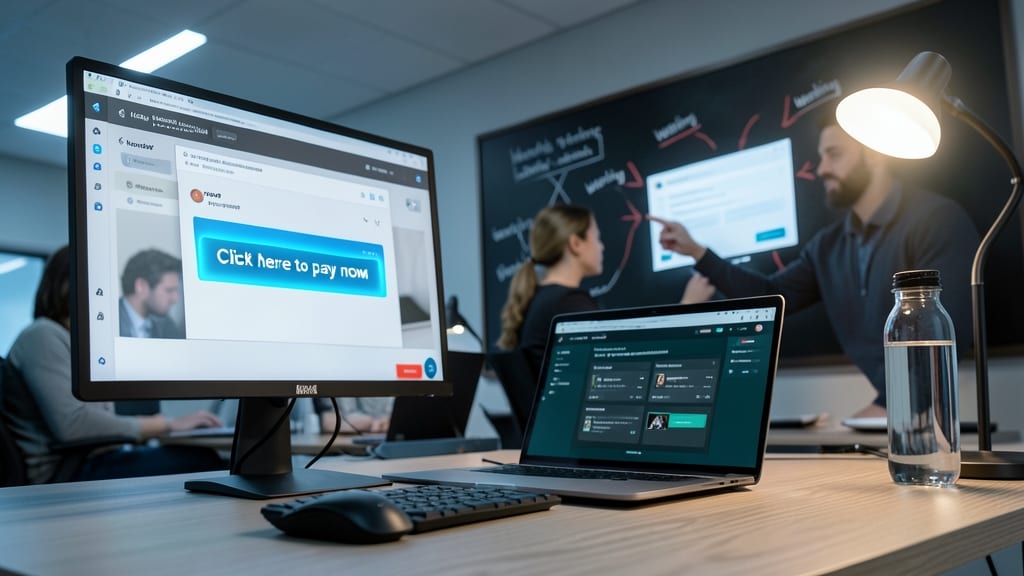
Even the best security tools fail when users click malicious links—90% of breaches start with human error. Platforms like KnowBe4 turn this weakness into strength by simulating real phishing attacks, then teaching your team or family how to spot them before they cause damage.
These customizable phishing simulations mimic scams from fake invoices to urgent "password expired" emails, with detailed reports showing which users fell for the trick. You can even test SMS phishing (smishing) or vishing (voice calls) to cover all attack vectors. The best part? No technical setup—just launch a campaign and watch as your team learns to recognize red flags like suspicious sender addresses or urgent language tricks.
Perfect for small businesses training staff or families teaching teens about online risks, these tools turn passive security into an active skill. 💡