
Tip & Trick
Microsoft Word is packed with hidden features that can save you hours of work. These 10 game-changing tips and tricks will transform how you create, edit, and format documents—whether you're a student, professional, or casual user.
Quick Parts Gallery for Reusable Content Blocks
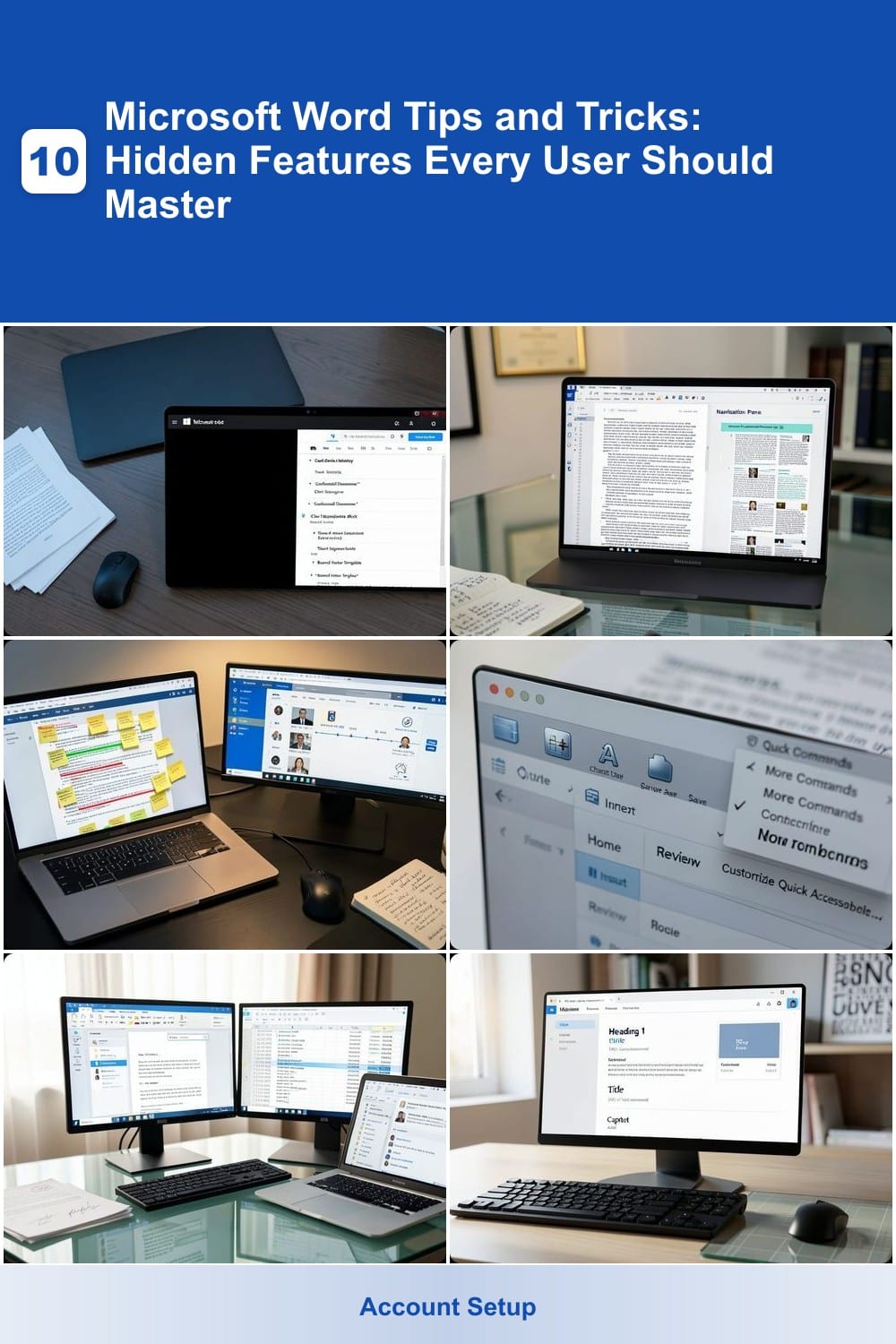
Tired of retyping the same disclaimers, signatures, or boilerplate text in every document? The Quick Parts Gallery in Microsoft Word lets you store frequently used content—like headers, legal clauses, or branded templates—and insert them instantly with a few clicks. This hidden gem turns repetitive tasks into a one-time setup, saving you minutes (or hours) across multiple documents.
To get started, highlight the text, table, or graphic you want to reuse, then click Insert > Quick Parts > Save Selection to Quick Parts Gallery. Once saved, access your blocks via the Quick Parts dropdown (near the clipboard icon) in any document. You can even organize them into custom categories for easy navigation. The feature works with tables, images, and text, making it perfect for reports, contracts, or templates where consistency matters.
Freelancers, legal professionals, or anyone drowning in repetitive content will love this zero-config productivity booster. Try it next time you’re drafting a standard email or contract—your future self will thank you. ⚡
Navigation Pane for Large Documents
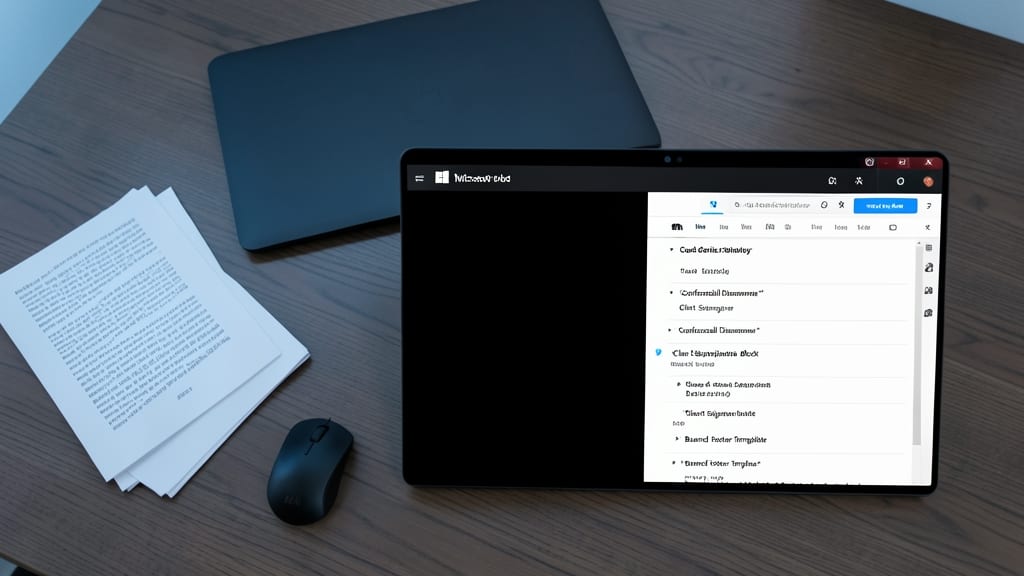
Drowning in a 50-page legal brief or academic paper? The Navigation Pane in Microsoft Word is your lifeline—it lets you jump instantly to any section, heading, or page number without endless scrolling. This hidden gem transforms document navigation from a tedious chore into a one-click experience, perfect for professionals who juggle complex manuals or researchers working with dense texts.
To activate it, simply press Ctrl + F (or click View > Navigation Pane) to reveal a hierarchical outline of your document. Expand headings to drill down to subsections, or search by keywords to pinpoint specific content. The pane even supports page numbers, so you can land exactly where you need to be—ideal for reviewing footnotes, cross-referencing citations, or editing long-form documents efficiently.
Lawyers, academics, and technical writers will find this feature a game-changer for productivity. Next time you’re buried in a lengthy document, skip the scroll wheel and let the Navigation Pane do the heavy lifting. 💻
Track Changes with Comments and Highlights
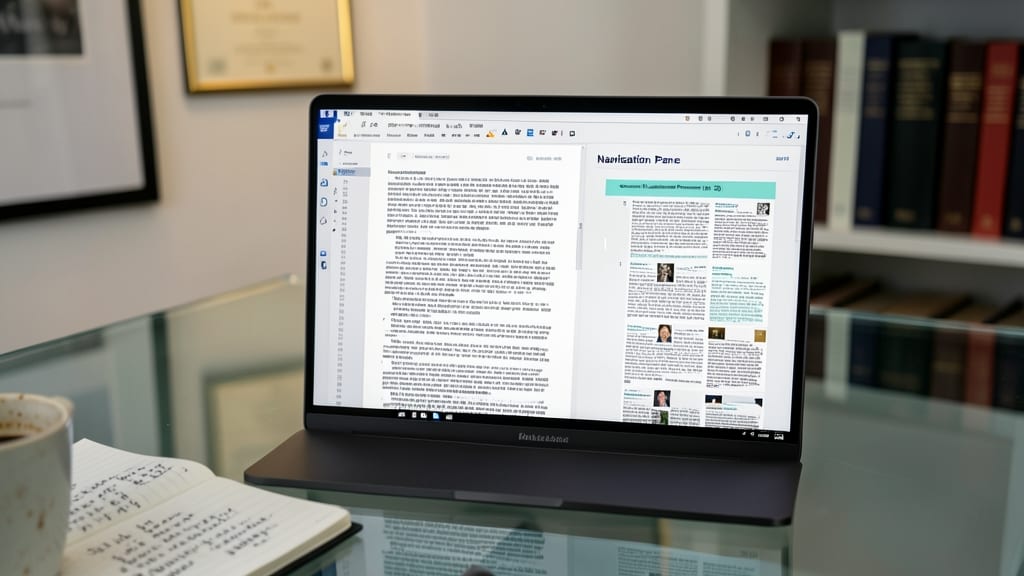
Need to collaborate on a document but dread the back-and-forth of email edits? Track Changes in Word lets you mark edits with comments, highlights, or sticky notes—all while keeping a version history. This feature is a lifesaver for team projects, legal reviews, or academic group work where clarity and accountability matter.
Enable it via Review > Track Changes, then choose between insertions (blue), deletions (red), or comments (yellow). Highlight text for quick feedback, or add sticky notes for context. The final version can be accepted or rejected with one click, and Word saves every revision automatically—no more lost edits or confusion over who changed what.
Perfect for legal teams, professors, or remote collaborators, this tool turns messy feedback into a structured, traceable process. Try it next time you’re reviewing a draft—your future self will thank you. ✨
Custom Quick Access Toolbar Shortcuts
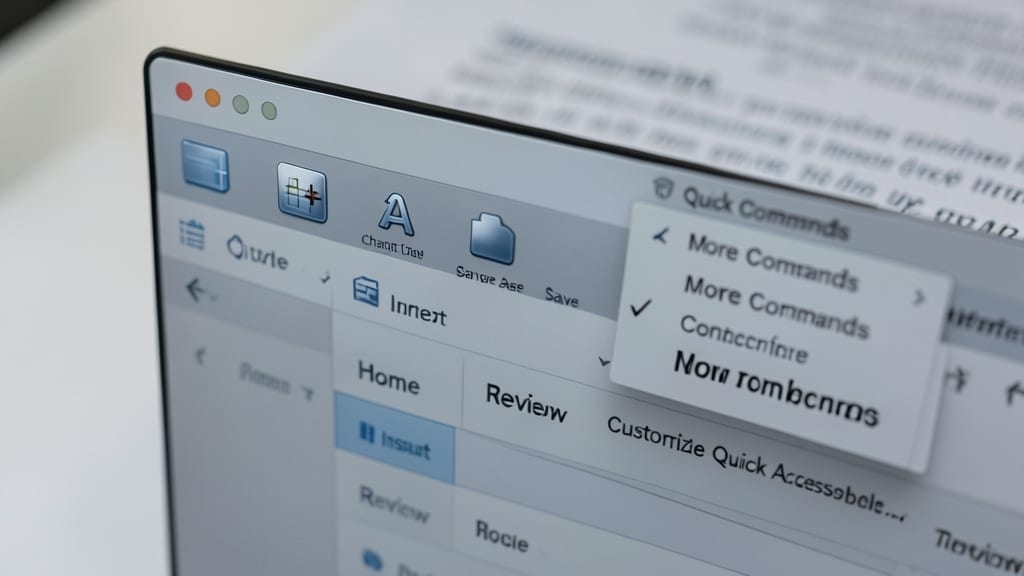
Tired of digging through ribbons to find your favorite commands? The Quick Access Toolbar lets you pin one-click shortcuts like Insert Table, Change Case, or Save As—no more hunting for buried options.
To customize it, click the dropdown arrow next to the toolbar and select "More Commands". Here, you can add any command from Word’s full list, including styles, macros, or even quick access to the Navigation Pane. Save your most-used tools right at the top for instant access—ideal for power users who prioritize speed over scrolling.
Freelancers, legal professionals, or anyone drowning in repetitive tasks will love this zero-config productivity boost. ⚡
Mail Merge for Personalized Letters
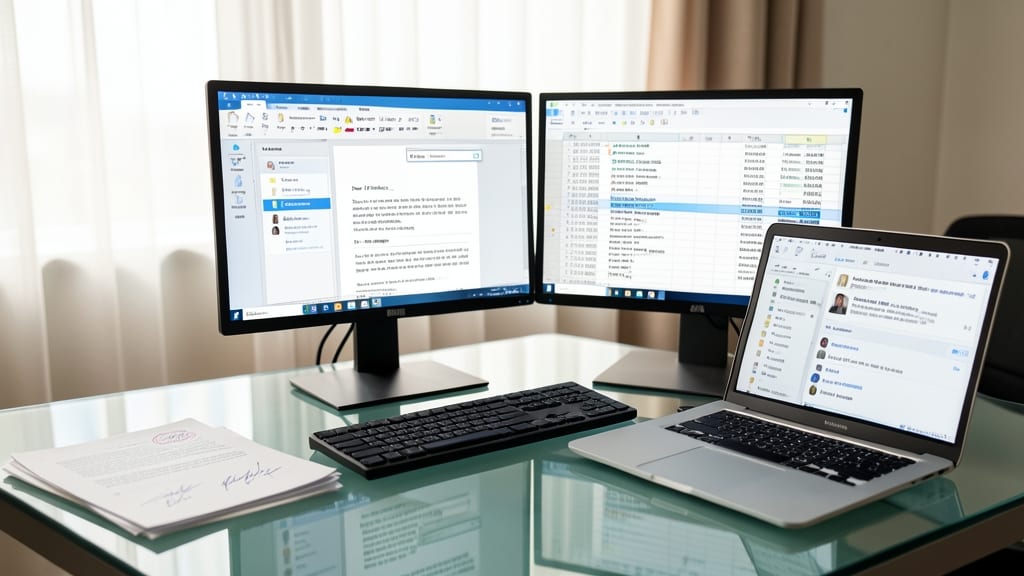
Tired of typing the same greeting or details into dozens of letters? Mail Merge in Word automates personalized correspondence by pulling data from Excel spreadsheets or Outlook contacts, saving you hours of repetitive work.
Start by selecting your recipient list, then merge fields like <
Ideal for small businesses, event planners, or anyone juggling bulk communications, this feature turns tedious tasks into a one-click process. ⚡
Style Gallery for Consistent Formatting
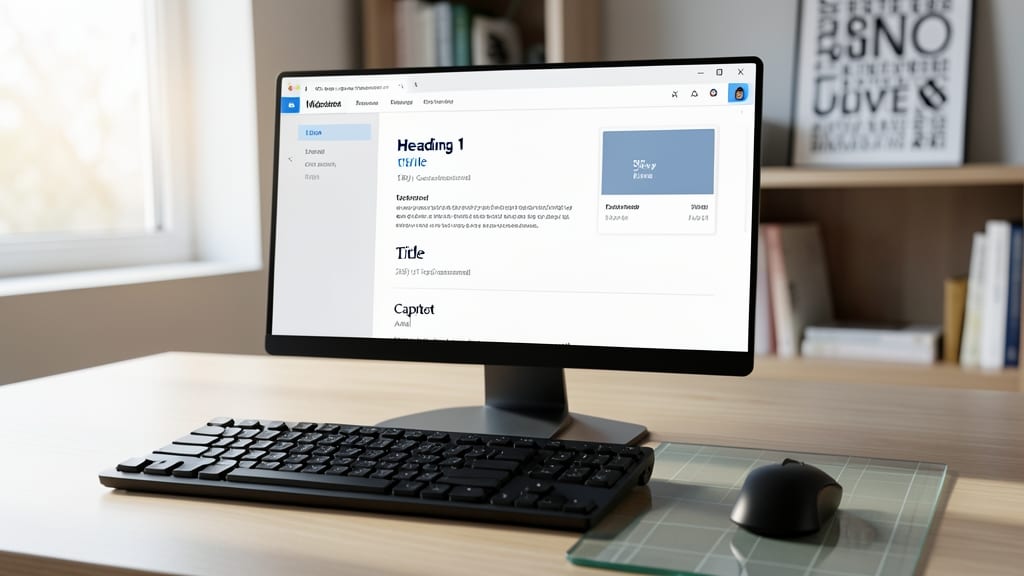
Tired of manually adjusting fonts, spacing, and alignment across every page? The Style Gallery in Microsoft Word lets you apply polished, consistent formatting with a single click—no more guessing whether your headings match your captions.
With predefined styles (like Heading 1, Title, or Caption), you can instantly format entire documents to match professional templates. Need to update all your subheadings? Just modify one style, and Word applies the change everywhere. The Linked Styles feature ensures your table of contents stays synchronized with your headings—perfect for resumes, research papers, or corporate reports.
This trick is a lifesaver for anyone who’s spent hours tweaking margins or font sizes. Give it a try next time you’re crafting a polished document—your future self will thank you. ✨
Text to Speech for Hands-Free Editing
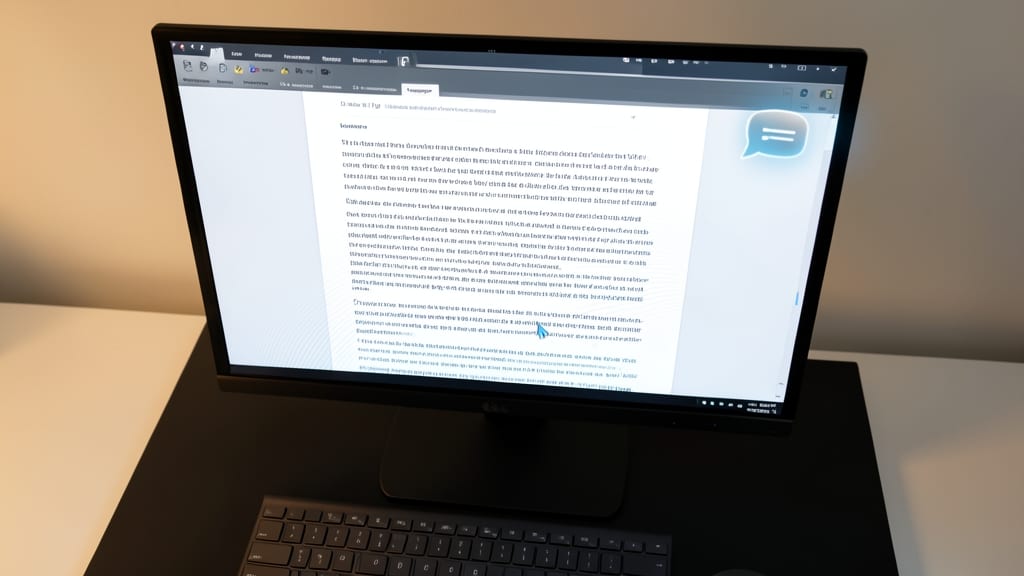
Struggling to spot typos or ensure your document flows smoothly? Word’s built-in Text to Speech (TTS) feature lets you listen to your writing aloud—no headphones or extra apps needed. Simply press Alt + Ctrl + S to toggle it on, and let Word’s natural-sounding voice (with 12+ language options) catch awkward phrasing or missing words you’d otherwise overlook.
The feature supports adjustable reading speeds (from 100 to 400 words per minute) and even highlights text as it’s spoken, making it ideal for proofreading long documents. You can also pause, rewind, or skip sections—perfect for students reviewing essays, writers editing drafts, or anyone with visual impairments. It’s a game-changer for accessibility without requiring printing. ✨
Find and Replace with Wildcards
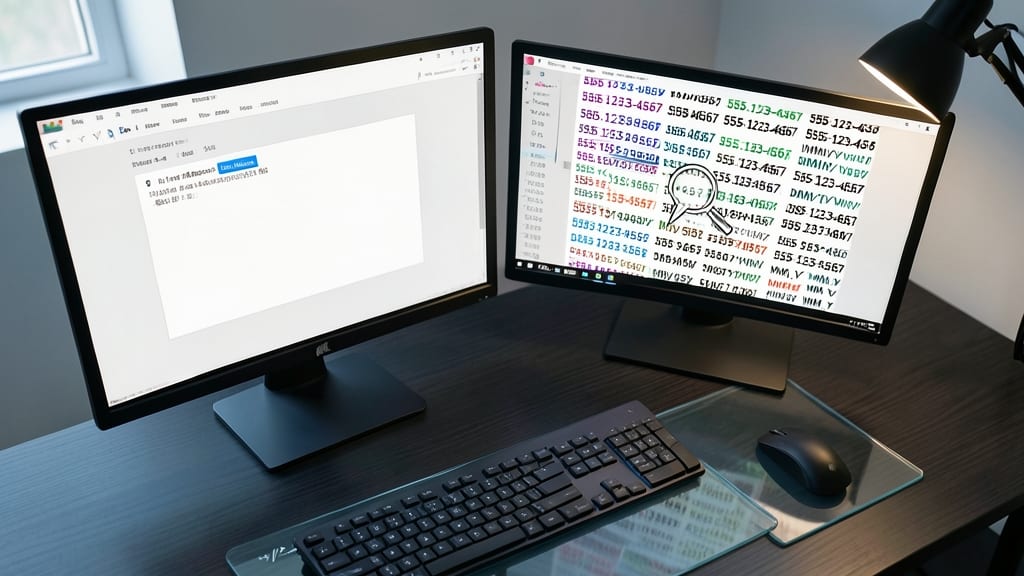
Tired of manually editing documents with inconsistent phone numbers, dates, or formatting? Wildcards in Find and Replace let you search for complex patterns like 555-123-4567 or MM/DD/YYYY in seconds—no regex expertise required.
Enable wildcards by checking the "Use Wildcards" box in the Find and Replace dialog. Then use symbols like ? (single character), * (multiple characters), or [0-9] (numbers only) to match specific patterns. For example, ###-###-#### will catch all U.S. phone numbers, while ##/##/#### targets dates. This is a game-changer for data entry, legal documents, or cleaning up messy text exports.
Perfect for professionals dealing with spreadsheets, customer records, or legacy documents where manual editing would take hours. Try it on your next batch of messy text—you’ll wonder how you ever lived without it. ✨
Split Screen for Comparing Documents
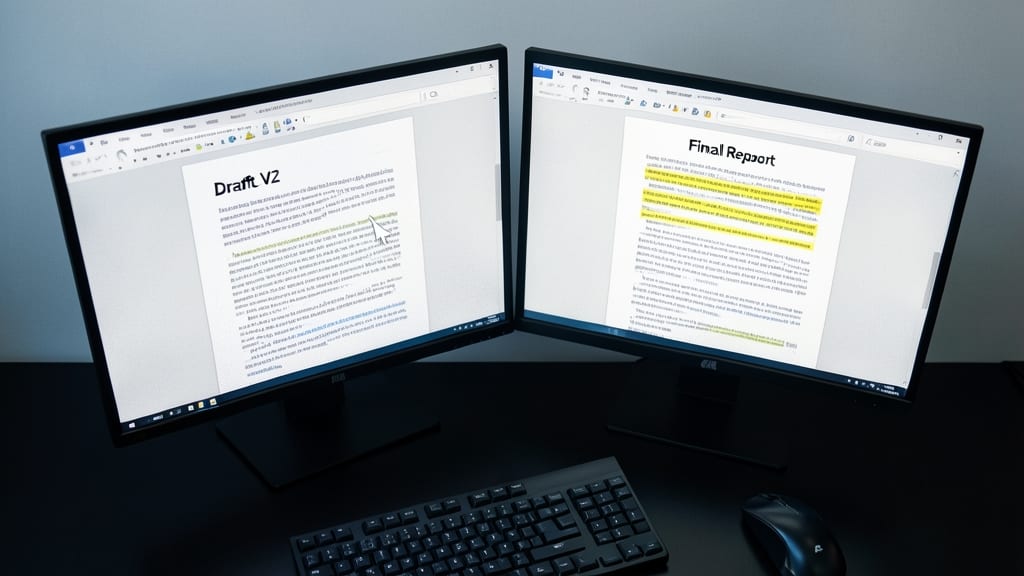
Ever stared at two documents, trying to spot differences or merge content while flipping back and forth? Microsoft Word’s split-screen view solves this with a single click—no more squinting or mental gymnastics.
Open both files in separate windows (View > New Window), then arrange them side-by-side (View > Arrange All > Vertical). Sync scrolling lets you compare line-by-line, and the Compare feature (under Review) highlights changes automatically. Perfect for legal drafts, academic revisions, or tracking edits across versions.
Lawyers, editors, and students will love this for real-time collaboration—no more emailing back-and-forth. Try it next time you’re merging feedback or cross-referencing contracts. ✨
Digital Signatures for Legal Documents
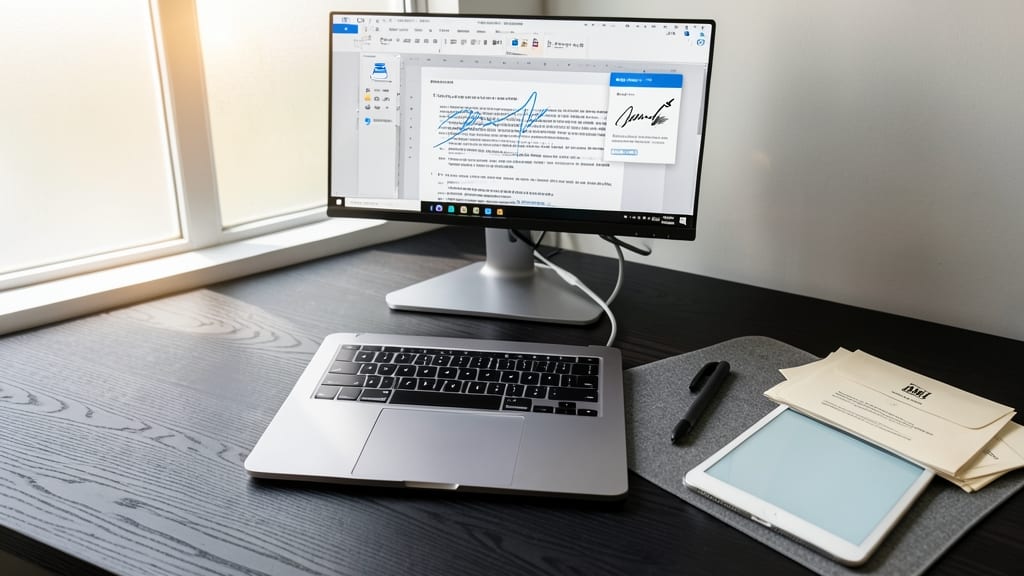
Say goodbye to printing, scanning, and faxing—Microsoft Word’s digital signature feature lets you sign contracts, NDAs, or legal forms directly in the app with legal validity in most jurisdictions. No extra software required; it’s built right into Word for desktop and mobile.
To use it, simply click Insert > Signature Line, then select Microsoft Account or Draw to add your handwritten e-signature. The process encrypts your signature with 2048-bit encryption, ensuring authenticity. You can even set signature fields to lock the document once signed, preventing accidental edits. Perfect for freelancers, remote teams, or anyone who needs to close deals without leaving their desk.
This trick is a game-changer for contracts, invoices, or approval forms—no more chasing physical copies or dealing with snail-mail delays. ⚡