Software
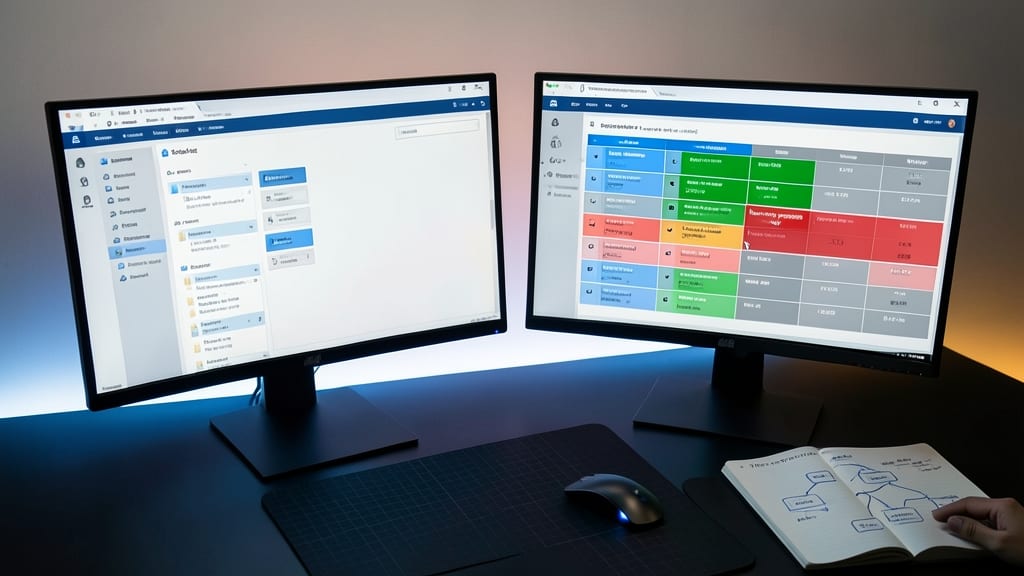
Managing SharePoint document library permissions can feel like walking a tightrope—too restrictive and teams struggle, too open and security risks grow. These seven best practices help you strike the perfect balance between access and protection while keeping workflows smooth.
Use SharePoint Permission Levels for Granular Control

Frustrated by SharePoint’s one-size-fits-all permissions that either lock teams out or expose sensitive data? Custom permission levels let you tailor access to exact roles—like giving editors approval rights without full control, or restricting downloads for external reviewers.
Instead of defaulting to “Edit” or “Full Control”, create levels like “Contribute with Approval” (edit but require manager sign-off) or “Read-Only with Limited Downloads” (view files but block exporting). These are configured in Library Settings > Permission Levels, where you can clone existing templates and tweak specific permissions (e.g., allowing edits but disabling deletions). The result? No more overprivileged users while keeping workflows fluid.
This is ideal for project teams managing client deliverables or legal departments handling confidential drafts—where granularity prevents accidental data leaks without stifling collaboration. 💡
Apply Inheritance Breakpoints Strategically
Struggling with SharePoint’s "one-size-fits-all" permissions that either lock teams out or expose sensitive data? Breaking inheritance strategically at the folder or document level—instead of the entire library—lets you maintain security consistency while allowing exceptions for sensitive projects.
Start by navigating to Library Settings > Permission Levels, then select Stop Inheriting Permissions for specific folders. This preserves the parent library’s security while letting you assign unique permissions (e.g., read-only for clients or edit-only for internal teams) without disrupting the rest of the structure. Use this for confidential projects or department-specific folders where granular control is critical. The key is targeting only what needs exceptions—not the whole library.
This approach is ideal for legal, finance, or HR teams managing sensitive documents while keeping broader collaboration intact. It’s also perfect for IT admins who need to balance security and flexibility without manual permission chaos. ✨
Leverage Microsoft 365 Groups for Automatic Permission Sync

Tired of manually updating SharePoint permissions every time a team member joins or leaves? Microsoft 365 Groups automates this process by syncing group membership with library permissions—no admin intervention required.
When you connect a SharePoint document library to a Microsoft 365 Group, all group members inherit the library’s permissions automatically. If someone leaves the group, their access revokes instantly. This works seamlessly with SharePoint Online and integrates with Teams, Planner, and Outlook for unified collaboration. The best part? You avoid the "permission drift" that happens when manual updates lag behind actual team changes.
This approach is perfect for project teams, departments, or cross-functional groups where membership fluctuates often. It’s also ideal for IT admins managing multiple libraries, as it cuts down on audit time and reduces human error. ✨
Enable Versioning and Check-Out Requirements
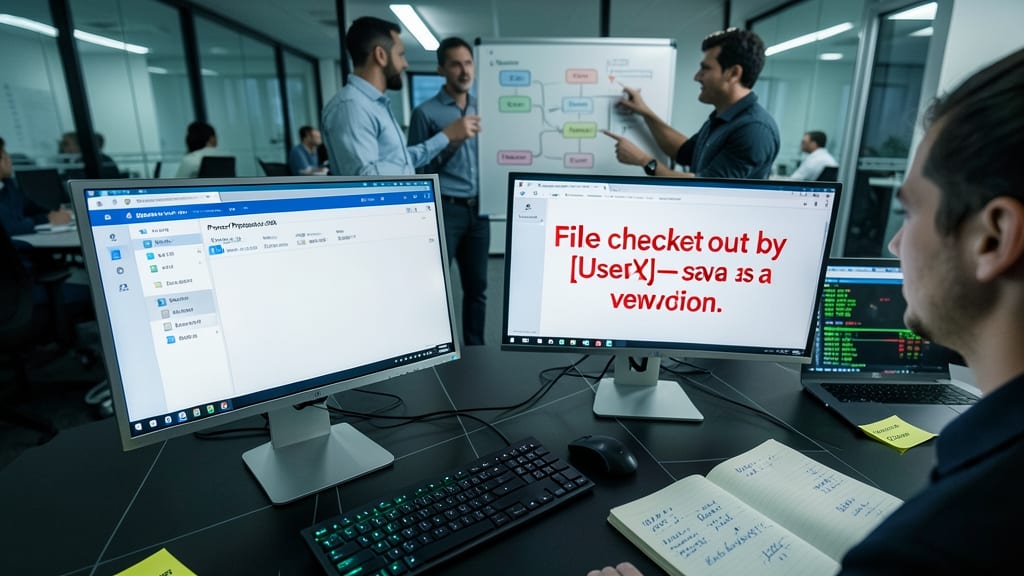
Collaborative chaos in SharePoint? Enable versioning and check-out requirements to turn file edits from a free-for-all into a controlled workflow. This prevents the "oops, I saved over your changes!" scenario while keeping a full audit trail of every modification.
Activate versioning to create automatic snapshots of documents (major/minor versions), then enforce check-out requirements so only one user can edit a file at a time. The built-in version history lets you restore previous drafts instantly—critical for legal or financial documents where changes need traceability. Best of all, these settings take just minutes to configure in library settings.
This is the secret weapon for teams juggling multiple stakeholders, like marketing departments or legal firms where documents evolve through multiple approval cycles. No more lost work or version confusion! ✨
Restrict External User Access with Guest Links

Need to share files with external partners or clients without handing out full access credentials? Guest links in SharePoint let you grant temporary, read-only access that expires automatically—no manual permission cleanup required.
Create a time-limited link (e.g., 7 or 30 days) that restricts visibility to just the files you select, hiding folder structures and metadata. You can even revoke access instantly via the Share button. For extra security, use view-only links with password protection or require sign-in for external users.
This approach is perfect for contractors, freelancers, or clients who only need to review specific documents—without ever seeing your entire library. ⚡
Audit Permissions Regularly with SharePoint Admin Center
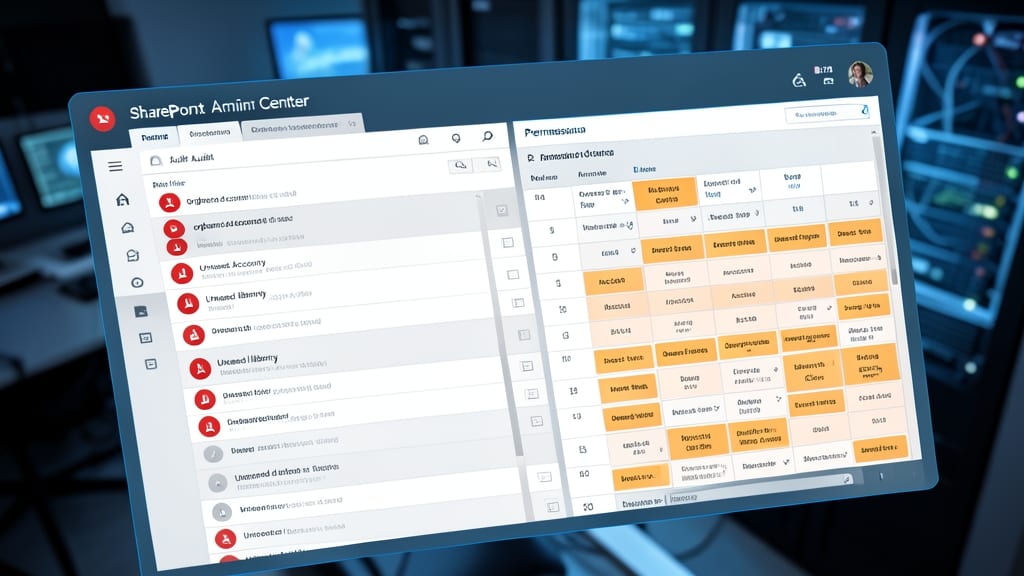
Even the most carefully configured SharePoint permissions can drift over time—orphaned accounts linger, unused libraries accumulate, and overprivileged users slip through the cracks. The SharePoint Admin Center turns this into a manageable task with built-in audit tools that scan your entire tenant for these security gaps.
Set up a monthly audit schedule to detect orphaned accounts (former employees still with access), overprivileged users (those with full control when they only need read access), and unused libraries (folders gathering digital dust). The tool generates actionable reports with direct links to clean up permissions—no manual digging required. For compliance-heavy industries, these audits also create audit trails for regulatory reviews.
This is your secret weapon for proactive security, especially for IT admins managing large-scale SharePoint deployments across departments. Set it and forget it—until the next audit reveals another clean-up opportunity. ✨
Train Teams on Permission Best Practices

Even with the best permission settings in place, human error still causes security gaps—like accidentally sharing entire libraries instead of specific files. A proactive training program closes this gap by teaching teams the "why" behind permissions, not just the "how."
Start with interactive guides that highlight common pitfalls (e.g., granting edit access to confidential folders) and provide step-by-step fixes. Use SharePoint’s built-in training modules or create custom Microsoft Stream videos demonstrating real-world scenarios, like restricting access to client-facing documents. For hands-on learners, host quarterly permission workshops where teams practice configuring granular access in a sandbox environment.
This approach works best for non-technical teams who need clarity without jargon, ensuring everyone—from interns to managers—understands their role in maintaining security. A well-trained team becomes your first line of defense. ✨