Outlook
Microsoft Outlook holds powerful features most users never discover. These 10 underutilized tips and tricks for 2023 will transform your email workflow, save hours weekly, and help you manage your inbox like a pro—whether you're using Outlook on desktop or web.
Quick Steps to Automate Repetitive Email Tasks
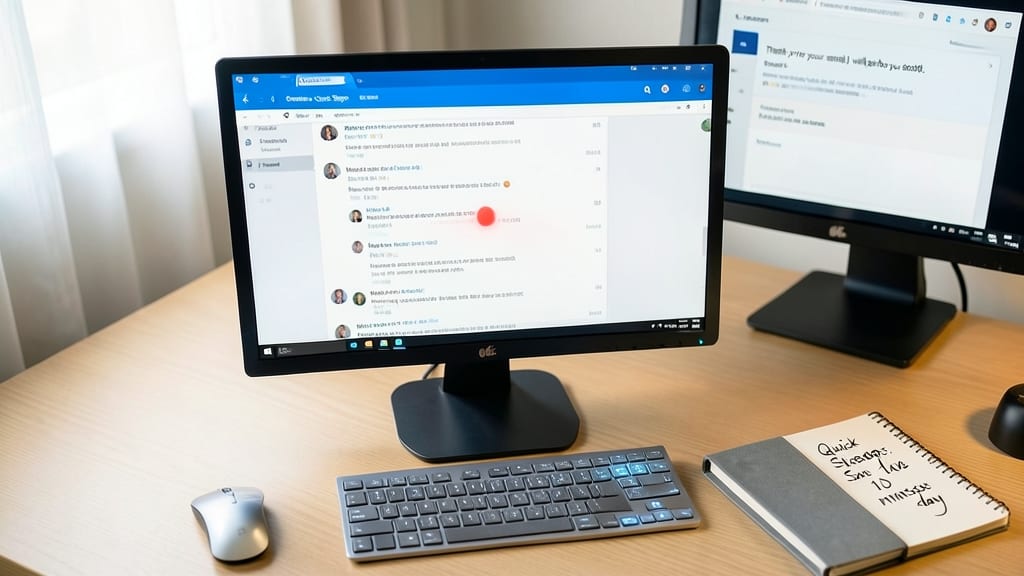
Tired of manually flagging, categorizing, or replying to the same types of emails every day? Outlook’s Quick Steps lets you create custom workflows in seconds—no coding or IT help required. Simply record a sequence of actions (like flagging, moving to a folder, or sending a canned reply) and assign it a keyboard shortcut or toolbar button. Imagine instantly flagging all emails from a client as "Follow Up" with a single click, or auto-replying to FAQs with a pre-written template.
To get started, go to the Home tab, click Quick Steps, then Create a New Quick Step. Name it (e.g., "Flag & Move to Client Folder") and select actions like flag for follow-up, move to a specific folder, or reply with a specific message. Save it, then pin it to your toolbar or assign a keyboard shortcut (like Ctrl+Alt+1) for instant access. These steps work across Outlook Desktop, Web, and Mobile, so your workflow stays consistent no matter where you are.
This is a game-changer for customer support reps, sales teams, or anyone drowning in repetitive emails. Spend less time on manual tasks and more time on what matters—without writing a single line of code. ⚡
Focused Inbox for Prioritizing Important Emails
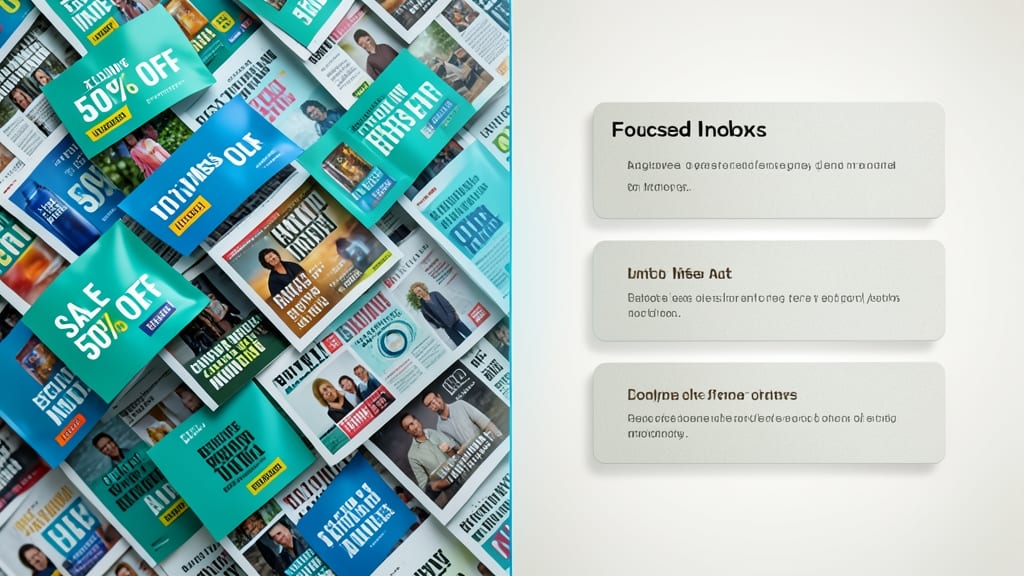
Drowning in a sea of promotional emails, newsletters, and low-priority messages? Outlook’s Focused Inbox uses AI-powered algorithms to automatically separate high-priority emails from the noise—so you see only what truly matters first. Unlike manual filtering, this feature learns your communication patterns over time, ensuring critical messages (like client updates or urgent requests) rise to the top while promotions and secondary emails get tucked away.
To enable it, go to View > Focused Inbox and toggle it on. Outlook will then split your inbox into two tabs: Focused (for priority messages) and Other (for everything else). You can also manually move emails between tabs by clicking the Focused Inbox icon or using the three-dot menu in the email header. Pro tip: Star important emails to train Outlook’s algorithm to recognize similar messages in the future.
This is a lifesaver for executives, freelancers, and students juggling multiple priorities. Spend less time scrolling and more time responding to what actually needs your attention. ✨
Keyboard Shortcuts for Faster Email Navigation
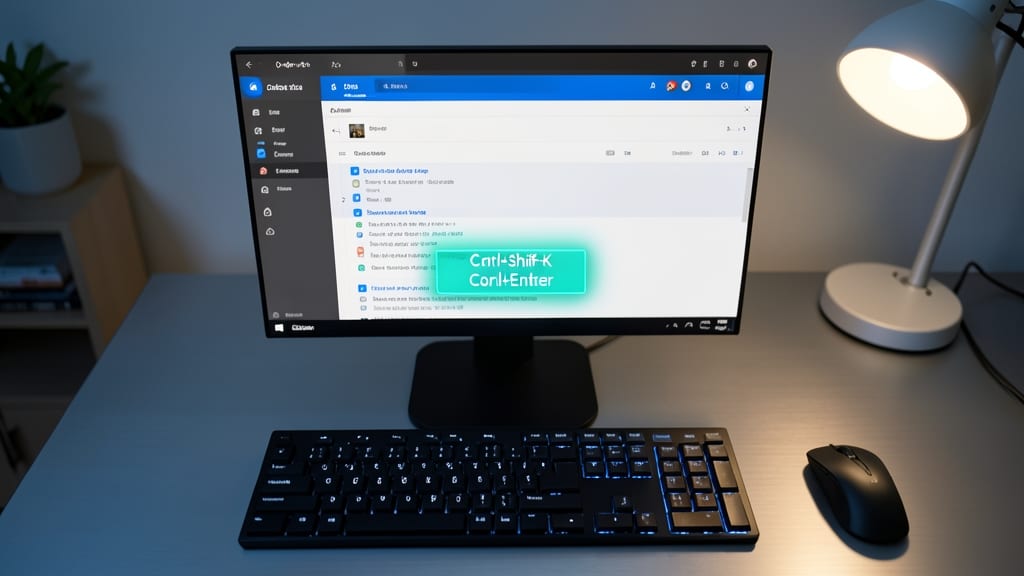
Tired of clicking through Outlook menus all day? Mastering 20+ keyboard shortcuts turns email navigation into a seamless, mouse-free experience—ideal for power users who juggle hundreds of messages daily.
Start with Ctrl+Shift+K to compose a new email instantly, then use Ctrl+Enter to send without lifting your hand. Need to flag an email? Ctrl+Alt+1 (for priority) or Ctrl+Alt+2 (for follow-up) does the trick in seconds. For deeper efficiency, Ctrl+Shift+A opens the Actions pane to reply, forward, or archive with one keystroke. Pro tip: Alt+Shift+D toggles the Reading Pane on/off, perfect for comparing emails side-by-side.
This trick is a game-changer for developers, executives, and remote workers who spend hours in Outlook. Try memorizing just 5 shortcuts this week—your wrists (and productivity) will thank you. ⚡
Email Rules to Auto-Sort and Respond Instantly
Tired of manually sorting through newsletters, subscriptions, or repetitive inquiries? Outlook’s email rules can handle them for you—no coding or complex setup required. With just a few clicks, you can create rules that automatically move emails to folders, forward them to colleagues, or even send instant replies to common questions.
Start by navigating to File > Manage Rules & Alerts, then select Create a New Rule. Choose conditions like sender, keywords, or subject lines, then pick actions like move to folder, forward to email, or reply with a specific message. For example, automatically file all Amazon receipts into a "Shopping" folder or instantly reply to FAQs with a pre-written template. Rules work across Outlook Desktop, Web, and Mobile for seamless management.
This is a game-changer for small business owners, students juggling subscriptions, or anyone drowning in routine emails. Set it up once, and watch your inbox stay organized—without lifting a finger. ✨
Swipe Gestures for Touchscreen or Trackpad Use
If your Surface Pro or precision trackpad laptop feels like it’s missing the smooth touch experience of a phone, Outlook’s swipe gestures bridge that gap perfectly. With just a flick, you can archive, delete, or snooze emails—no mouse or keyboard required.
Enable these gestures in File > Options > Mail > Gestures and customize left/right swipes for actions like archive, delete, or mark as read. Works seamlessly on Windows 11 touchscreens and even trackpads with multi-touch support, turning your inbox into a one-handed powerhouse.
Perfect for commuters, note-takers, or anyone with a touch-enabled device—this feature turns passive scrolling into active email management. ✨
Clean Up Conversation Threads in Seconds
Drowning in email threads that feel like a never-ending chain of replies? Outlook’s Clean Up feature is your secret weapon to instantly declutter them. With a single click, you can remove all unnecessary replies and attachments, keeping only the original message and your responses—no manual deleting required.
To use it, open any thread, then click the Clean Up button in the toolbar. Outlook will preserve the first email and your replies while scrubbing away everything else. This works in both desktop and web versions of Outlook, making it perfect for quick pre-meeting prep or end-of-day inbox tidying.
Busy professionals, students juggling group projects, or anyone who hates scrolling through 50 replies will love this time-saver. Try it before your next meeting—your inbox (and sanity) will thank you. ✨
Schedule Emails to Send Later Automatically
Ever drafted a perfect email at 2 AM but hesitated to hit send? Outlook’s Schedule Send feature lets you compose messages now and deliver them at your chosen time—no more waking up to late-night replies or missing deadlines due to time zones.
To use it, click the calendar icon in the ribbon while composing, then pick a date and time. The email will sit in your Outbox until the scheduled moment, even if you close Outlook. This works across desktop, web, and mobile, making it perfect for night owls or global teams. You can also set reminders to review before sending.
Ideal for professionals juggling multiple time zones or anyone who wants to avoid last-minute sends. Perfect your timing without the stress! ✨
Use @Mentions to Assign Tasks Within Emails
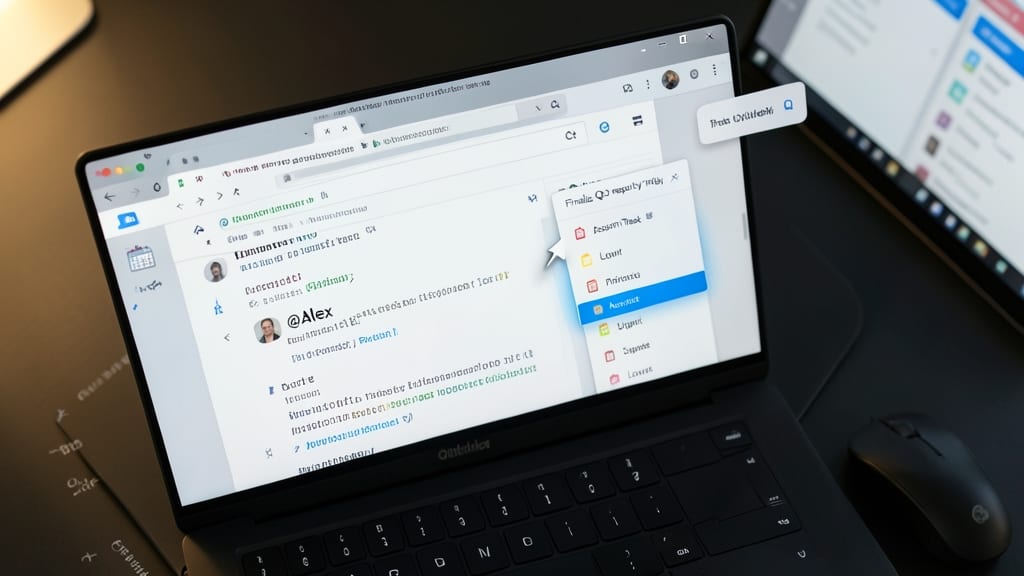
Tired of bouncing between Outlook and your task manager just to delegate work? Outlook’s @mentions feature lets you assign action items directly in emails—no app-switching required.
Type @name in an email to tag a colleague, then click the Assign Task button to set deadlines, priorities, and even follow-up reminders. This syncs with Outlook Tasks and integrates seamlessly with Microsoft Teams, keeping everyone on the same page. Perfect for teams already using Outlook as their hub.
Project managers and sales teams will love this for tracking client follow-ups or internal deadlines without leaving their inbox. ⚡
Customize Your Outlook Ribbon for Quick Access
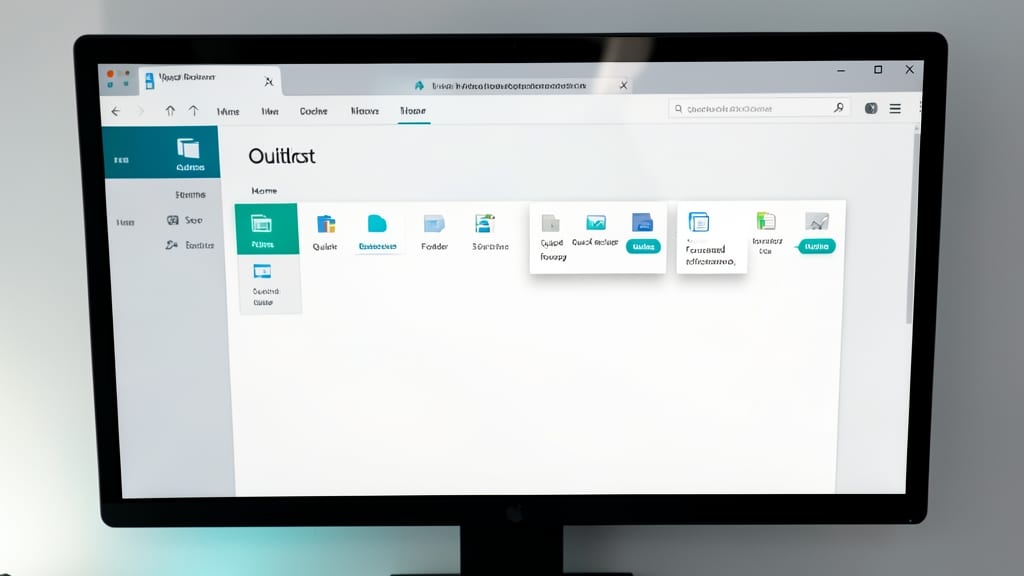
Tired of hunting through Outlook’s default ribbon for commands you use daily? A few clicks can transform your toolbar into a personalized powerhouse—putting your most critical actions at your fingertips. This hidden feature lets you rearrange tabs, pin frequently used tools, or even add custom commands like Quick Steps or Follow Up to the Quick Access Toolbar.
To get started, right-click any ribbon item and select "Add to Quick Access Toolbar"—or customize further by clicking the dropdown arrow on the toolbar itself. You can also reorder tabs by dragging them or reset everything to default if needed. For sales reps, this might mean prioritizing flagging tools and calendar integrations; for students, it could be @mentions and task assignments. The best part? These changes sync across devices if you’re using Outlook on the web or desktop.
Perfect for anyone who wants to eliminate wasted seconds scrolling for commands. Once set up, your ribbon becomes a battle-tested setup. ✨
Search Emails Using Natural Language Queries
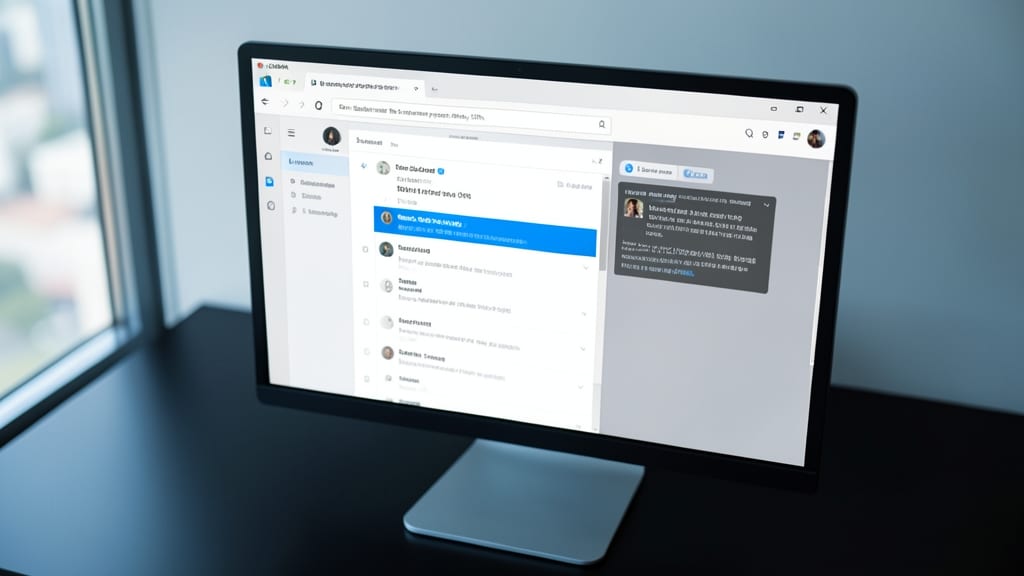
Tired of scrolling through endless emails to find that one conversation? Outlook’s natural language search lets you type full sentences like "from Sarah about the Denver project after May 15th" and instantly pull up the exact email you need—no folder diving required.
This feature works across desktop, web, and mobile versions of Outlook (2023 and later) and understands context like dates, senders, and keywords. For example, typing "attachments from John with 'invoice' in the subject" will surface all relevant emails in seconds. It’s powered by Microsoft’s AI-driven search engine, making it smarter with every use.
Perfect for busy professionals, students, or anyone juggling multiple projects—this is the ultimate time-saver for when you’re racing against deadlines. ⚡