Tip & Trick
Microsoft Teams remains the backbone of modern workplace communication, but most users only scratch the surface of its capabilities. These 10 underutilized tips and tricks for 2023 will transform your meetings—saving time, enhancing collaboration, and making you the productivity hero of your team.
Real-Time Meeting Transcription with Live Captions
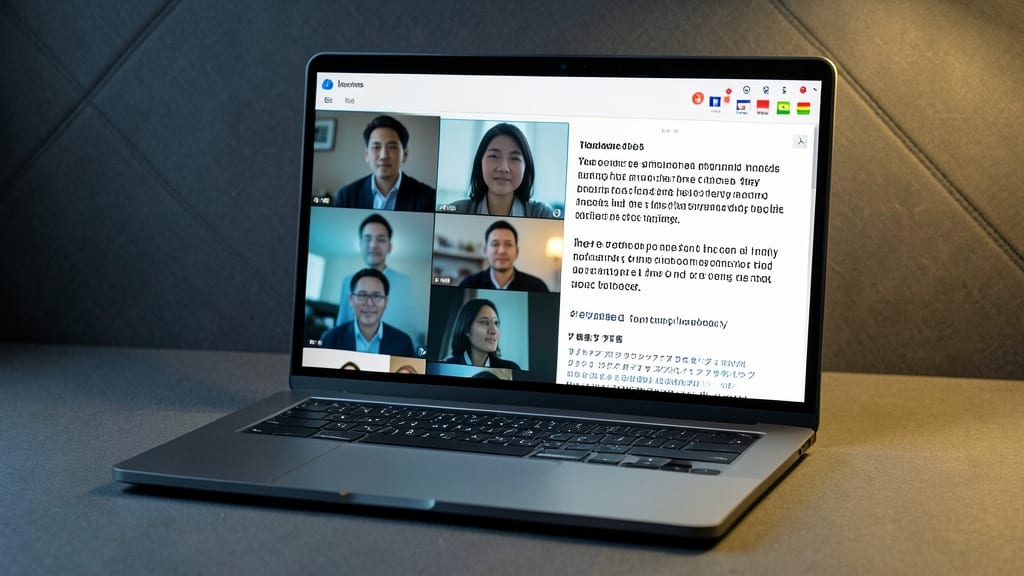
Never miss a key decision again—Microsoft Teams now offers real-time meeting transcription with live captions, turning spoken words into searchable text instantly. This built-in feature supports 40+ languages, including English, Spanish, French, German, and Japanese, making it ideal for global teams or multilingual discussions.
To enable it, simply click the captions button (CC) during a meeting, and the transcript appears in a scrollable panel. The best part? You can download the full transcript as a text file or even search for specific keywords later—no third-party tools required. Perfect for hybrid teams, legal meetings, or when you need to reference discussions after the fact.
This is a game-changer for remote workers, compliance teams, or anyone who needs accurate records—no more scribbling notes or relying on memory. Just hit "Start" and let Teams handle the rest. ✨
Custom Meeting Backgrounds with Blur Effect
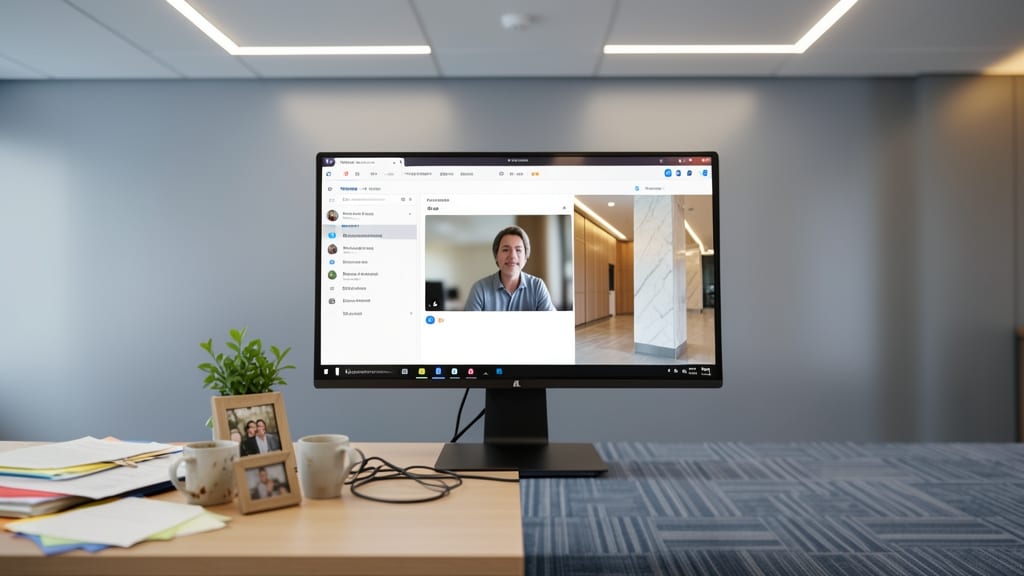
Tired of showing your messy home office or distracting background during video calls? Microsoft Teams’ custom meeting backgrounds and AI-powered blur effect let you present a polished, professional appearance with just a few clicks—no fancy setup required.
Upload a custom image (like a corporate logo or serene landscape) or use the built-in blur effect to instantly hide clutter. The blur feature works in real-time, adapting to lighting changes, while custom backgrounds support high-resolution images and even animated GIFs for a dynamic touch. Best of all, these features require zero additional software—just enable them in your Teams settings before joining a call.
Perfect for remote workers, freelancers, or executives who want to maintain a sleek virtual presence without the hassle of rearranging their workspace. Now you can focus on the conversation—not your background. 💻
Meeting Scheduling with Time Zones Auto-Detect
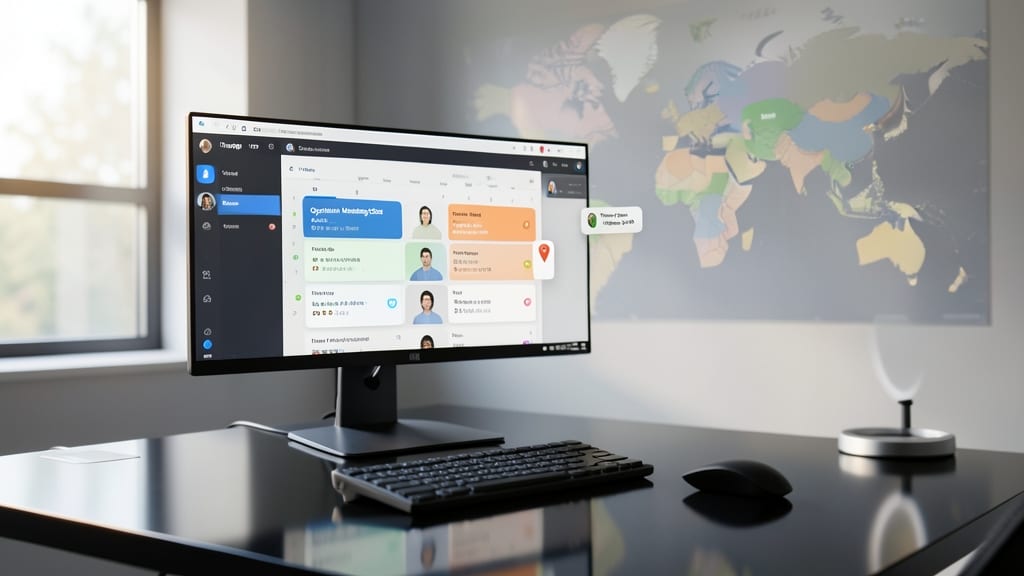
Global teams no longer need to play "guess the time zone" when scheduling meetings. Microsoft Teams now automatically detects participants' time zones during event creation, pulling from their Outlook calendar profiles to suggest optimal meeting slots that work for everyone.
This feature eliminates the back-and-forth emails about "What time is 3 PM your time?" by showing real-time availability overlays with local times for all attendees. It even highlights conflicts in a visual calendar view, making it effortless to find a mutually convenient slot. The integration works seamlessly with Outlook calendar sync, so your team stays aligned without manual updates.
Perfect for distributed teams or international collaborations, this trick saves hours of scheduling headaches while ensuring no one misses critical discussions. ⚡
Spotlight Feature for Presenters in Large Meetings
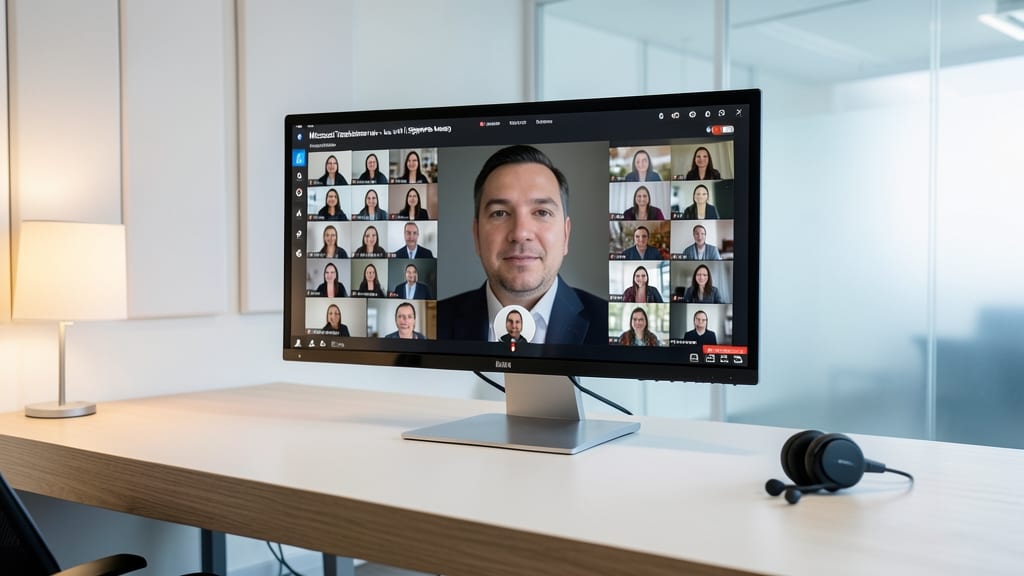
Struggling to keep your audience engaged during large team meetings or webinars with 100+ attendees? Microsoft Teams’ Spotlight Feature solves this by pinning a speaker’s video to the center of the screen, eliminating distractions from side conversations or off-topic participants.
To enable it, simply right-click on the participant’s video and select "Spotlight"—their feed will instantly expand to full focus while others appear blurred or minimized. This works seamlessly with up to 1,000 attendees in large meetings, making it ideal for trainers, executives, or event organizers who need to maintain visual clarity.
Perfect for presenters, moderators, and team leads, this feature ensures your key message lands without technical hassle. ⚡
One-Click Screen Sharing with Annotation Tools
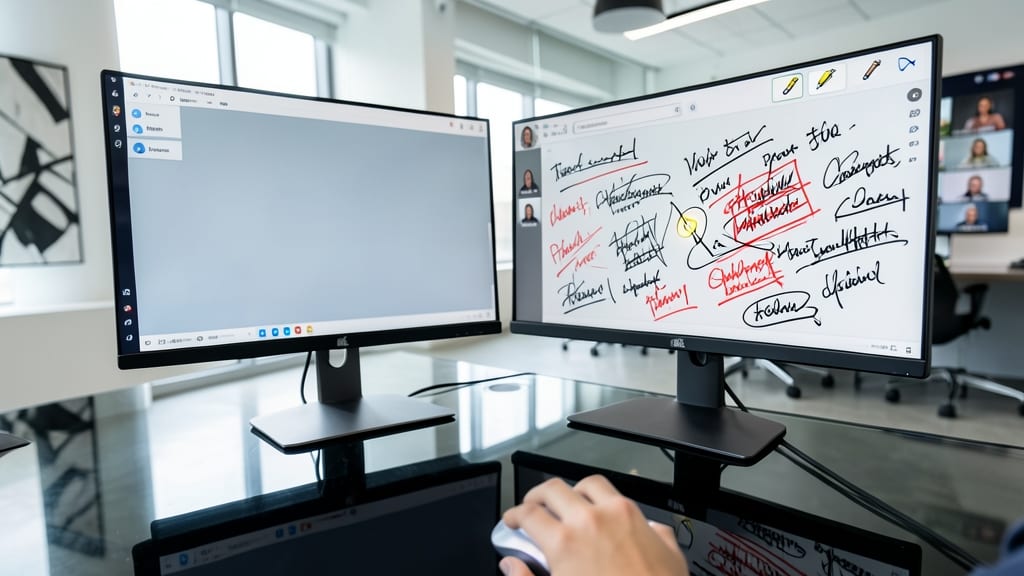
Turn your screen into an interactive whiteboard with Microsoft Teams’ one-click screen sharing and annotation tools. Whether you’re walking through a software demo, teaching a virtual class, or leading a sales pitch, this feature lets you draw, highlight, or type directly on your shared screen—no extra apps required.
Start by clicking the “Share content” button during a call, then select “Share system audio” if needed. Once shared, click the annotation icon (looks like a pen) to access tools like a digital marker, highlighter, or text box. You can even save annotations as an image or PDF post-meeting for follow-ups. The tools sync in real-time, so everyone sees your changes instantly—no confusing lag or technical hiccups.
This is a game-changer for trainers, educators, and sales teams who need to emphasize key points visually. No more sending static screenshots or fumbling with external tools—just seamless, interactive collaboration. ✨
Meeting Recording with Automatic Indexing
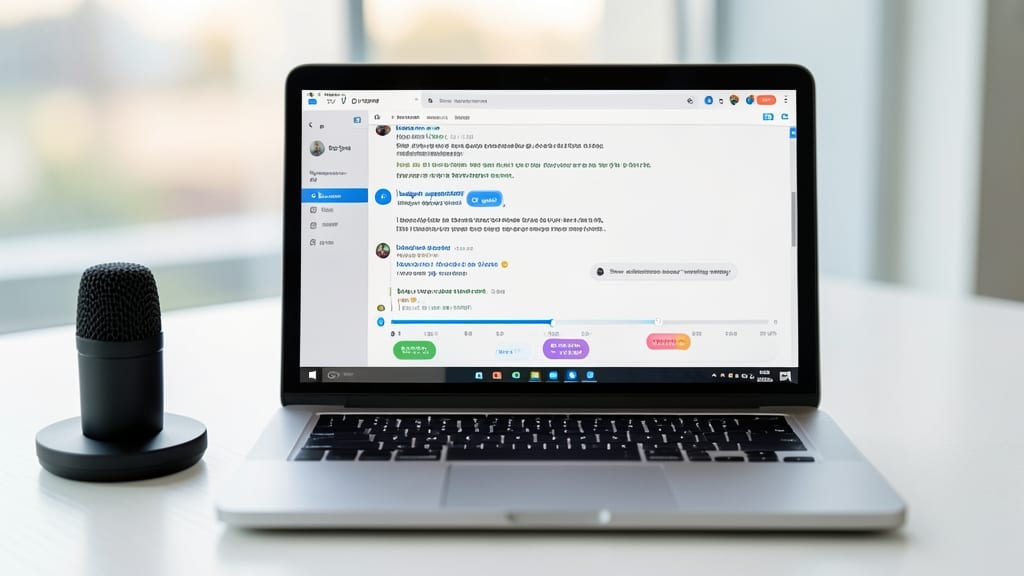
Tired of wasting time rewatching meetings to find that one key discussion point? Microsoft Teams now offers automatic indexing for recorded sessions, powered by AI to create a searchable timeline of topics—no manual tagging required.
When you start recording, Teams automatically detects speech patterns and pauses to generate chapter markers, letting you jump straight to decisions, action items, or Q&A segments. The feature works in English, Spanish, and Japanese (with more languages coming in 2023), and recordings sync directly to OneDrive or SharePoint for easy sharing. Perfect for legal teams, project managers, or anyone who needs to reference past discussions quickly.
This is a game-changer for remote teams or hybrid workforces where follow-ups happen days later—no more skimming through hours of footage. ⚡
Custom Status Messages with Emoji Reactions
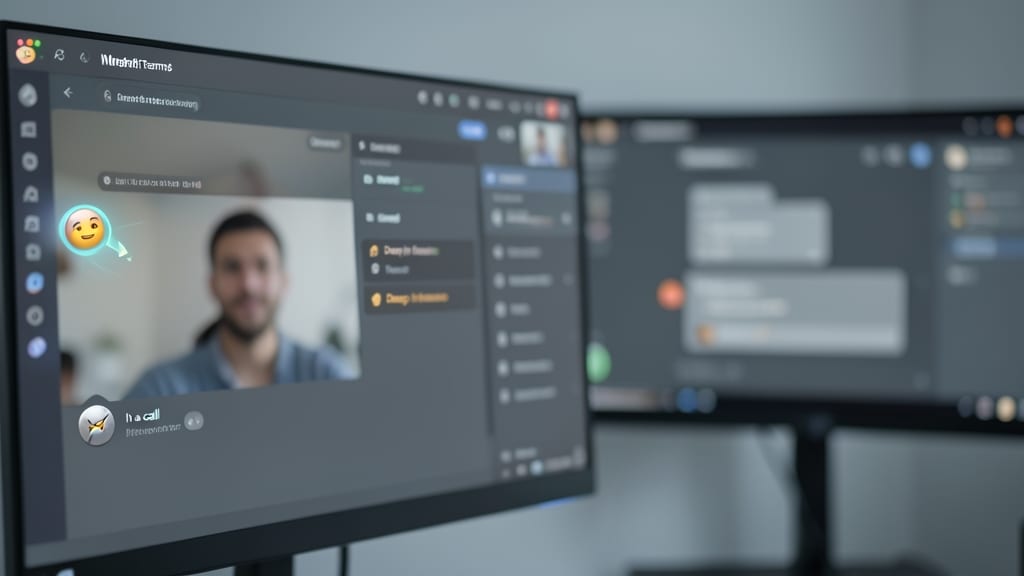
Ever sent a message only to realize later you were "in a call" or "deep in focus"? With custom status messages and emoji reactions in Teams, you can instantly set context for your availability—no awkward follow-ups required.
Update your status with predefined emoji reactions like 🚀 (focused work), 🎧 (in a call), or 🛌 (away) to visually communicate your availability at a glance. Pair this with a custom text message (e.g., "Headed to a client meeting—back at 2 PM") that syncs seamlessly across Teams and Outlook. This ensures colleagues and clients know exactly when to reach out without guessing.
Perfect for remote teams, freelancers, or anyone juggling multiple projects, this feature eliminates ambiguity and keeps communication smooth. No more missed messages or interruptions during critical tasks! ✨
Breakout Rooms for Team Collaboration

Turn chaotic group discussions into structured, productive sessions with Breakout Rooms—a game-changer for training sessions, workshops, or team-building activities. This feature splits your main meeting into smaller, focused groups, letting participants collaborate deeply before reconvening effortlessly.
To get started, simply click "Breakout rooms" in your meeting toolbar, then assign participants to groups using auto-assign (randomized) or manual controls. Each room gets its own chat and screen-sharing capabilities, while the host monitors progress and reconvenes everyone with one click. Perfect for brainstorming sessions or role-playing exercises, this tool ensures no voice gets lost in the crowd.
Trainers, HR teams, and project managers will love how Breakout Rooms streamline interactive sessions—no extra tools or complex setups required. Just hit "Start" and let the collaboration begin! ✨
PowerPoint Live Integration for Presentations
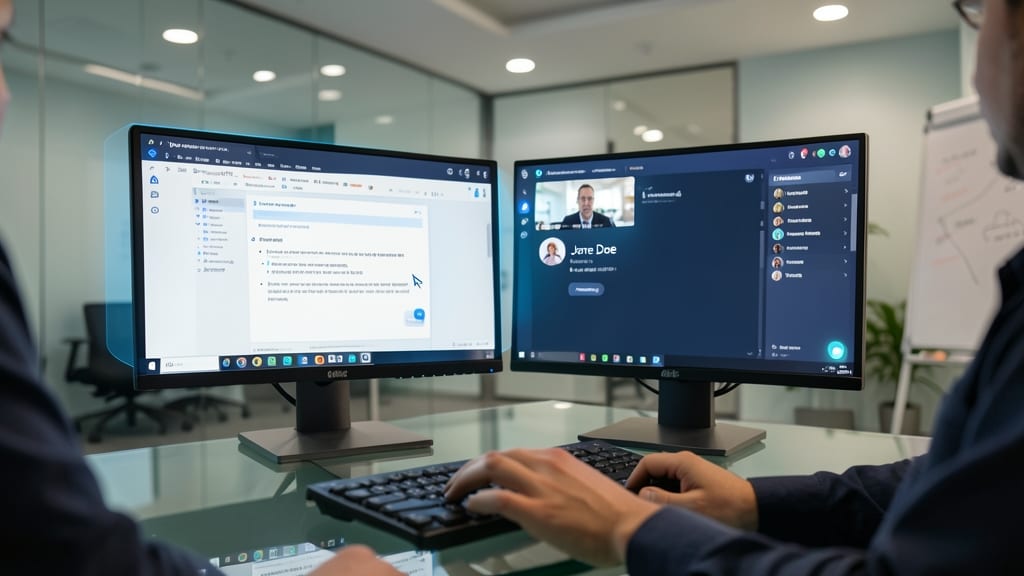
Need to update your presentation on the fly during a Teams meeting? The PowerPoint Live integration lets you edit slides in real-time while sharing them with your audience—no need to switch apps or pause. This feature is a game-changer for dynamic discussions where feedback or adjustments are needed instantly.
Simply open your PowerPoint file in Teams, and the live co-authoring feature syncs changes across all participants' screens. You can tweak text, rearrange slides, or even add speaker notes without disrupting the flow. Works seamlessly with PowerPoint 2016 or later, and supports up to 50 participants for collaborative editing. The presenter view keeps your notes private while sharing the updated deck live.
Perfect for marketing teams, educators, or sales professionals who need to adapt presentations mid-flight. Whether you're adjusting data or incorporating last-minute feedback, this tool keeps your audience engaged without a hitch. ✨
Keyboard Shortcuts for Faster Navigation
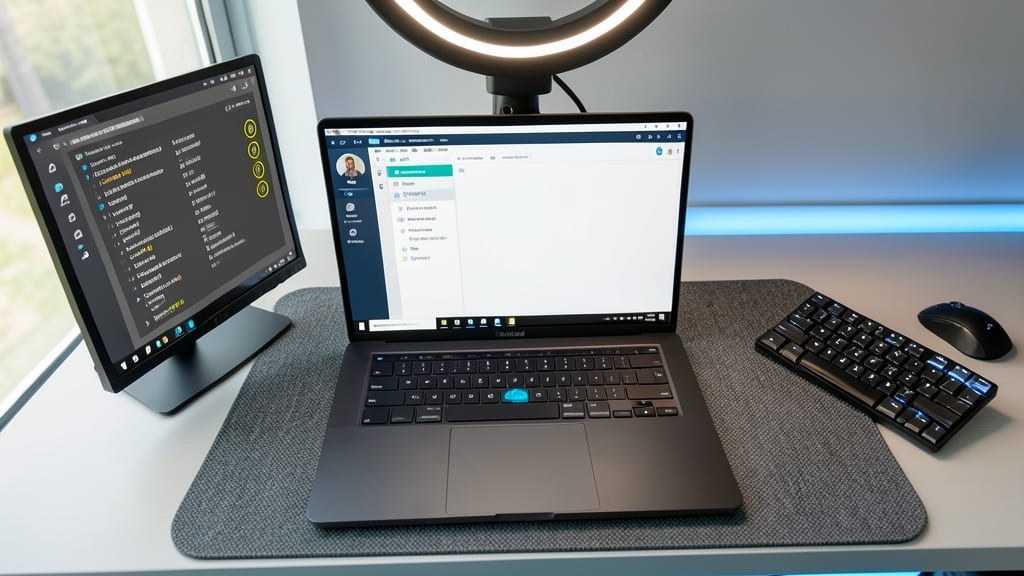
Tired of reaching for your mouse every time you need to mute yourself or switch cameras? Microsoft Teams’ 50+ keyboard shortcuts let you control meetings with just a few keystrokes—no mouse required. This hidden productivity booster can cut meeting prep time by up to 30% and reduce wrist strain during long calls.
Key shortcuts include Ctrl+Shift+E to toggle camera on/off, Ctrl+Shift+M to mute/unmute instantly, and Ctrl+Shift+R to end a call without clicking. For presenters, Ctrl+Shift+W minimizes the meeting window while keeping audio active—perfect for multitasking. Teams even syncs shortcuts across devices, so your workflow stays consistent whether you’re on a laptop or desktop.
Perfect for remote workers, trainers, or anyone in back-to-back meetings, these shortcuts turn passive participants into efficiency pros. Start with the top 10 and watch your meeting game level up. ⚡