
Software
Microsoft Teams channels can make or break remote team productivity. These 10 best practices help you organize workflows, reduce clutter, and keep communication focused—whether your team is fully remote or hybrid.
Standardize Channel Naming Conventions

Struggling to find the right channel when your team has 15+ active projects? A standardized naming convention turns chaos into clarity. Instead of vague names like "Project Updates," use a structured format like [Team]-[Project]-[Purpose]—for example, Marketing-Campaign-Social or Dev-Sprint-Backlog. This ensures every channel follows a predictable pattern, making it effortless to locate or create the right one.
The formula works by embedding three key details upfront: which team owns it, what project it serves, and its specific function. Teams with overlapping workflows (like marketing and sales collaborating on a campaign) benefit most, as it eliminates ambiguity. Pro tip: Use hyphens for readability and avoid special characters that can cause sync issues across devices.
Perfect for enterprise teams, agencies, or cross-departmental projects where context shifts frequently. With this system, even new hires can navigate channels intuitively—no more guessing where to post. 💡
Limit Active Channels per Team
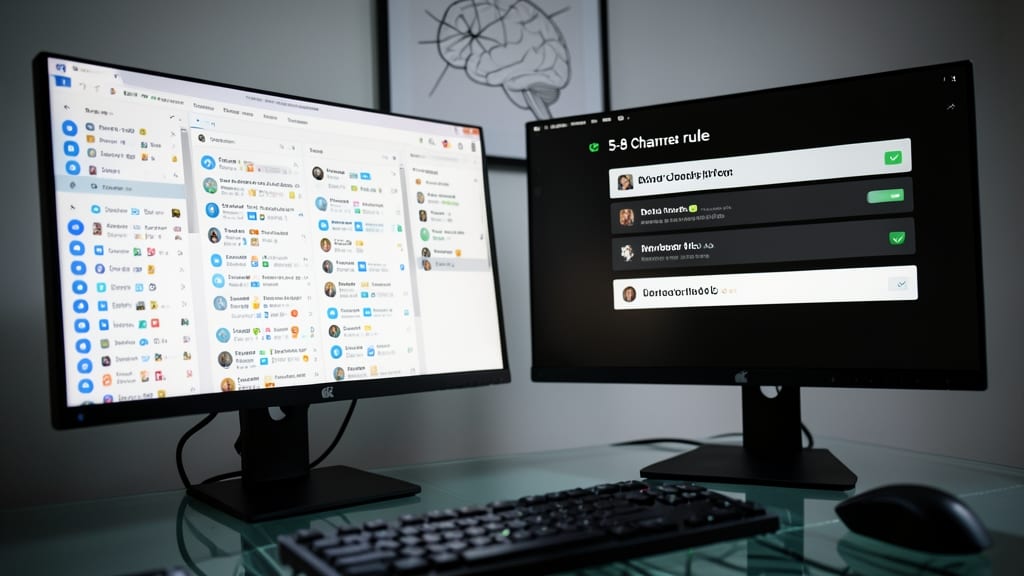
Feeling overwhelmed by a never-ending list of Teams channels? Research shows that 5-8 active channels per team is the cognitive sweet spot—any more and your brain starts treating each new notification like a choice between 20 tabs in a browser. The fix? Ruthlessly limit active channels to only those directly tied to current priorities, then archive or delete the rest.
Start by auditing your team’s workflows: Do you really need separate channels for brainstorming, updates, and feedback? Often, one well-organized channel (with tabs for different topics) works better than three scattered ones. For example, a product team might consolidate into #Product-Roadmap (with tabs for "Ideas," "In Progress," and "Feedback") instead of maintaining three separate channels. Microsoft’s own guidelines suggest that teams with more than 10 active channels see a 30% drop in engagement—people just tune out.
This approach works best for small teams, departments, or cross-functional squads where focus is critical—think design sprints, client projects, or internal task forces. It’s also perfect for teams transitioning from chaotic Slack workspaces to structured Teams environments. Less clutter means faster decisions and fewer "Where should I post this?" messages. ⚡
Use Channel Descriptions for Context
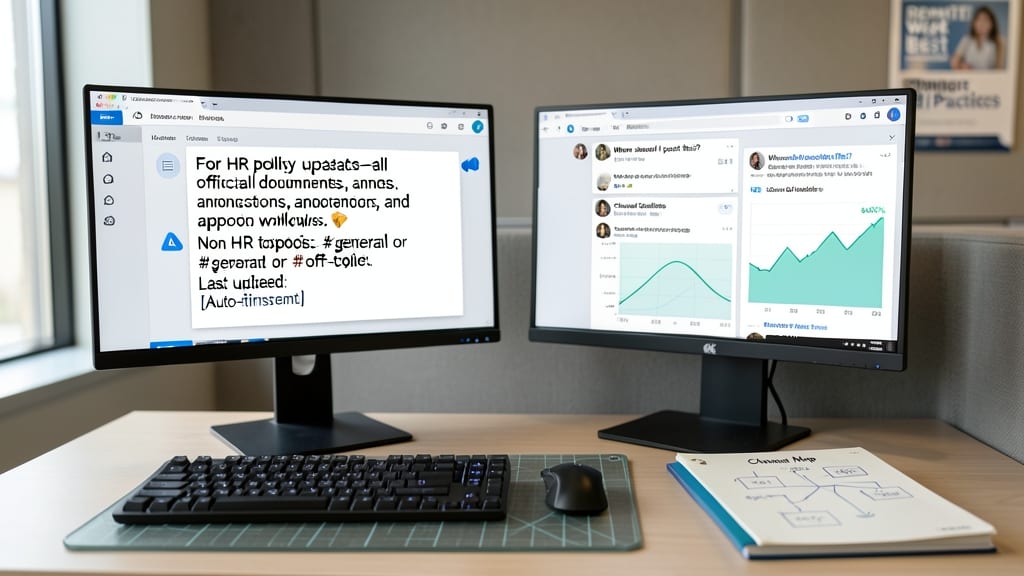
Tired of spending hours answering the same "Where should I post this?" questions? A well-crafted channel description in Microsoft Teams acts as your team’s instant rulebook—saving you time and keeping discussions on track.
Include three key elements: the channel’s purpose (e.g., "For HR policy updates"), ownership (e.g., "Managed by the People Ops team"), and posting guidelines (e.g., "No personal chats—use #watercooler instead"). Use bullet points for readability, and update descriptions when roles or workflows change. This turns passive channels into self-service hubs.
Perfect for remote teams or departments where context shifts often (like marketing or product development). With clear descriptions, new hires and contractors can onboard faster—and your inbox stays quieter. ✨
Organize with Channel Tabs
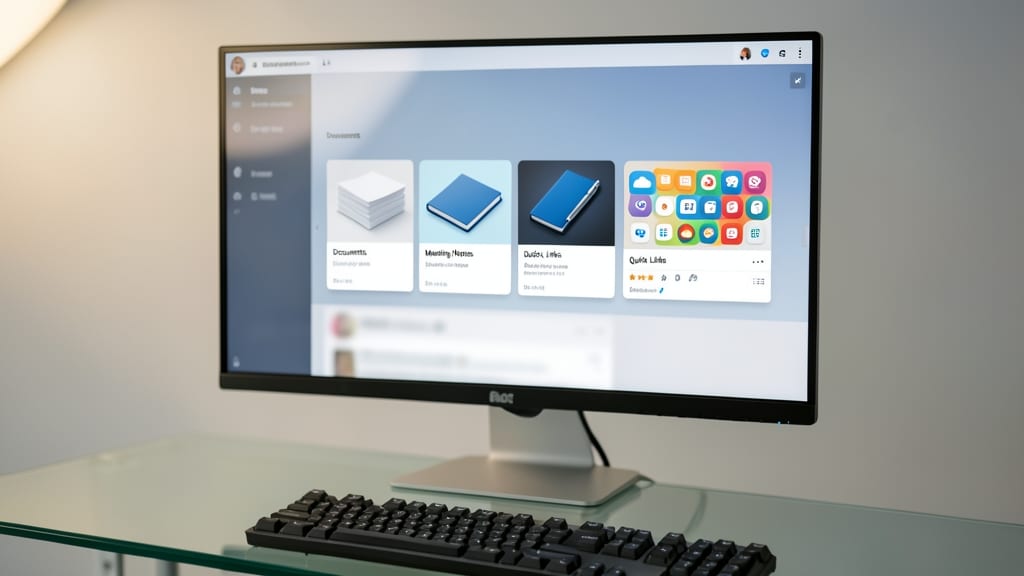
Tired of scrolling through endless posts to find what you need? Channel tabs in Microsoft Teams act like digital file folders, letting you categorize content into dedicated sections—like 'Documents', 'Meeting Notes', or 'Quick Links'—all within a single channel. This keeps your workspace tidy while making critical resources instantly accessible.
You can add tabs for files, planner tasks, OneNote pages, or even external apps like Trello or Twitter feeds. The best part? Tabs stay persistent, so every team member sees the same organized layout. For example, a 'Project Kickoff' channel could feature a 'Agenda' tab for meeting notes, a 'Resources' tab for shared files, and a 'Action Items' tab for tasks—no more digging through threads.
This is a game-changer for cross-functional teams or departments handling multiple projects simultaneously. Teams juggling design, development, and client updates will appreciate the clarity. ✨
Enable Channel Moderation for Busy Teams
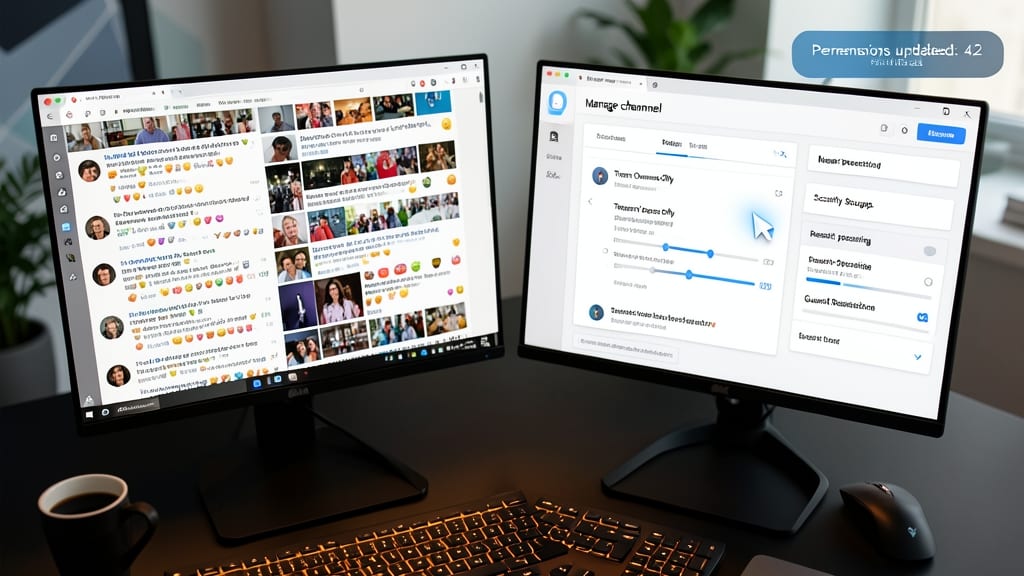
When your Teams channel starts drowning in off-topic chatter or spam, moderation settings become your lifeline. Microsoft Teams lets you restrict posting to team owners, specific security groups, or even guest users—giving you granular control over who can contribute.
To enable it, navigate to Channel settings > Permissions and toggle "Only owners can post" or "Members and guests can post" (with optional approval workflows). This cuts down on noise while keeping channels public-facing or team-specific—perfect for client collaborations or high-traffic departments. For extra security, combine it with role-based access (e.g., only "Project Managers" can post in #Updates).
This is a game-changer for customer support teams, public-facing projects, or departments with frequent guest contributors. 💪
Archive Inactive Channels Quarterly
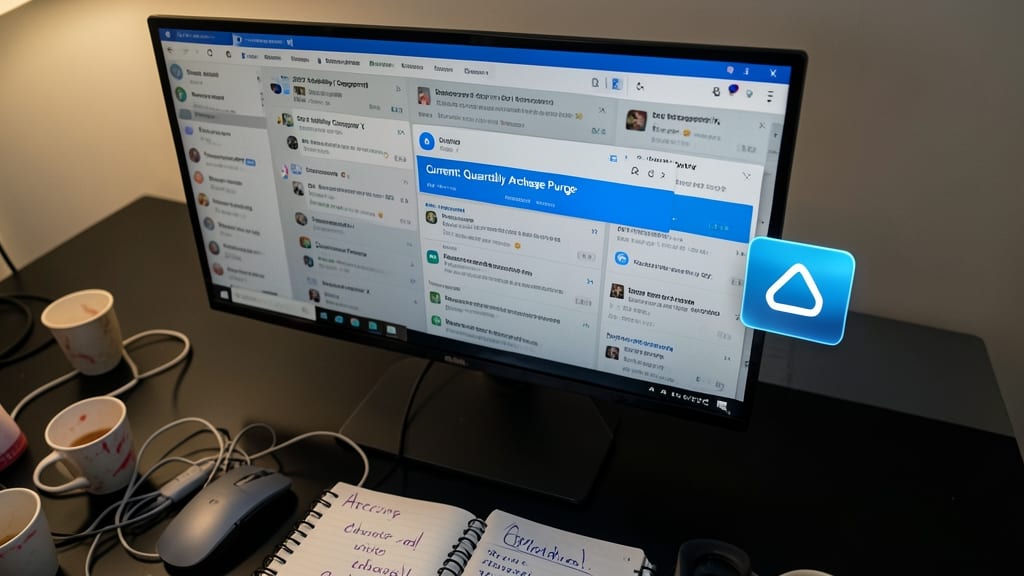
If your Teams workspace feels like a digital landfill of old project channels, it’s time for a quarterly archive purge. Teams lets you archive inactive channels in just a few clicks, preserving history without cluttering your active list—perfect for teams with seasonal workloads or rapid project turnover.
To start, identify channels tied to completed projects (like "Holiday Campaign 2023" or "Q1 Product Launch"). Right-click the channel, select "Archive channel", and confirm—this removes it from active view but keeps files and messages searchable. Microsoft recommends archiving no more than 20% of active channels at once to avoid overwhelming your team’s search functionality. For larger teams, set a recurring calendar reminder to review channels every 3 months.
This works best for marketing teams launching seasonal campaigns, consulting firms wrapping up client projects, or IT support teams handling rotating hardware deployments. A clean channel list means faster searches and fewer "Where did we post that?" headaches. ✨
Pin High-Priority Channels for Quick Access

When every second counts—like during a product launch or crisis update—your team shouldn’t waste time scrolling through channels. Pinning high-priority channels (like Company Announcements or Support Requests) to the top of your Teams sidebar ensures critical updates are always visible, even with dozens of other channels.
To pin a channel, simply click the three-dot menu next to its name and select "Pin." This moves it above the default alphabetized list, giving it a star icon for instant recognition. Teams with global teams or shift-based workflows benefit most, as pinned channels act as a persistent notification system without overwhelming inboxes. You can also unpin channels later if priorities shift.
This trick is a game-changer for distributed teams where time zones or roles create communication gaps. No more missed deadlines because a key update got buried. ⚡
Leverage Channel Themes for Visual Cues
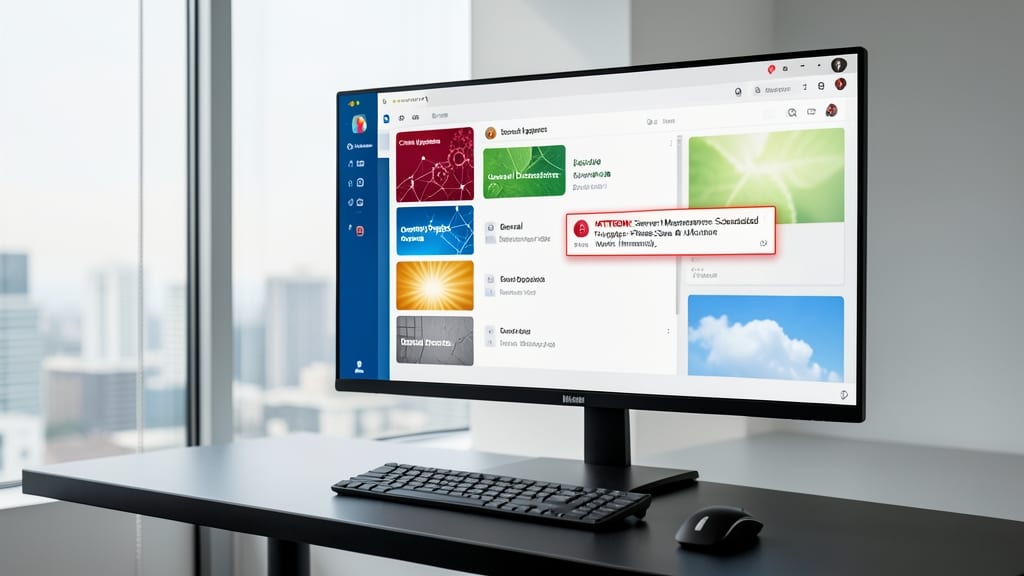
Struggling to find urgent messages buried in a sea of channels? Channel themes in Microsoft Teams let you assign colors to channels based on their purpose—like red for critical updates, blue for ongoing projects, or green for general discussions. This visual hierarchy helps your team spot priorities at a glance without scrolling through endless lists.
To set this up, go to Channel settings > Customize theme and pick from preset colors or upload your own. Teams also lets you sync themes across devices, so everyone sees the same color-coded system. For example, mark your "Client Deadlines" channel in orange and "Team Brainstorming" in teal—no more guessing where to post.
This works best for fast-moving teams or departments with mixed priorities (like IT support vs. marketing campaigns). It’s a simple tweak that cuts down on confusion and speeds up decision-making. ✨
Set Clear Posting Guidelines in Channel
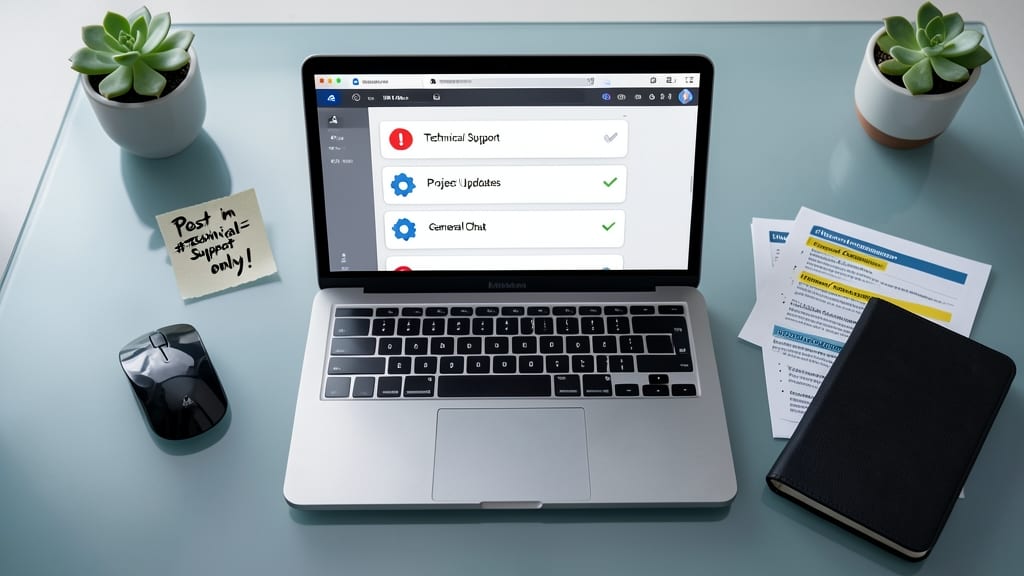
Tired of team members posting questions in the wrong channel and wasting everyone’s time? Clear posting guidelines are the secret weapon to keeping discussions focused and efficient in Microsoft Teams.
Start by labeling channels with specific purposes—like Technical Support for bug reports, Project Updates for milestones, or General Chat for casual conversations. Pin a one-page guideline (Word doc or image) in each channel to remind everyone where to post. For example, direct users to use the @mentions feature for urgent requests instead of spamming threads. This simple step cuts down on cross-channel noise by up to 40% in busy teams.
These guidelines work best for cross-functional teams or departments where roles overlap. New hires and contractors will also appreciate the clarity—no more guessing where to drop their questions. ⚡
Automate Channel Cleanup with Bots

Tired of manually sifting through cluttered Teams channels? Power Automate and third-party bots like Polly or Trellis can handle the heavy lifting—auto-archiving old posts, flagging spam, and even muting inactive channels. These tools integrate seamlessly with Teams, turning manual cleanup into a set-and-forget process.
With Power Automate, you can create flows that trigger actions like archiving posts older than 90 days or sending notifications when spam is detected. Third-party bots often offer pre-built templates for common tasks, such as auto-organizing files or silencing notifications from inactive channels. The best part? Most require zero coding—just a few clicks to configure.
This is a game-changer for tech-savvy teams who want to maintain order without the daily grind. Perfect for IT admins or collaborative groups drowning in notifications. ✨