
Tip & Trick
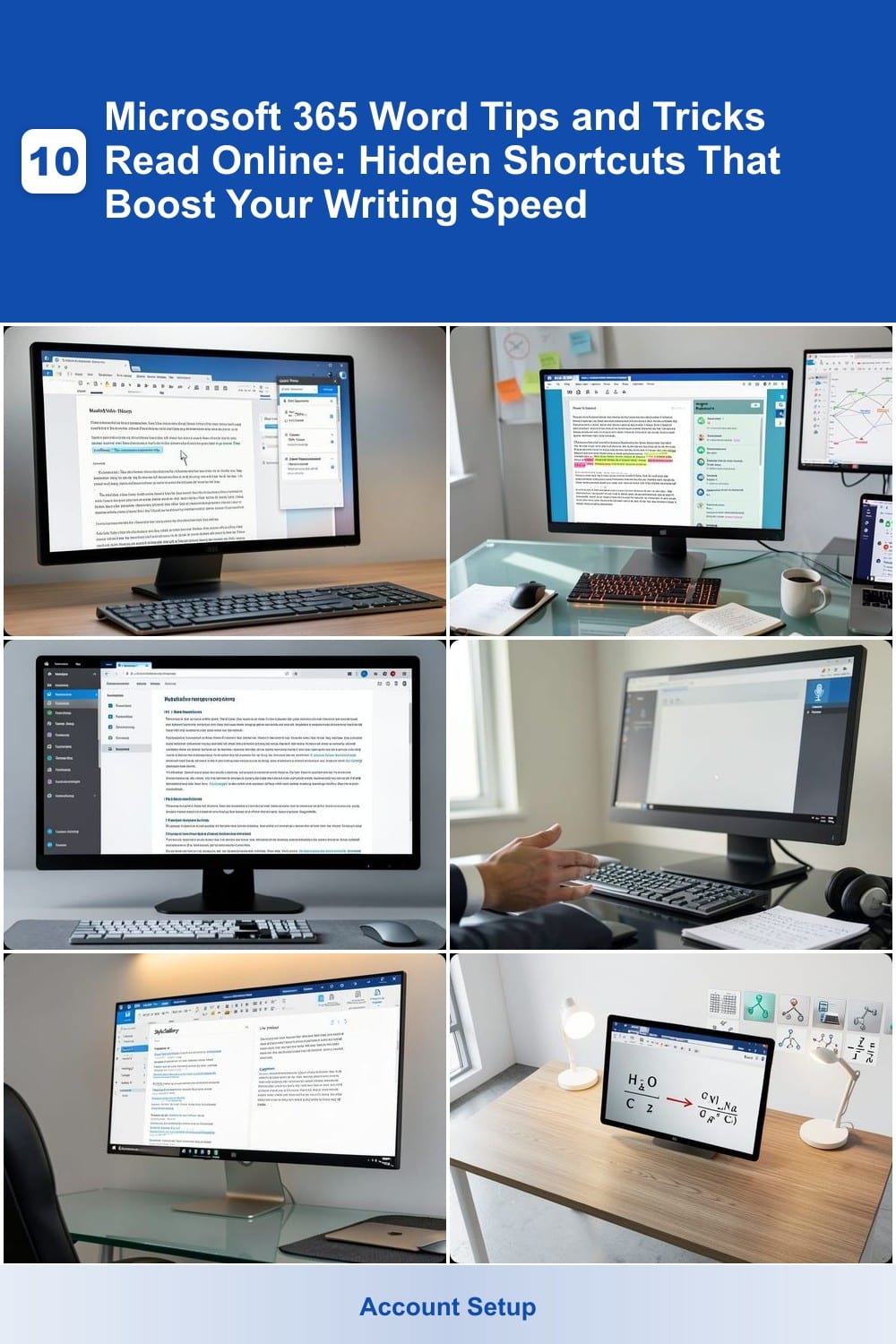
Microsoft Word is a powerhouse for productivity, but most users only scratch the surface of its capabilities. These seven hidden Microsoft 365 Word tips and tricks will transform your writing workflow, slash time spent on formatting, and unlock features you didn’t know existed—all accessible online.
Quick Parts Gallery for Repeated Text
Ever waste time retyping the same disclaimers, signatures, or legal boilerplate in every document? The Quick Parts Gallery in Microsoft 365 Word lets you save any text snippet once and insert it anywhere with a keyboard shortcut—no copy-pasting required.
To use it, highlight the text you want to reuse, then click Insert > Quick Parts > Save Selection to Quick Part Gallery. Assign a shortcut (like Ctrl+Alt+Q) to pull it up instantly. This works for emails, contracts, or academic papers—anywhere you repeat phrases. Pro tip: Use AutoText for dynamic fields (like dates) that update automatically.
Perfect for lawyers, business professionals, or students drowning in repetitive text. Your future self will thank you for this zero-effort efficiency boost. ⚡
Track Changes with Comments and Highlights
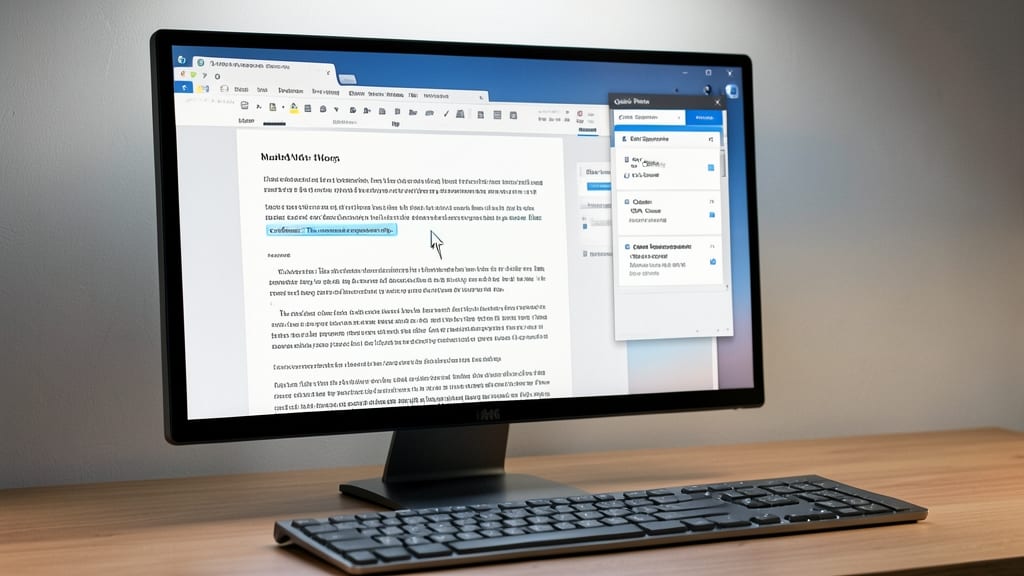
Ever struggled to keep track of edits in a shared document, only to lose context or debate which version was "correct"? Microsoft 365 Word’s Track Changes with Comments and Highlights feature turns chaotic collaboration into a structured, visual workflow—no more email ping-pong over revisions.
Enable it by clicking Review > Track Changes, then use threaded comments (inserted via New Comment) to discuss specific sections without cluttering the document. Add color-coded highlights (yellow, green, or blue) to mark key points for review, while the Revisions tab lets you accept/reject changes individually or all at once. Pro tip: Use Show Markup to toggle between clean and annotated views instantly.
This is a game-changer for legal teams, marketing agencies, or academic researchers working on shared drafts. Say goodbye to version confusion and hello to seamless collaboration—all within Word’s built-in tools. ⚡
Navigation Pane for Large Documents
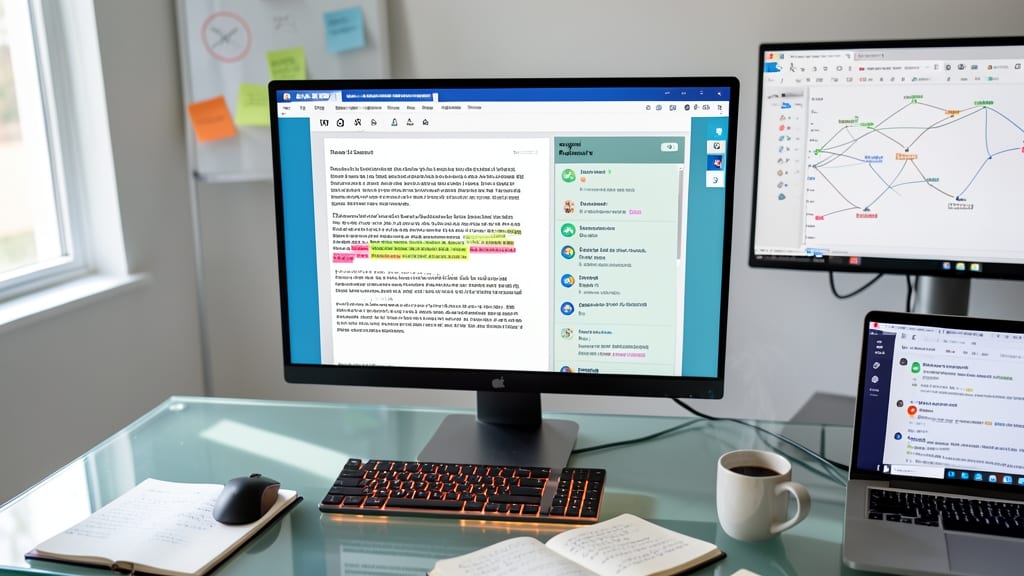
Tired of scrolling endlessly through 50-page documents to find the exact section you need? The Navigation Pane in Microsoft 365 Word acts like a built-in table of contents, letting you jump to any heading, page, or even specific text in seconds—no more guesswork or wasted time.
To access it, press Ctrl+F (Windows) or Cmd+F (Mac), then click the "Browse" tab to reveal a live outline of your document. Click any heading to instantly navigate, or use the "Page" view to pinpoint exact locations. This feature is a game-changer for academic papers, manuals, or reports, where precision matters most.
Researchers, lawyers, and technical writers will love this—it turns hours of scrolling into seconds of searching. ⚡
Dictation Tool for Hands-Free Writing

Tired of typing while juggling a phone call or racing to capture meeting notes? Word’s built-in dictation tool turns your voice into text in real-time—no third-party apps needed. Simply click the microphone icon in the Home tab (or press Ctrl + Shift + S), and start speaking naturally. Punctuation commands like "period" or "new line" let you format on the fly.
The tool supports 11 languages, including English, Spanish, and French, and works offline for seamless note-taking. It’s surprisingly accurate for general writing, though complex terms may need manual tweaks. Perfect for transcribing interviews, drafting emails hands-free, or brainstorming without interrupting your flow.
Journalists, students, and professionals who multitask will love this zero-config feature—just enable it in File > Options > Proofing. ⚡
Style Gallery for Consistent Formatting
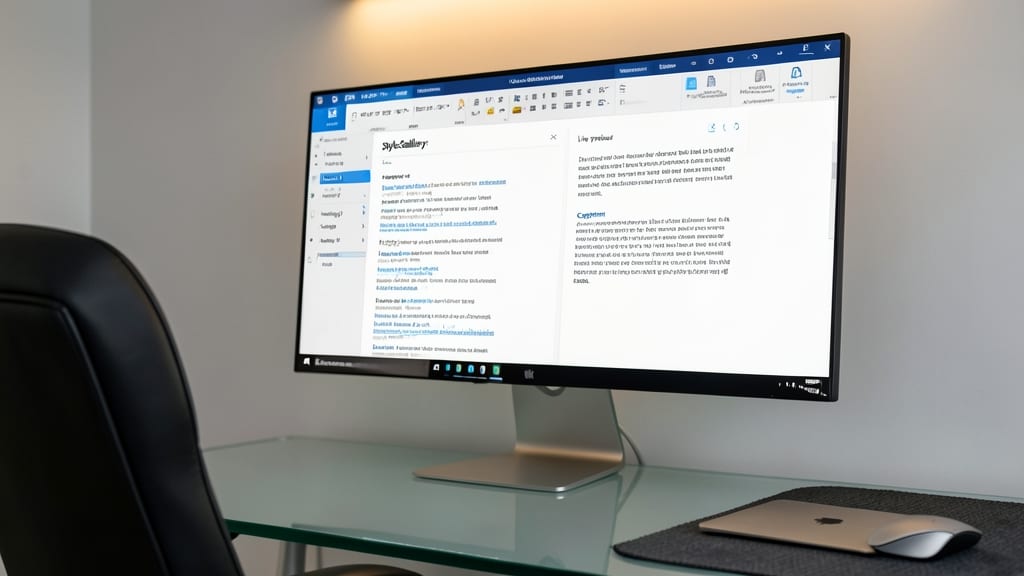
Tired of manually formatting every heading or caption in your documents? The Style Gallery in Microsoft 365 Word lets you apply predefined, reusable styles—like "Heading 1" or "Caption"—with just a click. This ensures perfect consistency across long documents, saving you hours of tedious formatting.
To use it, open the Styles pane (Home tab > Styles group), then hover over any style to preview it before applying. You can even customize styles to match your brand colors or fonts—ideal for designers and publishers. Need a quick change? Press Ctrl+Shift+S to jump straight to the Styles pane.
This trick is a lifesaver for anyone creating reports, brochures, or books where uniformity matters. Try it next time you’re formatting a document—your future self will thank you! ✨
Equation Editor for Math and Science
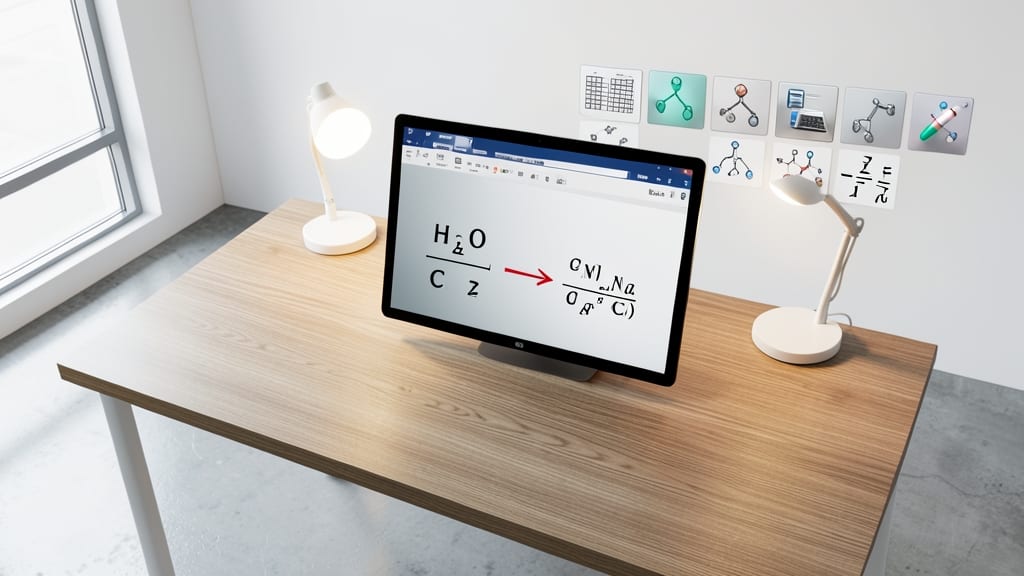
Struggling to format chemical reactions or advanced calculus equations in Word? The built-in Equation Editor turns your document into a professional-grade math workspace—no design skills required.
With pre-built templates for integrals, matrices, and chemical structures, you can insert symbols like π or ∑ with a single click. The drag-and-drop interface lets you resize, align, and format equations effortlessly, while auto-numbering keeps your equations organized. Even complex diagrams like Feynman diagrams or circuit schematics become manageable with customizable formatting tools.
Perfect for students cramming for exams, engineers drafting reports, or scientists writing papers—this tool ensures your equations look polished and professional every time. ✨
One-Click Table of Contents
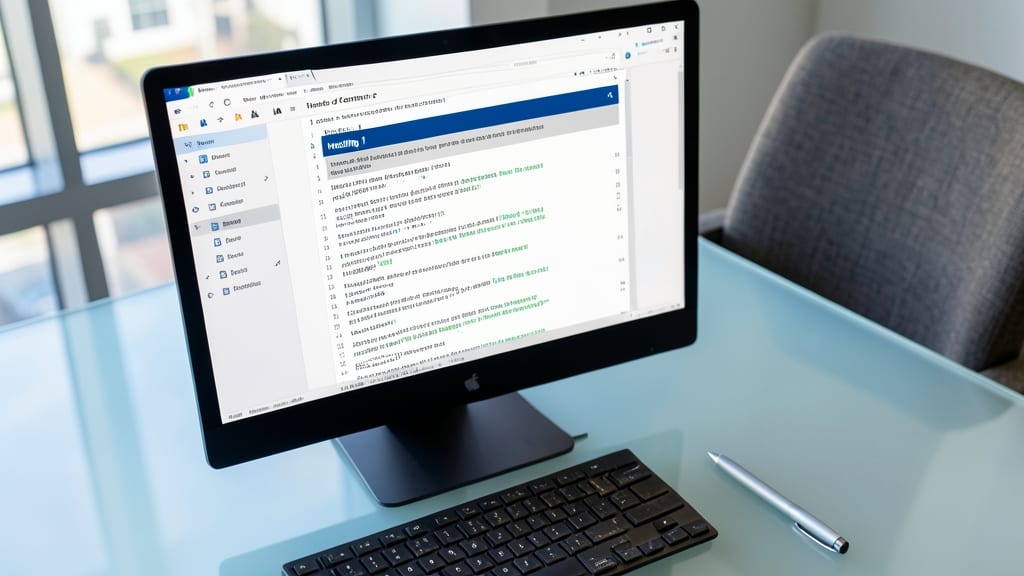
Tired of manually updating your Table of Contents every time you tweak a heading? Microsoft 365 Word’s auto-generated Table of Contents does the heavy lifting for you—no more clicking through pages or wrestling with formatting.
Simply format your headings using built-in styles like Heading 1, Heading 2, or Heading 3, then insert a Table of Contents via the References tab. Word instantly creates a clickable, numbered list that updates automatically when you edit headings—even across multiple pages. Need to tweak page numbers or styles? Just right-click the TOC and select Update Field for instant synchronization.
This trick is a lifesaver for authors, technical writers, and researchers juggling lengthy documents. Spend less time formatting and more time perfecting your content. ✨