
PowerPoint
Mastering PowerPoint transitions can transform your presentations from static slides to dynamic storytelling experiences. These seven transition effects help maintain professionalism while keeping your audience engaged throughout your slideshow.
Fade Slide Transition for Elegant Professionalism

Need a transition that screams "corporate sophistication" without screaming for attention? The Fade Slide Transition in PowerPoint delivers exactly that—subtle elegance for boardroom presentations, client pitches, and any scenario where visual polish matters more than flashy effects.
This classic effect smoothly dissolves one slide into the next, creating a clean, distraction-free shift that keeps focus on your content. It’s available in PowerPoint 2016, 2019, and 365, and works seamlessly with timed or manual triggers. The simplicity ensures compatibility across devices, from high-res projectors to laptops, without risking glitches or slowdowns.
Perfect for executives, trainers, or anyone delivering high-stakes presentations, the Fade Transition is the safe default for a polished, professional look. ✨
Wipe Transition for Clean Visual Breaks
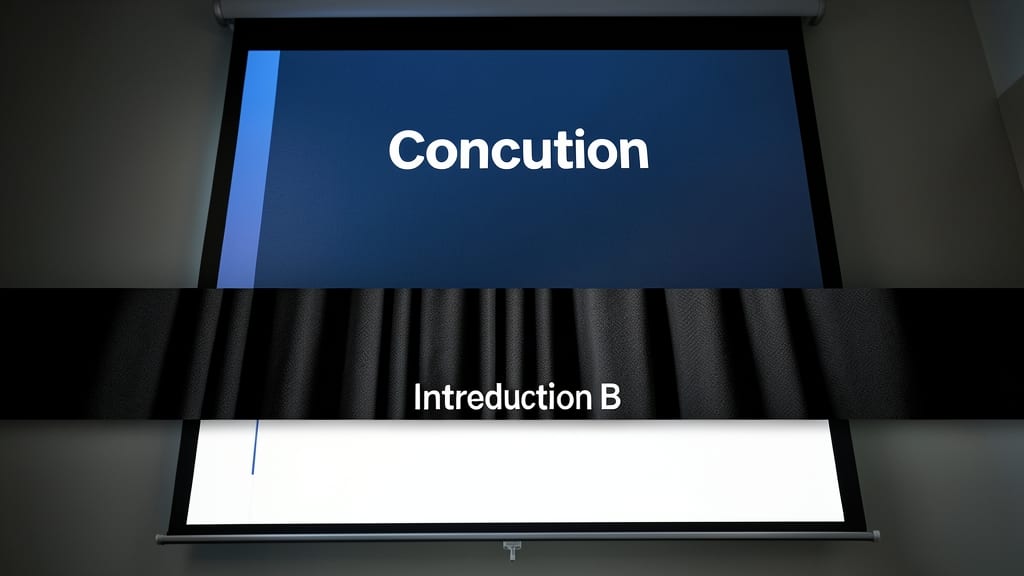
Need a crisp visual reset between sections in your presentation? The Wipe transition delivers a clean, intentional break that signals topic shifts without distracting from your message. Unlike fade effects, it uses a horizontal or vertical "wipe" motion—like a curtain closing—to create a satisfying pause between slides.
Available in PowerPoint 2016 and later (including Office 365), this transition supports customizable speed and direction (left, right, up, or down). Trainers and speakers love it for highlighting agenda changes—think of it as a visual "chapter break" that keeps audiences oriented. Pair it with a bold slide title for maximum impact.
Perfect for educational workshops, keynotes, or structured talks where clarity matters most. Skip it for creative pitches, but use it to anchor your audience during transitions. ✨
Push Transition for Dynamic Content Flow
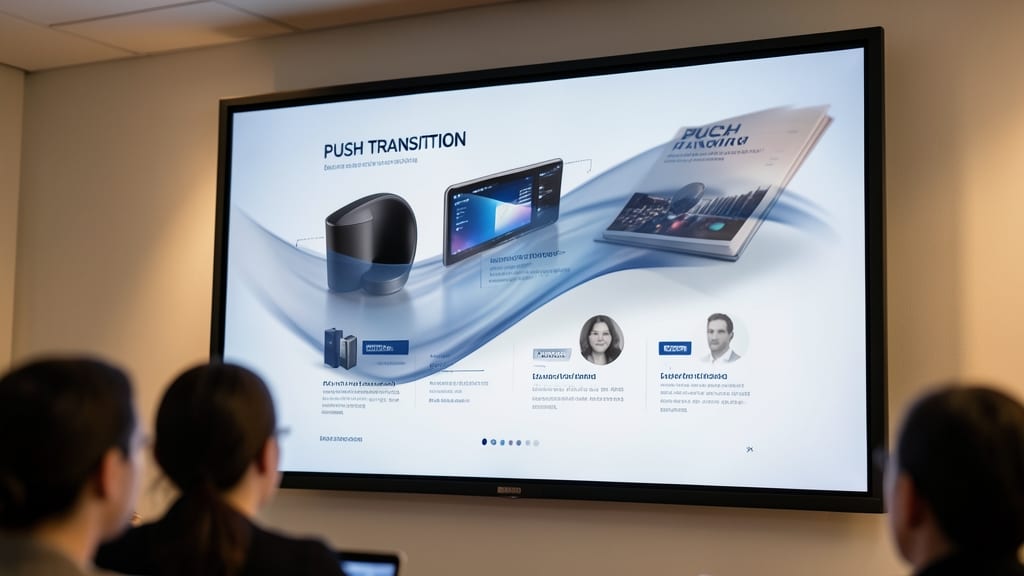
When you need to guide your audience through a narrative—like a product launch or client pitch—the Push Transition turns your slideshow into a guided journey. Unlike static fades or abrupt wipes, this effect mimics the natural motion of one slide "pushing" the next, creating a sense of forward momentum that aligns perfectly with storytelling arcs.
Available in PowerPoint 2013 and later (including Office 365), this transition works best with horizontal or vertical slide layouts and pairs well with minimalist designs. You can customize the speed to control pacing—ideal for emphasizing key milestones in your presentation. For extra polish, combine it with the Morph effect to blend content smoothly between slides.
Storytellers, marketers, and educators will love this effect for its subtle yet intentional motion, which keeps audiences engaged without distracting from your message. Try it for client demos or training sessions where progression matters most. ✨
Zoom Transition for Emphasizing Key Points
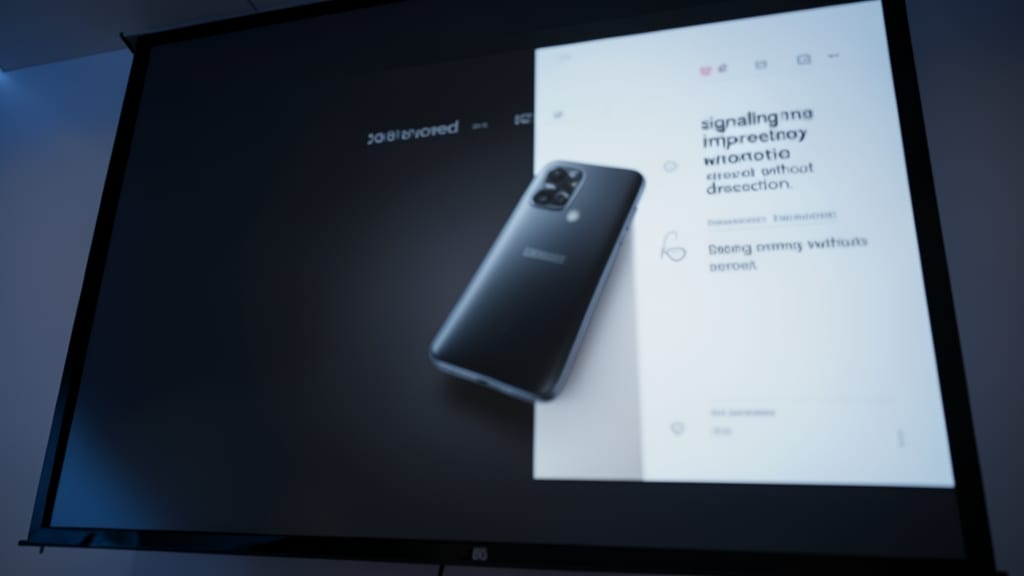
Need to make your product demo or sales pitch unforgettable? The Zoom transition in PowerPoint does exactly that by creating a smooth, attention-grabbing zoom effect between slides. Unlike static transitions, this one visually "pulls" the audience toward your key slides, signaling importance without overwhelming them.
Available in PowerPoint 2016 and later, this transition lets you adjust the zoom speed and direction (in or out) for precise control. Pair it with a bold color scheme or high-contrast visuals to maximize impact—perfect for highlighting pricing tables, product features, or call-to-action slides. The built-in sound effects (like a subtle "whoosh") add a polished, cinematic touch.
Sales teams and tech presenters will love this for product launches, while trainers can use it to emphasize critical takeaways. Just avoid overusing it—one or two strategic placements per deck keep the energy high without losing professionalism. ✨
Morph Transition for Seamless Data Visualization
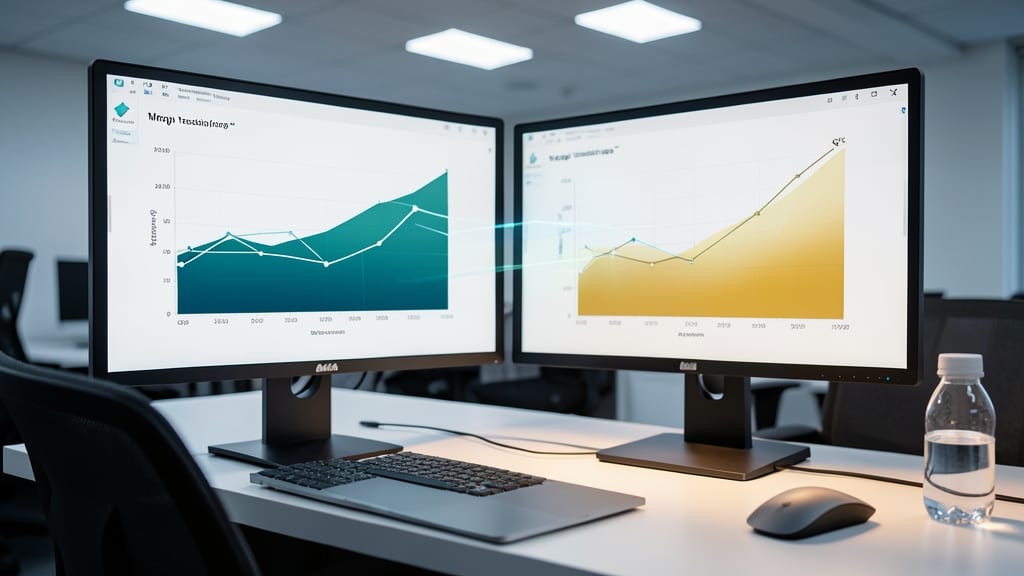
When your presentation hinges on showing how data evolves—like a sales trend or market share shift—the Morph transition is your secret weapon. Unlike static slides, this effect lets one chart or graph fluidly transform into another, preserving context while highlighting changes in real time.
Available in PowerPoint 2016 and later, this transition works best with similar data types (e.g., bar charts to bar charts) and requires identical slide layouts for a seamless effect. The smooth animation keeps your audience focused on the data, not the visual trickery, making it perfect for analytical storytelling.
Data analysts, financial planners, and researchers will love this for its precision—turning dry numbers into a compelling narrative without distracting from the insights. ✨
Split Transition for Creative Storytelling
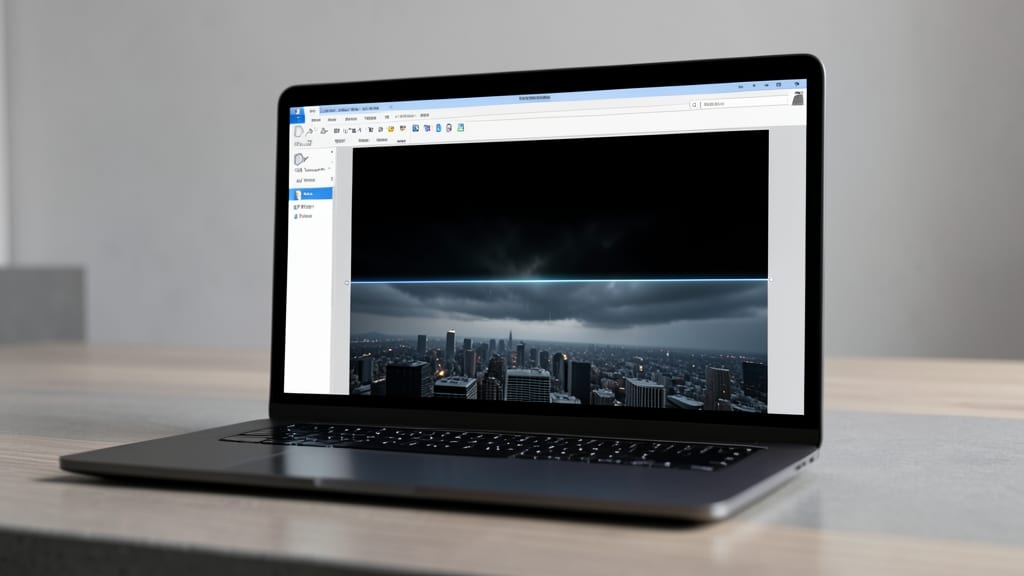
Need to build suspense or guide your audience through a narrative? The Split Transition in PowerPoint lets you reveal slides vertically or horizontally, creating a dynamic reveal effect that feels cinematic yet remains easy to control.
Available in PowerPoint 2016 and later, this transition works by dividing the screen into two sections—either top/bottom or left/right—and sliding them apart. You can adjust the split direction, speed, and sound effects to match your presentation’s tone. Unlike morph transitions, it doesn’t require matching slide content, making it ideal for storytelling or educational pacing.
Perfect for teachers, trainers, or creatives who want to control audience focus—like revealing a solution step-by-step or guiding attention to key visuals. Just don’t overuse it, or your audience might get dizzy! ✨
Random Bars Transition for High-Energy Presentations
Need to keep your audience on the edge of their seats during a high-energy session? The Random Bars transition injects dynamic energy with its unpredictable, bar-like motion that sweeps across slides—perfect for breaking monotony without sacrificing clarity.
This transition features randomized bar patterns that create a sense of movement and urgency, ideal for motivational talks or training sessions. Unlike static transitions, it avoids repetition while keeping the focus on your content. You can customize the speed and direction (horizontal or vertical) to match your presentation’s rhythm, ensuring it aligns with your delivery style.
Trainers, coaches, and speakers will find this transition especially useful for reinforcing key moments without overwhelming the audience. Just don’t overuse it—save it for slides where you want to create a memorable impact! ✨