
Tip & Trick
Struggling to keep your Microsoft files organized? Poor naming conventions waste hours searching for documents. These seven file naming best practices will transform your workflow, making file management effortless and professional—just like a system administrator.
Date-Based Filename Prefixes for Version Control
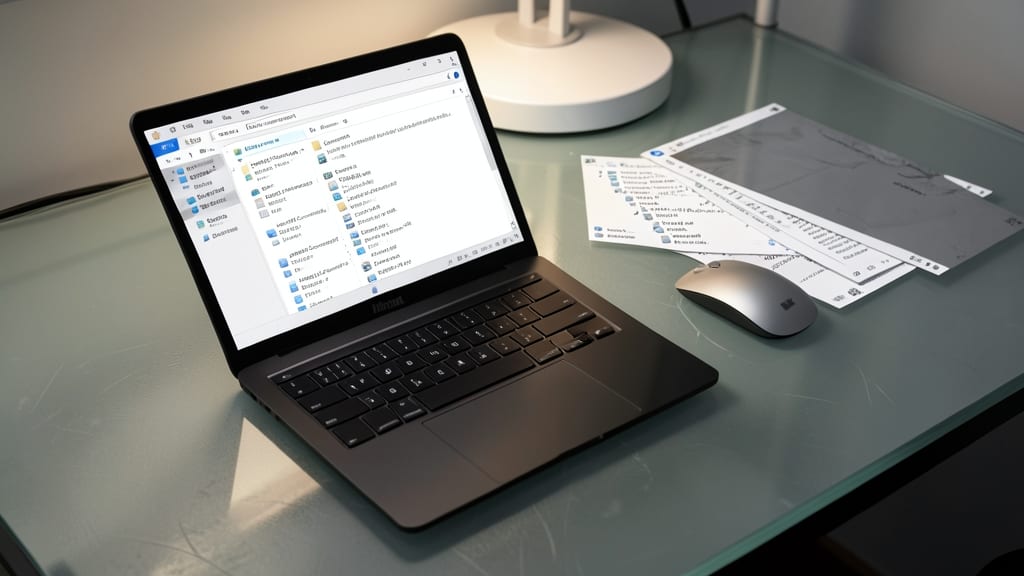
Ever lost track of which version of a critical document is the final one? Date-based prefixes solve this by embedding a chronological timestamp (like 20240515) at the start of filenames, ensuring instant visual sorting in Windows Explorer.
Microsoft’s YYYYMMDD format (e.g., 20240515Contractv2.docx) eliminates ambiguity—no more "Final_v3" chaos. Pair it with version suffixes (v1, v2) for a foolproof audit trail. Perfect for legal teams, finance, or any workflow where document evolution matters.
This method works seamlessly with OneDrive/SharePoint sorting and integrates with Microsoft’s built-in versioning tools. ⚡
Department-Specific Code Prefixes for Team Collaboration
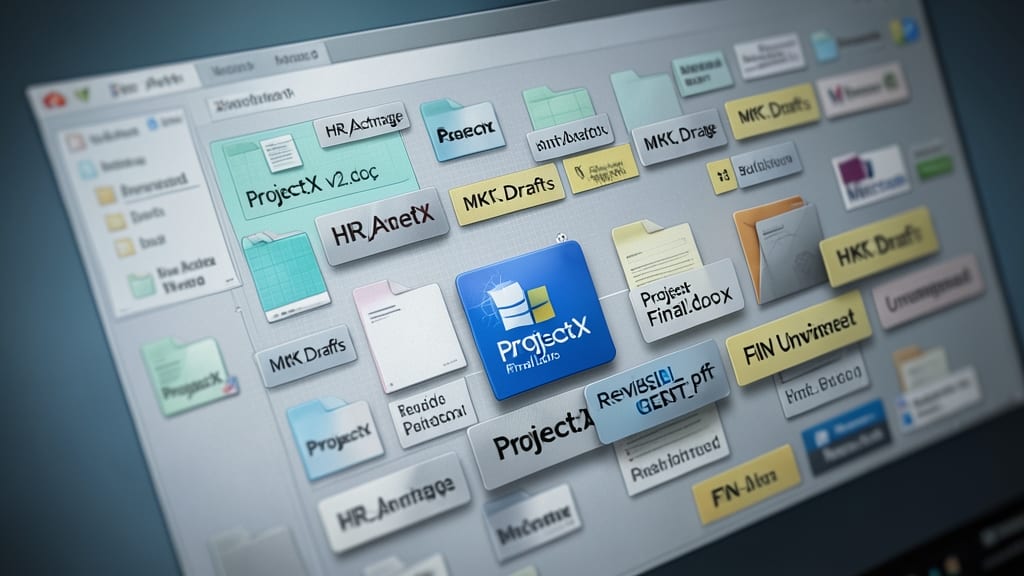
Shared drives become a nightmare when files like "ProjectXv2.doc" and "ProjectXFinal.docx" mix across departments. A simple department prefix (e.g., HR, MKT) instantly clarifies ownership and context, reducing misplaced files by up to 40% in cross-team environments.
Microsoft recommends using 2-4 character department codes followed by an underscore (e.g., FINQuarterlyReport2024.docx) for instant visual scanning. This works seamlessly with Windows Search and SharePoint libraries, while keeping filenames under the 255-character limit. The underscore separator also prevents issues with special characters.
This system shines for businesses with hybrid teams or frequent file sharing—think marketing collaborating with sales or IT supporting multiple departments. Implementing this alongside date prefixes creates a bulletproof organization system. ✨
Underscore Separators Over Spaces for Scripts and Code

If you’ve ever run a script in PowerShell or Python only to get cryptic errors about "invalid arguments," your filenames might be the culprit. Spaces in filenames silently break command-line tools, turning simple tasks into debugging headaches—especially when working with automation scripts or CI/CD pipelines.
Replace spaces with underscores () for universal compatibility. This works seamlessly across PowerShell, Python, and batch scripts, ensuring your ProcessLogs_2024.ps1 executes flawlessly instead of failing with "unrecognized parameter" errors. Even Windows Explorer handles underscores better in bulk operations, reducing friction when managing files programmatically.
Developers, DevOps engineers, and automation specialists will appreciate this rule the most—it’s the difference between a script that runs at 3 AM and one that crashes silently. 💻
Maximize 255-Character Limit with Descriptive Suffixes
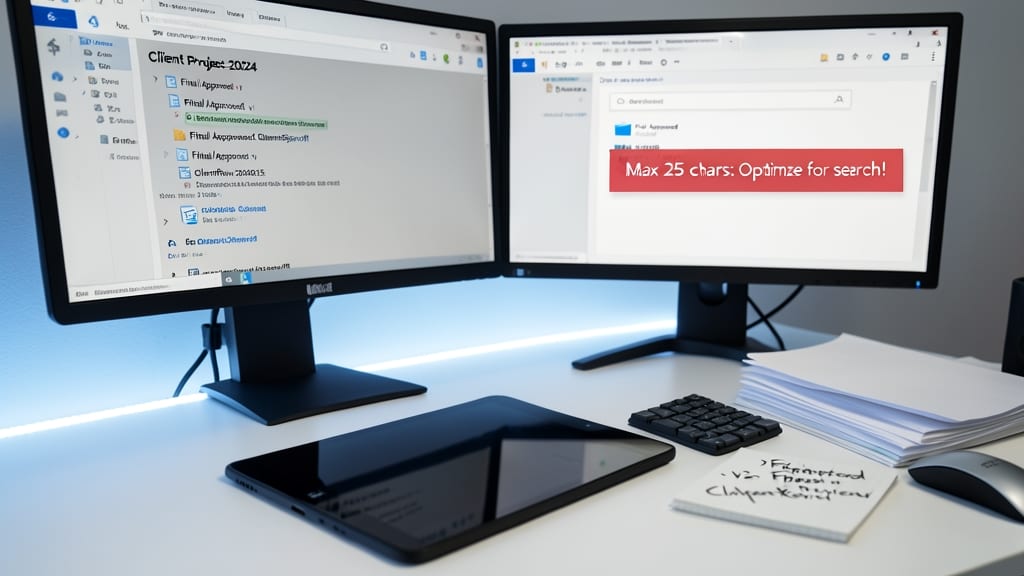
When every character counts in Microsoft’s 255-character limit, your suffixes shouldn’t just describe—they should optimize. Instead of generic "v2" or "final,"* use structured suffixes like FinalApprovedClientReview to boost searchability in OneDrive and SharePoint.
Place the most critical keywords last (e.g., ProjectStatusClientName) so they appear first in search results. This approach works seamlessly with Windows Search and SharePoint metadata, ensuring files surface when teams filter by status or client. For example, "Q2ReportFinalApprovedAcmeCorp_2024" keeps all key details within the limit while improving discoverability.
This method is ideal for legal teams, project managers, and client-facing roles where files must be both descriptive and searchable. It turns chaos into clarity—without sacrificing the 255-character rule. ✨
Avoid Special Characters in Filenames for Cross-Platform Use
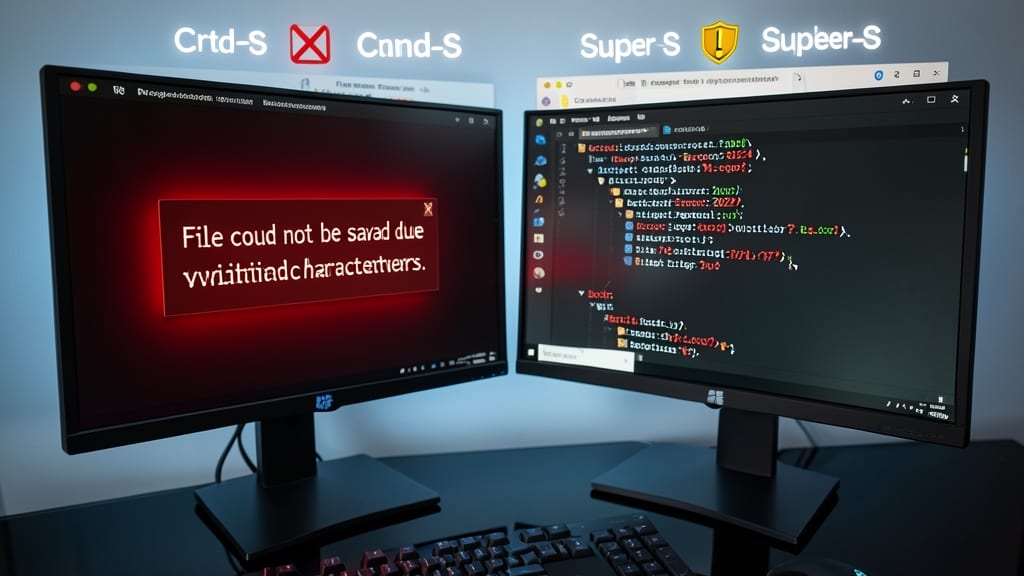
Ever hit "Save" only to get a cryptic error when sharing files across devices? Characters like slashes (/), colons (:), or question marks (?) break compatibility between Windows, macOS, and Linux—even in URLs.
Microsoft’s NTFS filesystem and other OSes treat these symbols as reserved, causing corruption or access issues. Stick to alphanumeric characters, underscores (), hyphens (-), and periods (.) instead. For example, rename "Project?Final.docx" to "ProjectFinal_2024.docx" to avoid headaches when uploading to cloud storage or emailing clients.
This rule is non-negotiable for developers, IT teams, and anyone collaborating cross-platform. A single rogue character can derail workflows—so clean up old files now and future-proof your system. ✨
Consistent Case Sensitivity Rules for Shared Drives
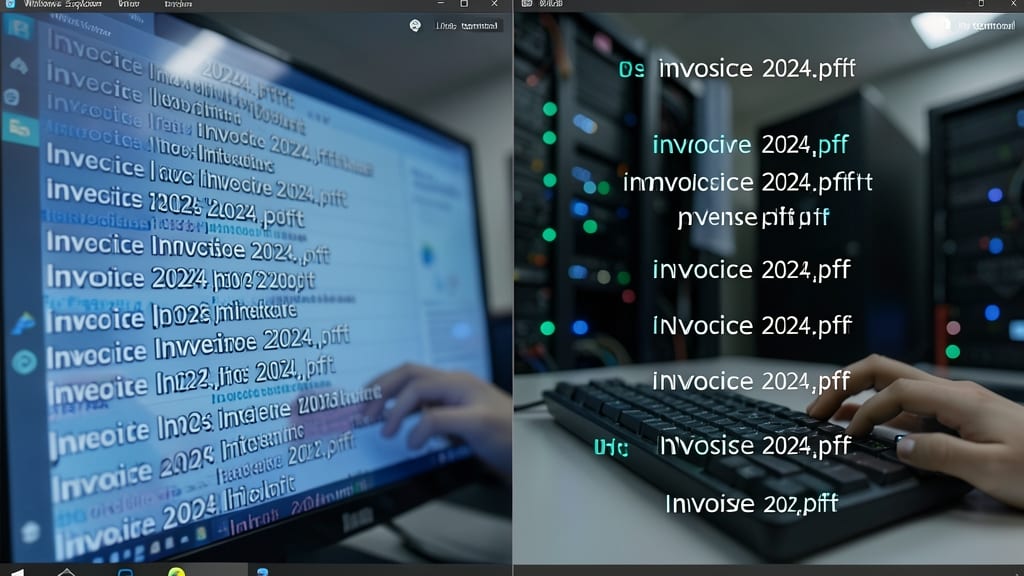
Frustrated when searching for files only to find duplicates like Invoice2024.pdf and invoice2024.pdf? This isn’t just a minor annoyance—it’s a network drive nightmare when Windows and Linux servers handle case sensitivity differently.
Enforce all-lowercase (or all-uppercase) filenames to eliminate duplicates and ensure compatibility across platforms. Tools like PowerShell’s Rename-Item or third-party utilities (e.g., Bulk Rename Utility) can automate this for existing files. For new files, train your team to stick to one case—lowercase wins for cross-platform safety.
Ideal for IT admins managing shared drives or teams collaborating between Windows and Linux environments. A small tweak that saves hours of headaches. ✨
Metadata Tags Over Filenames for Complex Projects
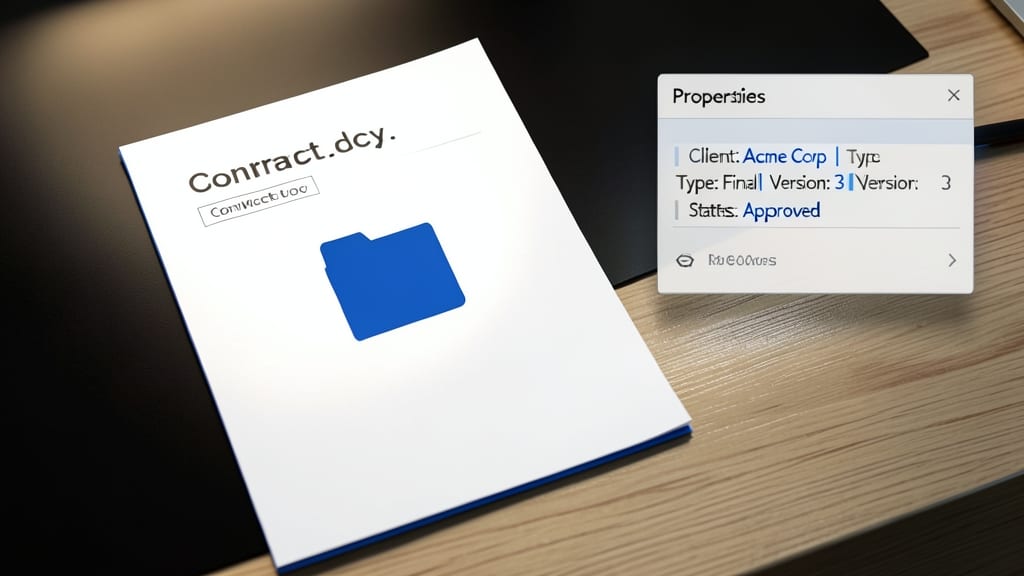
Tired of filenames bloating with redundant details like "ClientAcmeCorpContractFinal_V3.docx"? Microsoft Office’s built-in metadata tags offer a cleaner solution—keeping your filenames short while embedding searchable attributes directly in the file properties.
Add tags like Client: Acme Corp, Status: Draft, or Project: Website Redesign via the Document Properties panel (File > Info > Properties). These tags sync with OneDrive/SharePoint search, letting you filter files by attributes without cluttering filenames. Perfect for agencies or teams juggling multiple clients and project phases.
Ideal for freelancers, marketing teams, and legal professionals managing high-volume documents. ⚡