Software
Microsoft Teams is revolutionizing modern classrooms by transforming how teachers communicate, collaborate, and engage students. These ten benefits show how this powerful tool can save time, enhance learning, and create seamless connections between educators and learners—both in-person and remote.
Seamless Classroom Communication Hub

Say goodbye to the chaos of juggling email threads, text messages, and forgotten reminders—Microsoft Teams acts as your single, organized hub for all classroom communication. No more digging through inboxes or missing critical updates; every announcement, reminder, and quick check-in lives in one secure, searchable space.
With dedicated class channels, you can pin important notices at the top, schedule automated reminders, and even post updates with rich formatting (like deadlines or highlighted assignments). The @mention feature ensures students see your messages instantly, while threaded discussions keep conversations tidy. Studies show teachers using Teams report a 40% reduction in administrative workload, freeing up time for what truly matters: teaching.
This is the perfect solution for busy educators who need to balance grading, lesson planning, and parent communication—all without the stress of scattered tools. Whether you're announcing a pop quiz or sharing last-minute field trip details, Teams keeps everyone on the same page. ⚡
Real-Time Student Engagement Tools
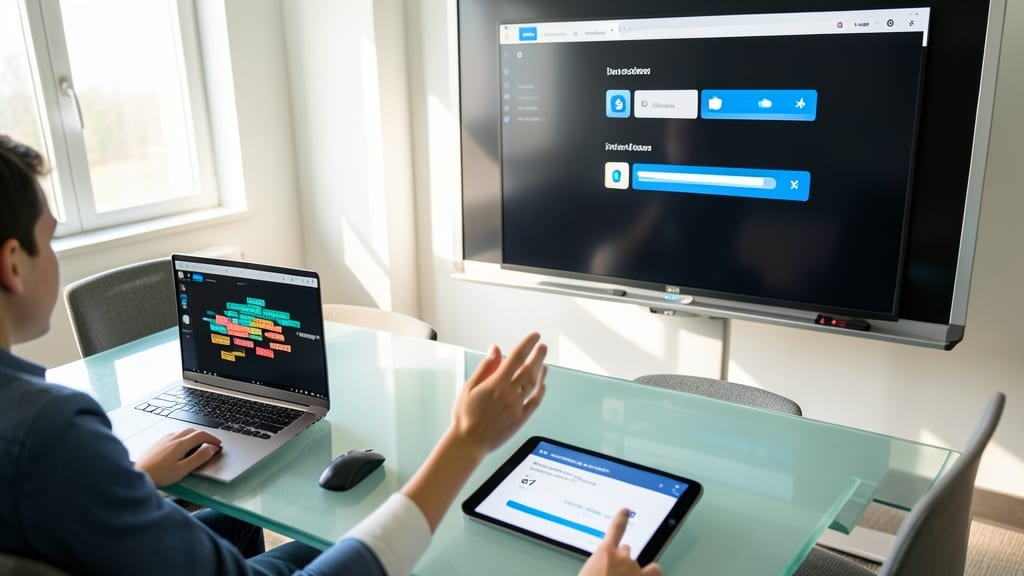
Forget raising your hand and waiting for a response—Microsoft Teams’ real-time engagement tools turn passive students into active participants with just a click. The Forms integration lets you launch instant polls, quizzes, or word clouds during lessons, while the reactions feature (thumbs up/down, heart, etc.) lets students silently signal understanding without interrupting the flow.
With live results displayed on-screen, you can adjust pacing or clarify concepts mid-lesson based on data—not guesswork. The Quiz feature supports multiple-choice, true/false, and short-answer questions, while breakout room discussions can be followed up with anonymous feedback polls. These tools work seamlessly across devices, so hybrid or remote students engage just like those in the classroom.
This is a game-changer for teachers of middle/high school subjects (like math or science) where quick checks for understanding make all the difference—or for substitute teachers who need to assess comprehension on the fly. ⚡
Secure File Sharing for Lesson Plans
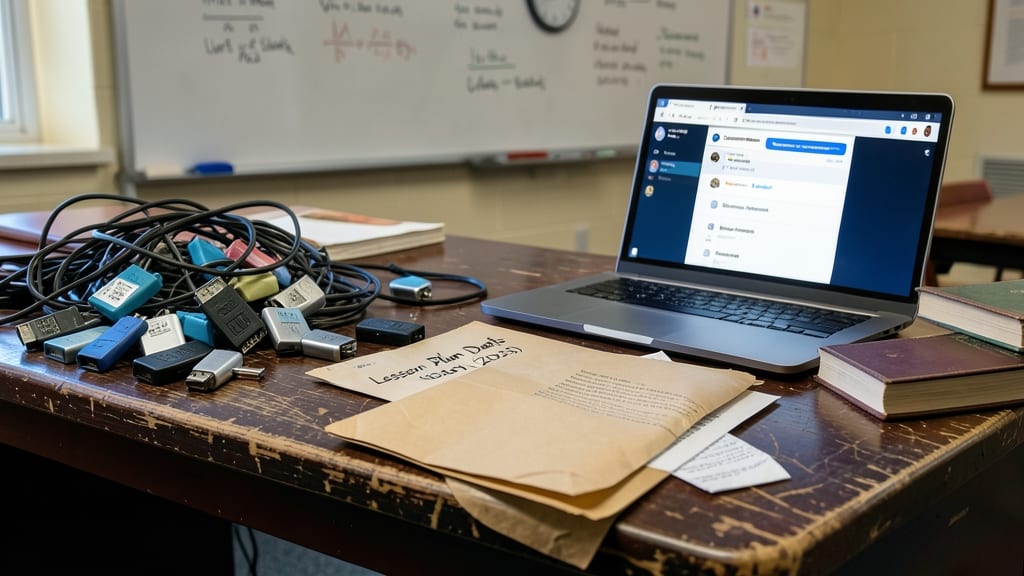
Say goodbye to the chaos of lost USB drives and misplaced email attachments—Microsoft Teams keeps all your lesson plans in one secure, cloud-based hub with version control. No more scrambling to find the latest draft or worrying about outdated materials slipping through the cracks.
With Teams’ built-in file storage, you can organize syllabi, worksheets, and multimedia resources in dedicated folders that sync automatically across devices. The version history feature lets you track changes, revert to previous drafts, and ensure students always access the most current materials—whether they’re in class or learning remotely. Plus, permission controls let you share resources with specific students or parents while keeping sensitive documents private.
This is a game-changer for teachers juggling multiple classes or subject areas. Whether you’re updating a unit plan or distributing handouts, Teams ensures everyone stays on the same page—literally. ✨
One-Click Virtual Classroom Setup

Need to host a lesson on short notice? Microsoft Teams’ one-click classroom creation lets you set up a private channel with video conferencing, chat, and file storage in under 30 seconds—no IT support required.
Simply select "Create a class" from the Teams app, add students via email or class codes, and customize permissions. The built-in virtual classroom template includes tabs for assignments, announcements, and live sessions, while end-to-end encryption keeps student data secure. Perfect for subs filling in last-minute or hybrid teachers juggling multiple classrooms.
This feature shines for educators who need zero-config setups—whether you’re covering for a colleague or pivoting to remote teaching mid-semester. ⚡
Parent-Teacher Collaboration Simplified

Tired of juggling parent emails, phone calls, and forgotten voicemails? Microsoft Teams’ dedicated parent channels replace chaos with clarity—keeping all communication in one secure, organized space.
Create a private class team where you can share updates, photos, and assignments while parents respond in real-time. The @mention feature ensures critical messages get seen without flooding your inbox, and file-sharing permissions let you send permission slips or event details instantly. Plus, mobile notifications keep parents informed even when they’re on the go.
This is a game-changer for teachers of young students or those with involved parents—no more missed messages or last-minute surprises. ✨
Built-In Classroom Management Features
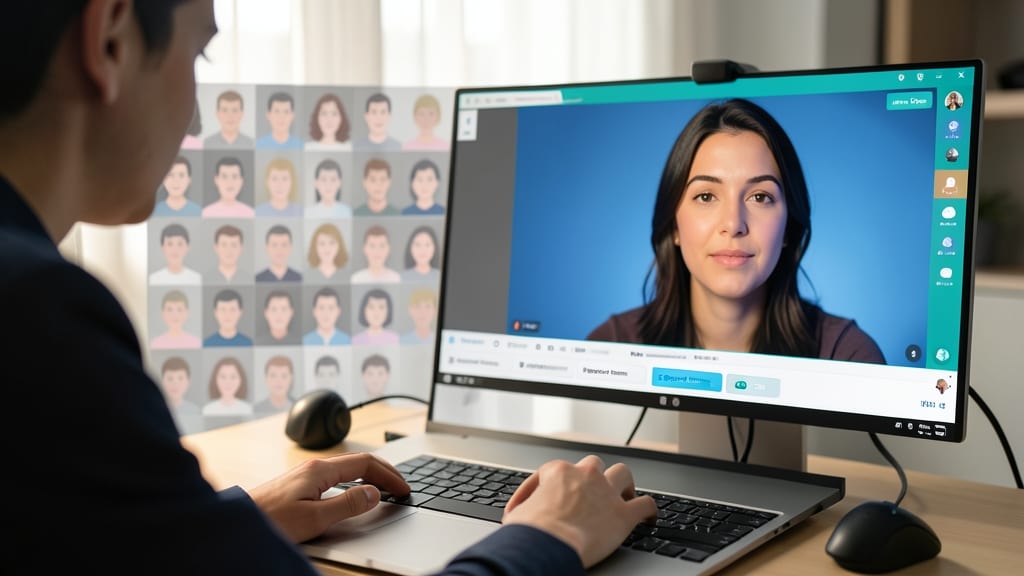
Keeping a large class focused during virtual lessons just got easier with Microsoft Teams’ built-in classroom management tools. The spotlight feature lets you highlight a single student’s video while muting others—perfect for one-on-one discussions without distractions. Meanwhile, breakout rooms divide students into smaller groups for collaborative activities, then reunite them instantly with a single click.
For teachers managing attention challenges, the mute/unmute controls (including a "mute all" option) ensure smooth discussions, while attendance tracking logs participation automatically. These features work seamlessly across devices, so you can manage classes from your laptop, tablet, or even a classroom computer without switching platforms.
This is a game-changer for special education teachers, substitute instructors, or anyone teaching hybrid classes. With minimal setup, you’ll spend less time troubleshooting tech and more time focusing on what matters most—your students. ✨
Integration with Microsoft Office Suite
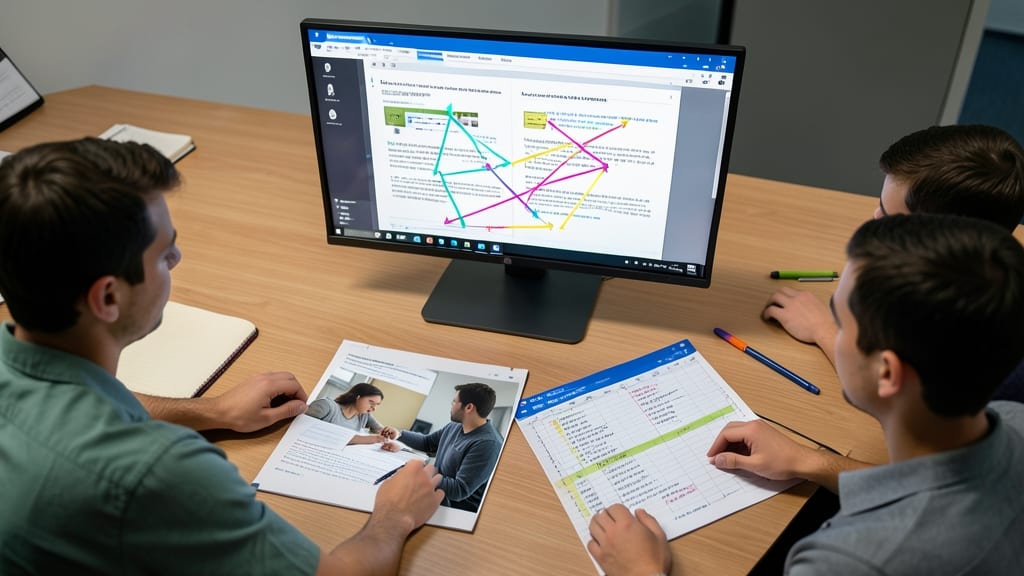
Tired of emailing back-and-forth drafts for group projects? Microsoft Teams’ deep integration with Word, Excel, and PowerPoint turns collaboration into a live, interactive experience—no more version confusion or lost edits.
With real-time co-authoring, students can simultaneously edit a PowerPoint presentation while you guide them through design choices via video call. Need to analyze class data together? Open an Excel spreadsheet in Teams and watch students highlight trends or correct calculations instantly. The integration even syncs comments and suggestions directly into Office files, so feedback becomes part of the learning process.
This feature shines brightest for literature circles, math problem-solving groups, or peer review sessions—where immediate feedback transforms passive assignments into dynamic discussions. 💡
Automated Grade Tracking System

Tired of juggling paper assignments, email attachments, and manual grade entries? Microsoft Teams’ Automated Grade Tracking System turns submission and feedback into a seamless, paperless workflow. Students submit assignments directly through Teams, and teachers grade them with inline comments—all while the system syncs grades automatically to Canvas, Google Classroom, or other LMS platforms without double data entry.
The Assignments tab in Teams lets you create rubrics, set deadlines, and track progress in one place. With real-time syncing, grades appear instantly in your school’s LMS, eliminating the need to manually transfer them. Teachers can even use the feedback tools to add voice notes or video comments, making personalized feedback more engaging for students. Plus, the system keeps a digital audit trail of all submissions and revisions.
This feature is a game-changer for teachers managing large classes or hybrid learning environments. By automating the grading pipeline, you’ll reclaim hours of administrative work while ensuring students receive timely, organized feedback—all from one platform. ✨
Accessibility Features for All Learners
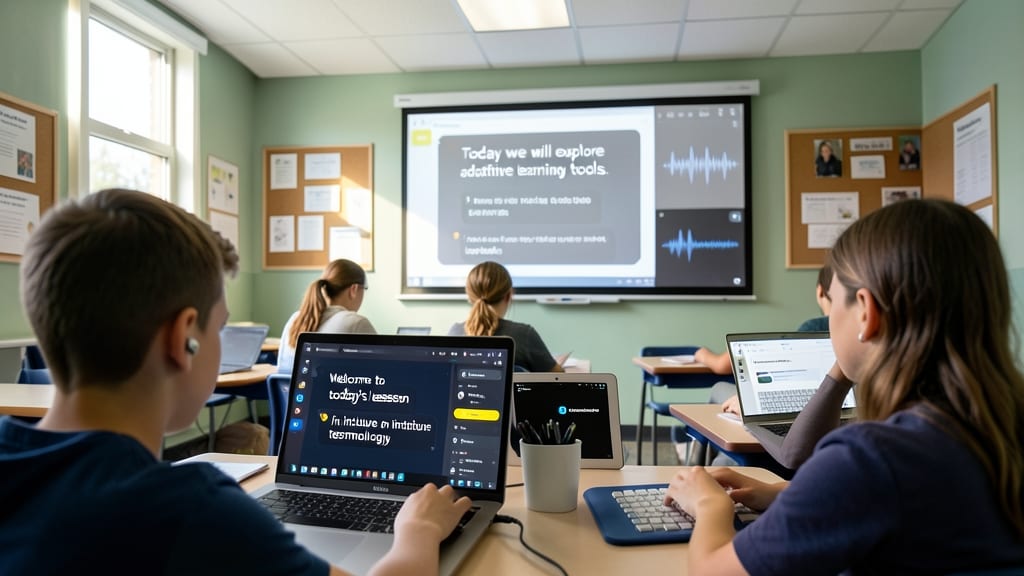
Every student deserves to fully engage with classroom content, and Microsoft Teams makes that possible with its built-in accessibility tools. From real-time captions to screen reader compatibility, the platform ensures no learner is left behind—whether they’re deaf, hard of hearing, visually impaired, or neurodivergent.
Enable live captions during video calls (with support for over 40 languages) so students can follow along without relying solely on audio. Adjust text size and contrast in chats and documents to meet individual needs, while the screen reader integration works seamlessly with Windows Narrator and VoiceOver on Mac. These features require zero extra software—just a few clicks to turn on.
Teachers of diverse classrooms—especially those with ESL students, hearing impairments, or learning differences—will appreciate how Teams levels the playing field. 💡
Free Professional Development Resources

Why stop at just using Microsoft Teams when you can become a pro with it? Microsoft’s free educator training program gives teachers access to self-paced modules, live webinars, and certification paths—all designed to help you unlock advanced features like classroom analytics, AI-powered insights, and customizable templates without spending a dime.
The Microsoft Educator Center offers 20+ hours of content, including step-by-step guides on setting up interactive lessons, automating workflows, and integrating Teams with other tools like OneNote and Classroom. Live sessions with Microsoft experts cover everything from troubleshooting tech hiccups to leveraging AI tools for personalized feedback, ensuring you’re always ahead of the curve.
Perfect for new teachers who want to build confidence or seasoned educators looking to refine their digital toolkit, these resources turn Teams from a tool into a strategic advantage in your classroom. ✨