Software
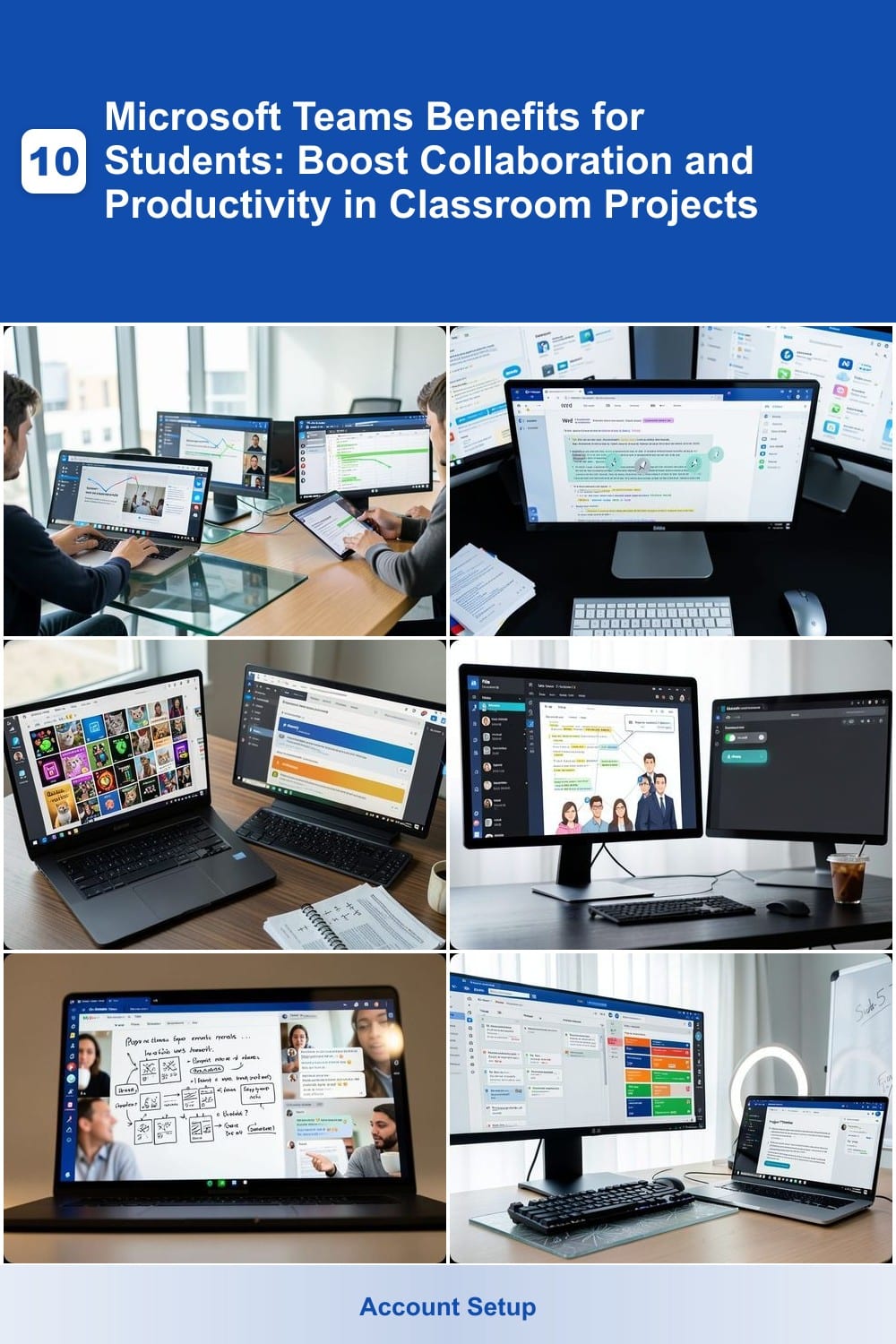
Microsoft Teams isn’t just for businesses—students can unlock powerful collaboration tools to streamline group projects, improve communication, and boost academic productivity. These 10 benefits show how Teams transforms classroom work into a seamless, organized, and efficient experience.
Real-Time Group Project Collaboration

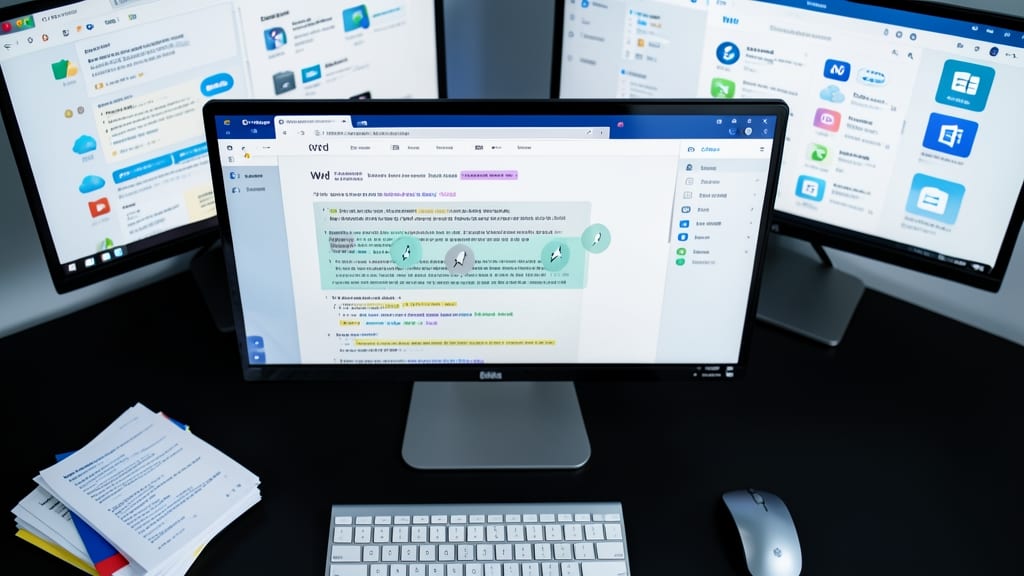
Forget the chaos of emailing drafts back and forth—Microsoft Teams lets you and your group mates edit documents simultaneously in real time. Whether it’s a group presentation in PowerPoint or a shared spreadsheet for budget tracking, every change appears instantly, so no one wastes time merging conflicting versions.
The co-authoring feature works seamlessly with Word, Excel, and PowerPoint, complete with live cursors showing who’s editing what. Need to highlight a section or add a comment? Teams integrates @mentions and threaded discussions directly in the document, keeping feedback organized. Professors love it too, since it eliminates the "I didn’t get the latest version" excuse.
This is your secret weapon for group projects with tight deadlines—no more last-minute scrambles to combine files or track who made which changes. Perfect for design teams, research groups, or even virtual study sessions where ideas need to flow fast. ⚡
Seamless Integration with Office 365
Tired of digging through emails or multiple cloud folders for your latest group project files? Microsoft Teams eliminates that frustration by embedding Office 365 apps directly into your workflow. Open a Word document in Teams, and every edit, comment, or revision stays synced in one place—no more "Which version is the final one?" headaches.
With OneNote integration, you can capture lecture notes, meeting minutes, and research ideas all in one notebook linked to your project channel. The Excel co-authoring feature lets multiple students analyze data together, while PowerPoint presentations update in real time as slides are refined. Best of all, these files stay securely stored in your school’s OneDrive, with automatic version history so you never lose progress.
This is the ultimate solution for research groups, design teams, or study buddies who need to juggle multiple file types without the digital clutter. Your entire project—documents, spreadsheets, and notes—lives in one organized hub, making collaboration smoother than ever. 💡
Organized Classroom Channels
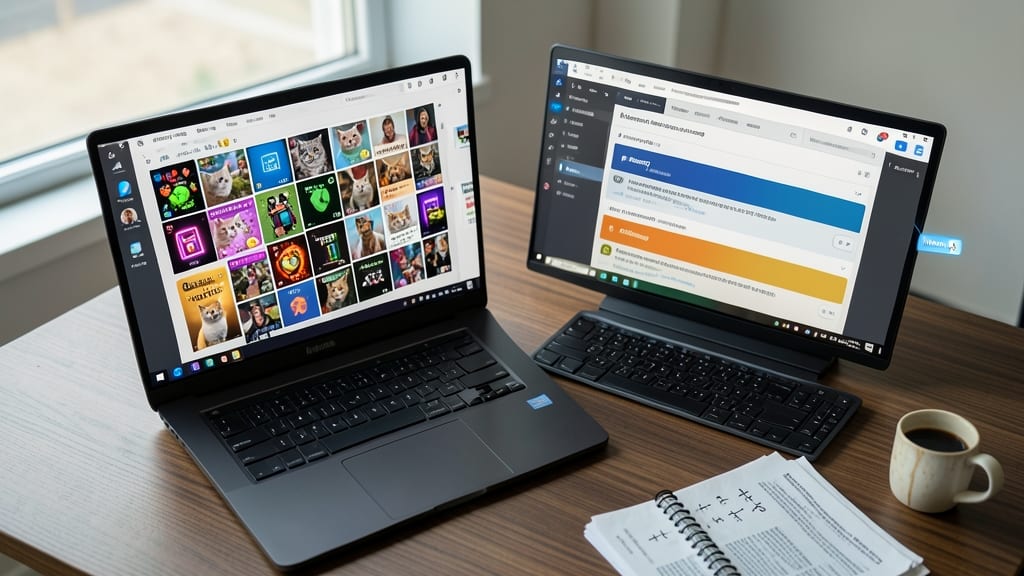
Ever felt overwhelmed by group chats where math project updates get buried under memes and off-topic debates? Microsoft Teams solves this with dedicated classroom channels—think of them as digital folders for each subject or assignment.
Create a #HistoryGroup channel for research discussions, a #CSAssignment channel for coding help, and even a #StudyBuddies channel for focused collaboration. Each channel keeps files, links, and conversations neatly separated, so you never miss a deadline or important resource. Pin key announcements or files at the top for instant visibility—no more digging through endless threads.
This system works best for students juggling multiple projects or classes. Whether you're in a group project or solo coursework, organized channels turn chaos into clarity. ✨
Secure File Sharing and Version Control
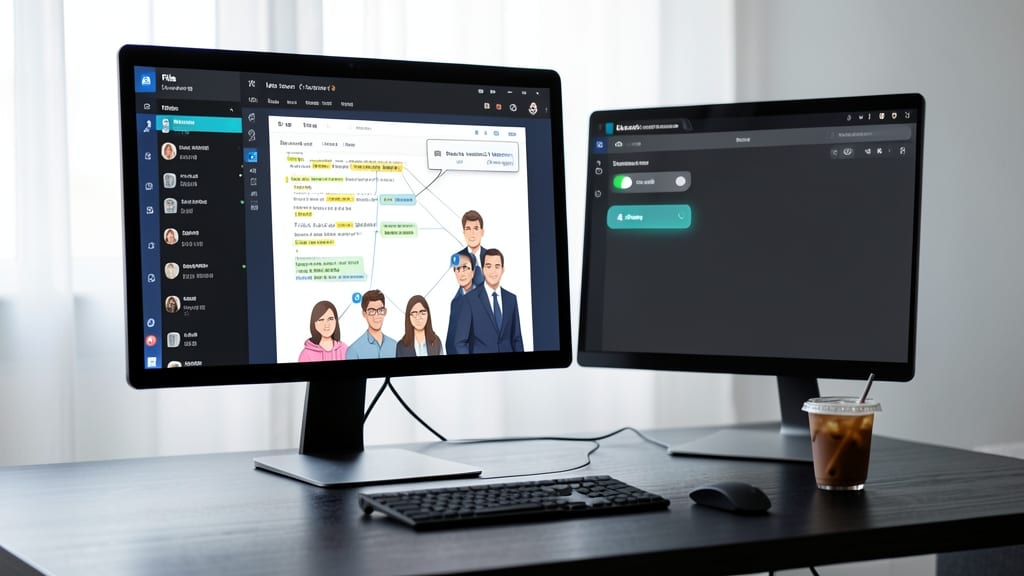
Forget the "final draft" panic—Microsoft Teams’ version control feature acts like an automatic time machine for your group projects. Every edit, deletion, or revision is saved, so you can always roll back to a stable version if things go wrong.
With permission settings, you control who can view, edit, or download files, preventing accidental overwrites or leaks. The version history lets you track changes down to the minute, while cloud backups ensure files stay safe even if a device crashes. No more frantic emails like, "Wait, who saved over my work?!" ⚡
Virtual Study Group Meetings
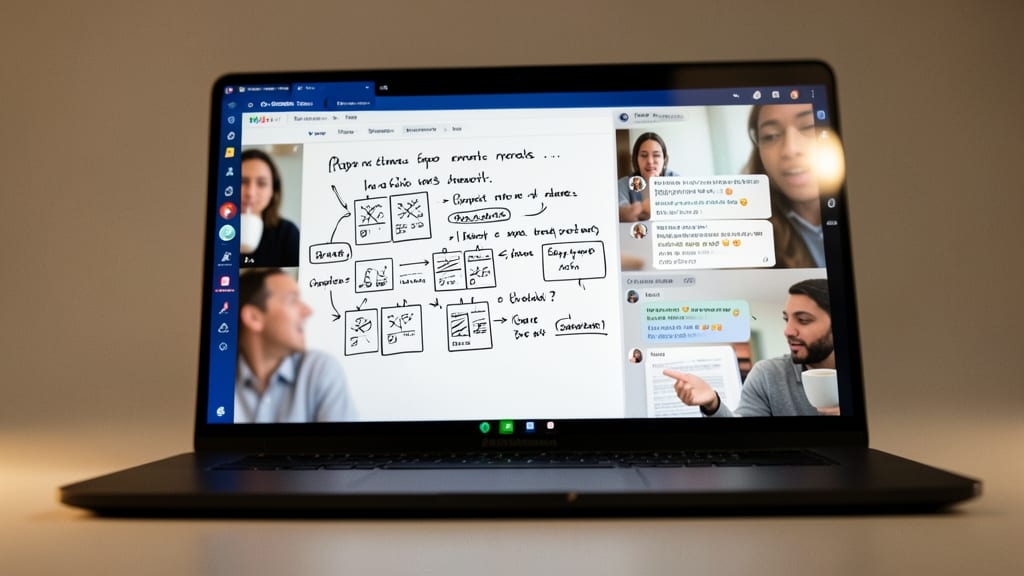
Need to study for an exam but can’t meet in person? Microsoft Teams’ built-in video conferencing turns your laptop into a virtual study hall—complete with screen sharing, whiteboard tools, and real-time chat. No extra apps or complicated setups required.
With 4K video support, background blur, and screen-sharing for presentations, you can annotate documents together, solve math problems on a shared whiteboard, or review group projects as if you’re all in the same room. The 10,000-participant limit (yes, really) means even large study groups stay connected—no one gets left out.
Perfect for night owls, commuters, or students juggling multiple time zones, this feature turns solo study sessions into collaborative power hours without the hassle. ✨
Task Assignment and Deadline Tracking
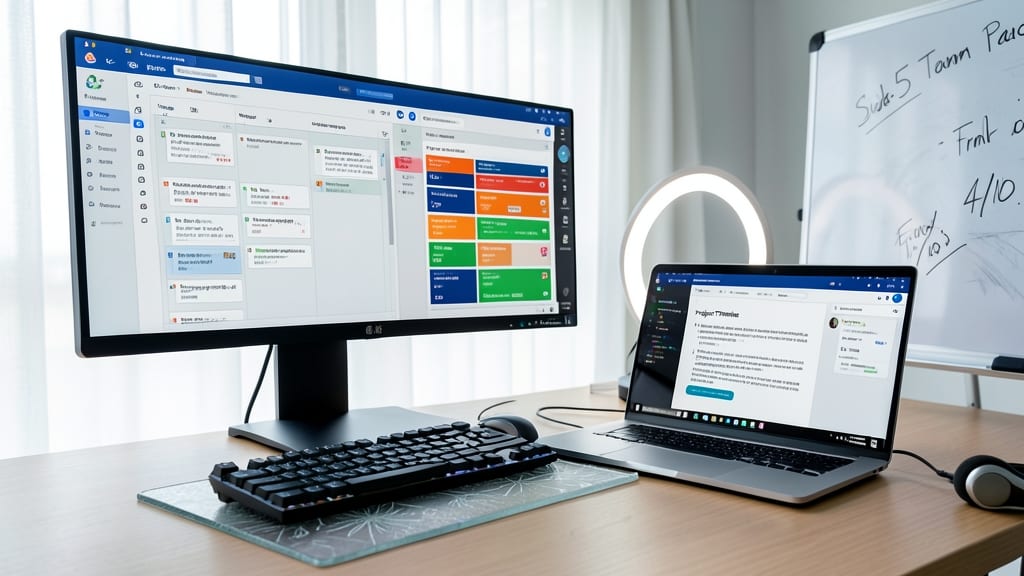
Forget the chaos of group projects where deadlines slip through the cracks—Microsoft Teams’ built-in Planner integration turns disorganized tasks into a structured workflow. Assign sections of a research paper, set due dates for coding milestones, or delegate presentation slides—all with just a few clicks, no third-party apps needed.
Each task syncs with your calendar, shows real-time progress bars, and sends automated reminders (customizable to avoid notification overload). The visual Kanban board lets your team drag tasks between "To Do," "In Progress," and "Done" columns, making bottlenecks obvious at a glance. Best of all, it’s zero-config—no extra logins or subscriptions required.
This is the secret weapon for history group papers, CS capstone projects, or art portfolio deadlines—where every minute counts. ⚡
Instant Communication with Professors
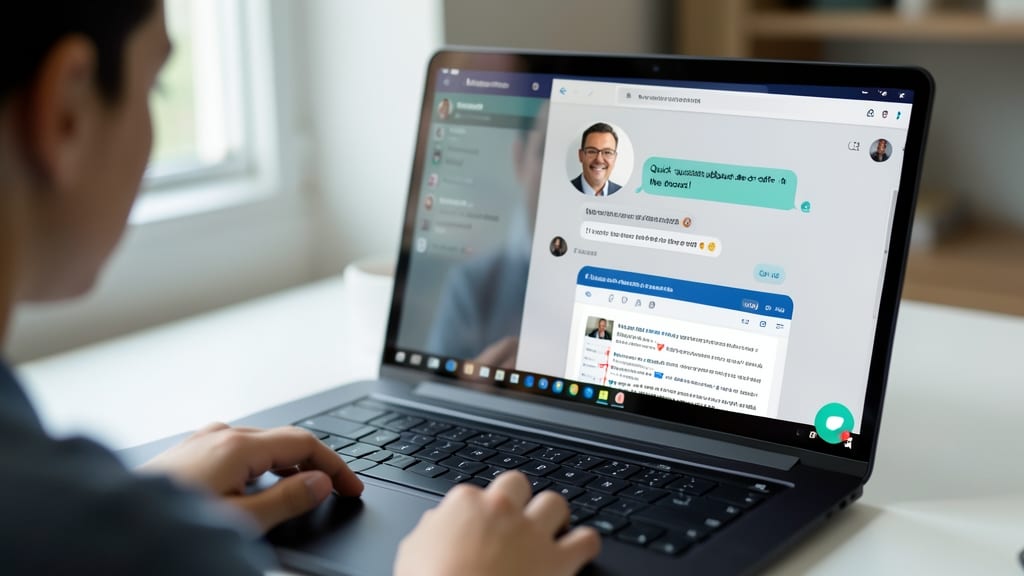
Struggling to get a quick answer from your professor before a deadline? Microsoft Teams’ direct messaging feature bridges that gap—letting you send questions, request clarifications, or share drafts in real time, with typing indicators showing when they’re responding.
The persistent chat history keeps all your academic conversations organized, while file attachments let you share drafts or reference materials instantly. Unlike email chains or forum posts, these conversations feel personal and immediate, making it easier to get the help you need when it matters most.
Perfect for students juggling multiple classes, this tool cuts down on back-and-forth emails while keeping your professor’s feedback just a tap away. ✨
Accessible Anywhere with Mobile App

Forget being glued to a desktop—Microsoft Teams’ mobile app turns your smartphone or tablet into a full-featured collaboration hub. Whether you’re waiting for your bus, grabbing lunch between classes, or studying in the library, the app lets you join meetings, edit shared files, or reply to group chats without missing a beat.
The app supports real-time video calls with up to 100 participants, file previews and downloads, and even mobile-optimized task management—all while syncing seamlessly with your desktop experience. Offline mode ensures you can review files or draft messages when Wi-Fi is spotty, and push notifications keep you updated on urgent project updates. Plus, the intuitive interface mirrors the desktop version, so no learning curve exists for students already familiar with Teams.
Perfect for commuter students, hybrid learners, or those juggling multiple projects, the mobile app eliminates the "I’ll do it later" excuse. Whether you’re tweaking a group presentation during a 10-minute break or jumping into a last-minute study session, Teams keeps you connected—no matter where life takes you. ✨
Customizable Notifications for Focus

Late-night study sessions don’t have to mean constant interruptions. Microsoft Teams lets you mute notifications for specific channels during focused work, so you can block out chatter from group projects while still catching urgent messages like professor replies or deadline reminders.
With customizable alert settings, you can prioritize what truly matters—like @mentions or file updates—while silencing less critical pings. The Do Not Disturb mode even lets you pause all notifications for hours, perfect for exam prep or deep work. Plus, you can set snooze timers to temporarily mute alerts without missing anything important.
This feature is a game-changer for students juggling multiple projects, letting you control your digital environment. Whether you're in a library or your dorm room, stay productive without losing touch. ✨
Free Education Licensing for Students
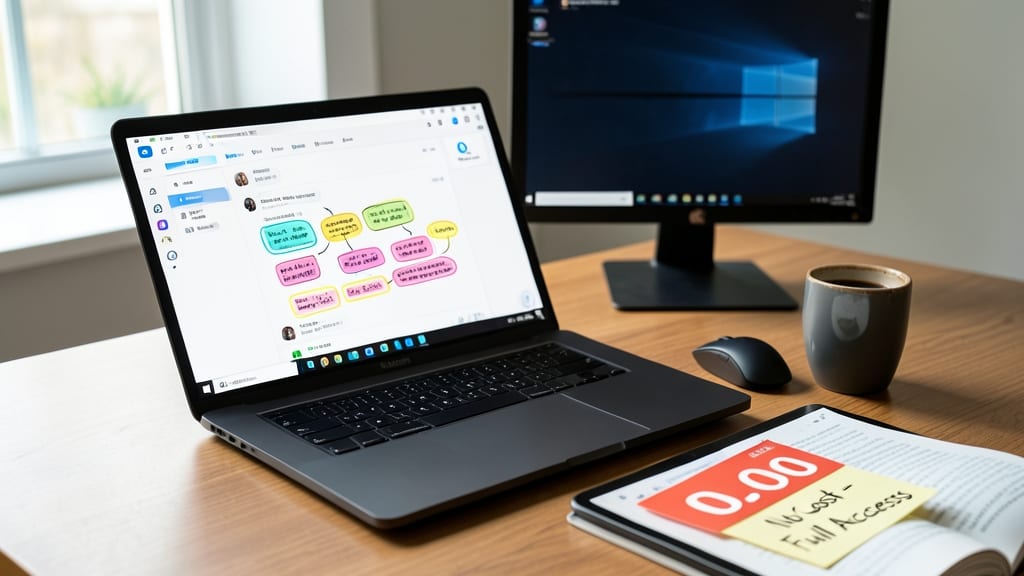
Forget paying for productivity tools—Microsoft Teams is completely free for students through Office 365 Education, giving you full access to all collaboration features without a penny spent. This isn’t a trial or limited version; it’s the same powerful platform used by professionals, but tailored for academic success.
With zero subscription fees, you get unlimited cloud storage, advanced security features, and all premium Teams functionalities—including video meetings, file sharing, and task management. Whether you’re working on a group project or studying with peers, this removes financial barriers while keeping your work organized and professional.
Perfect for college students, high schoolers, and online learners, this benefit means you can focus on your studies—not your budget. 💻